If your school asks each family to give a number of volunteer hours a year, Trivium counts them for you. Shifts a family worked count once the office confirms they came. Time given outside a shift counts once the office approves it.
Where to find it
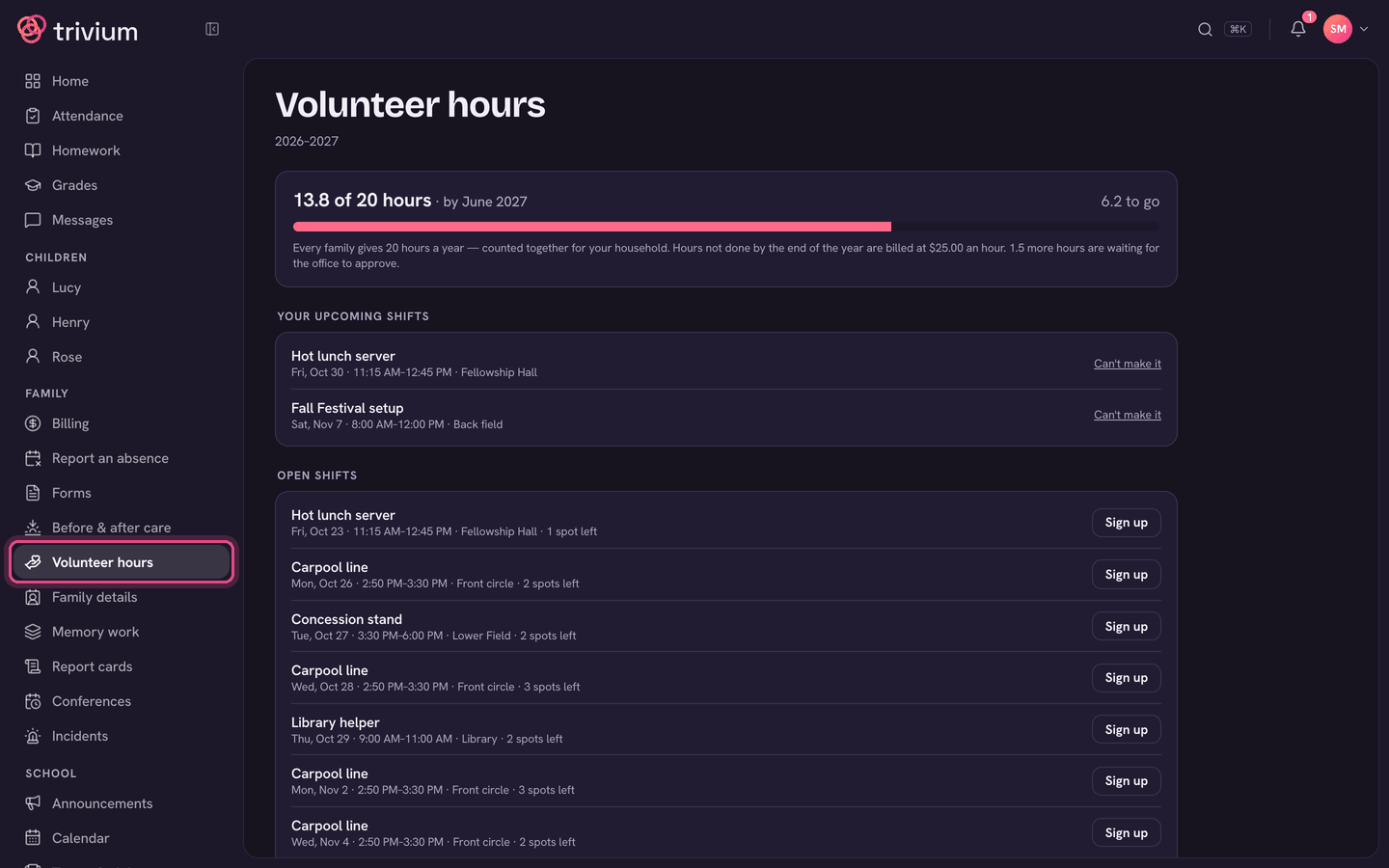
Parents: choose Volunteer hours in the Family group of the sidebar. It shows once your school has set an hours requirement for this year. Admins: choose Activities in the sidebar, then the Volunteers tab, then Hours.
For families
- The top card shows your hours against the year's target (for example 6 of 20 hours · by June) and how many are left. Hours count for the whole household together.
- If the school charges for hours not done, the card says the hourly rate billed at the end of the year.
- Open shifts lists the times you can help. Choose Sign up on one. Your upcoming shifts lists the ones you've taken.
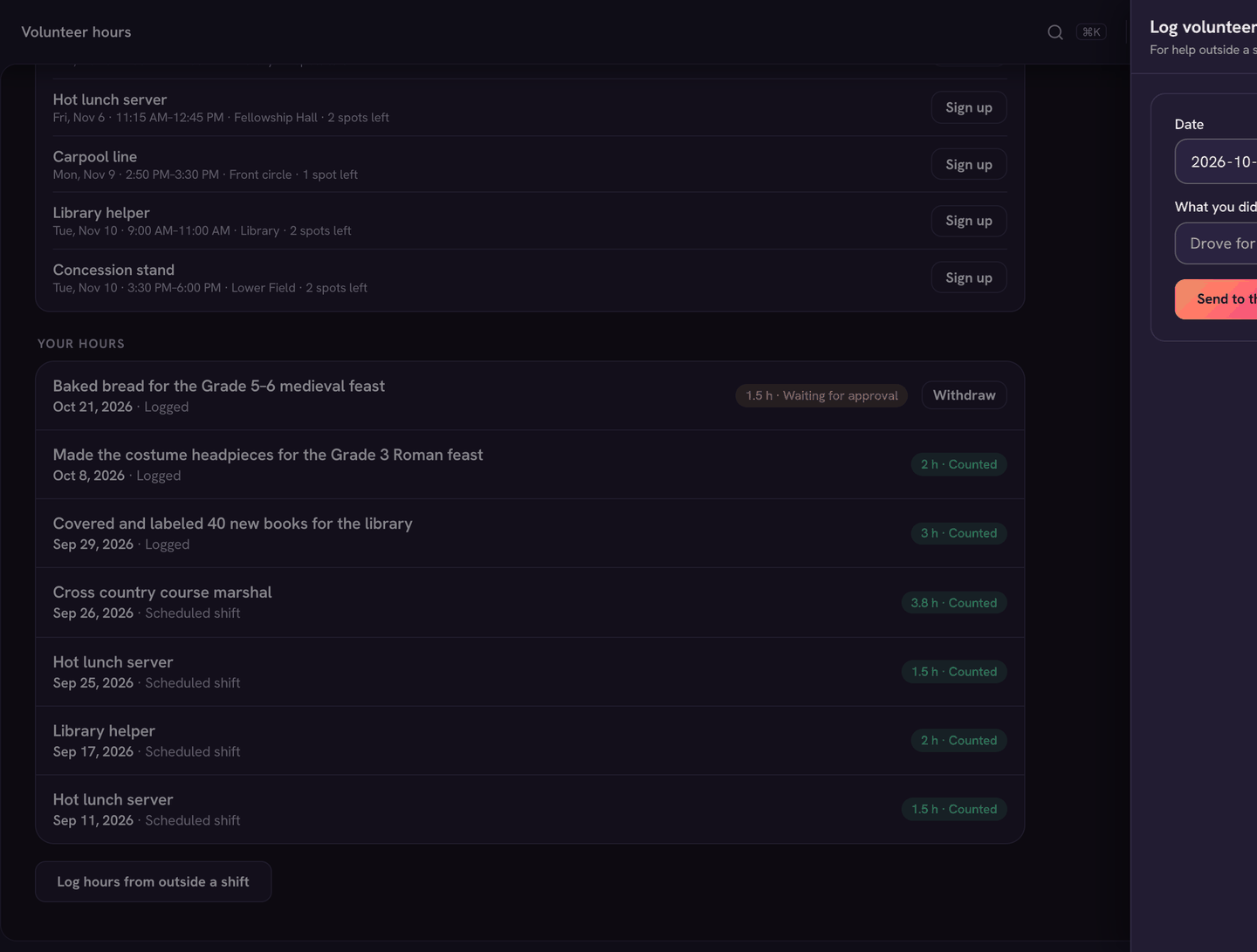
- Your hours lists every shift and logged hour, marked Counted, Waiting for approval or Not counted.
- Helped outside a scheduled shift? Choose Log hours from outside a shift at the bottom of the page.
- Fill in the Date, the Hours and What you did.
- Choose Send to the office. It shows as Waiting for approval until the office approves it. Changed your mind? Choose Withdraw while it's waiting.
For the office: shifts
- Open Activities → Volunteers. The chips are Schedule, Positions, Volunteers and Hours.
- Add the jobs first: ⋯ → Add position. Give it a Position name, Location and Description, and choose Sign-up: Admin assigns, or Open sign-up so parent volunteers can claim open shifts.
- Choose + Schedule shift. Pick the Position, Date, Start and End, and Volunteers needed. Tick Flexible time for a job done any time in a window, or Repeat weekly for a regular shift. Choose Schedule shift.
- ⋯ → Enable all parents makes every parent a volunteer, so they see open positions.
- After a shift, Needs confirming appears on Schedule. Tick Attended beside each person who came. Only confirmed shifts count toward a family's hours.
For the office: hours
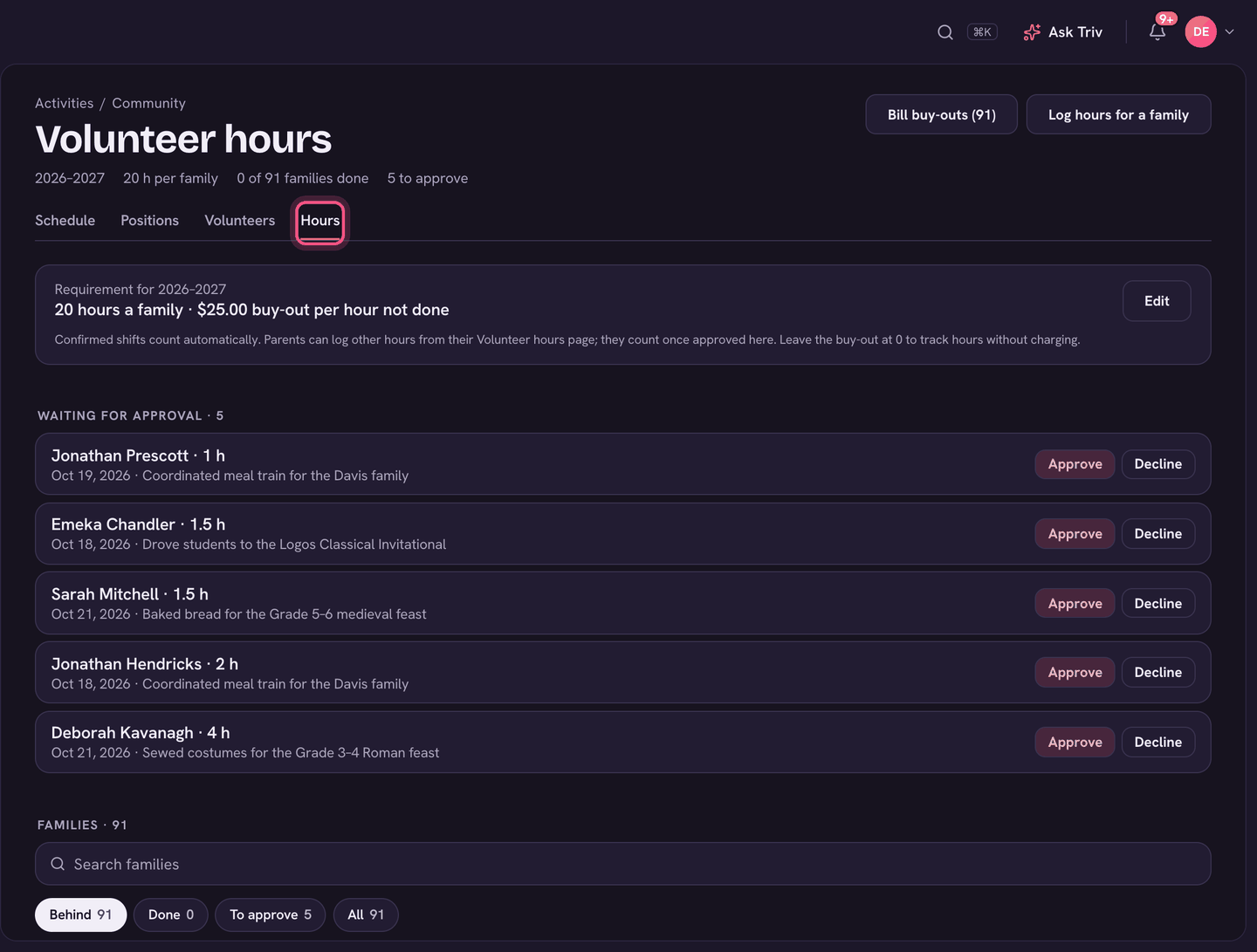
- Open the Hours chip. The top line shows the year, the hours per family, how many families are done, and how many logs are waiting.
- Set the year's target: fill in Hours per family and, if you charge for hours not done, Buy-out per hour not done. Choose Set requirement (Edit changes it later). Leave the buy-out at 0 to track hours without charging.
- Under Waiting for approval, choose Approve or Decline on each family's logged hours. Declining asks for a short reason for the family.
- Families lists every household, furthest behind first, with their shift hours, logged hours and progress.
- Saw a parent help? Log hours for a family adds hours that count straight away.
- At the end of the year, Bill buy-outs sends one invoice to each family short of their hours.
No requirement set yet? Families still see the hours they've given, just without a target. The parent sidebar row appears once a requirement is set for the current year.
On the app
Families: open the menu (tap your avatar) and choose Volunteer hours under Family. You'll see your progress and Your hours, and Log hours sends time given outside a shift for approval. Signing up for shifts and everything the office does is on the web.