Before & after care is a sign-in sheet for your care programs. Staff sign children in and out, with who collected them. A late pickup is charged by itself. Once a month the office bills it with the family's other invoices.
Where to find it
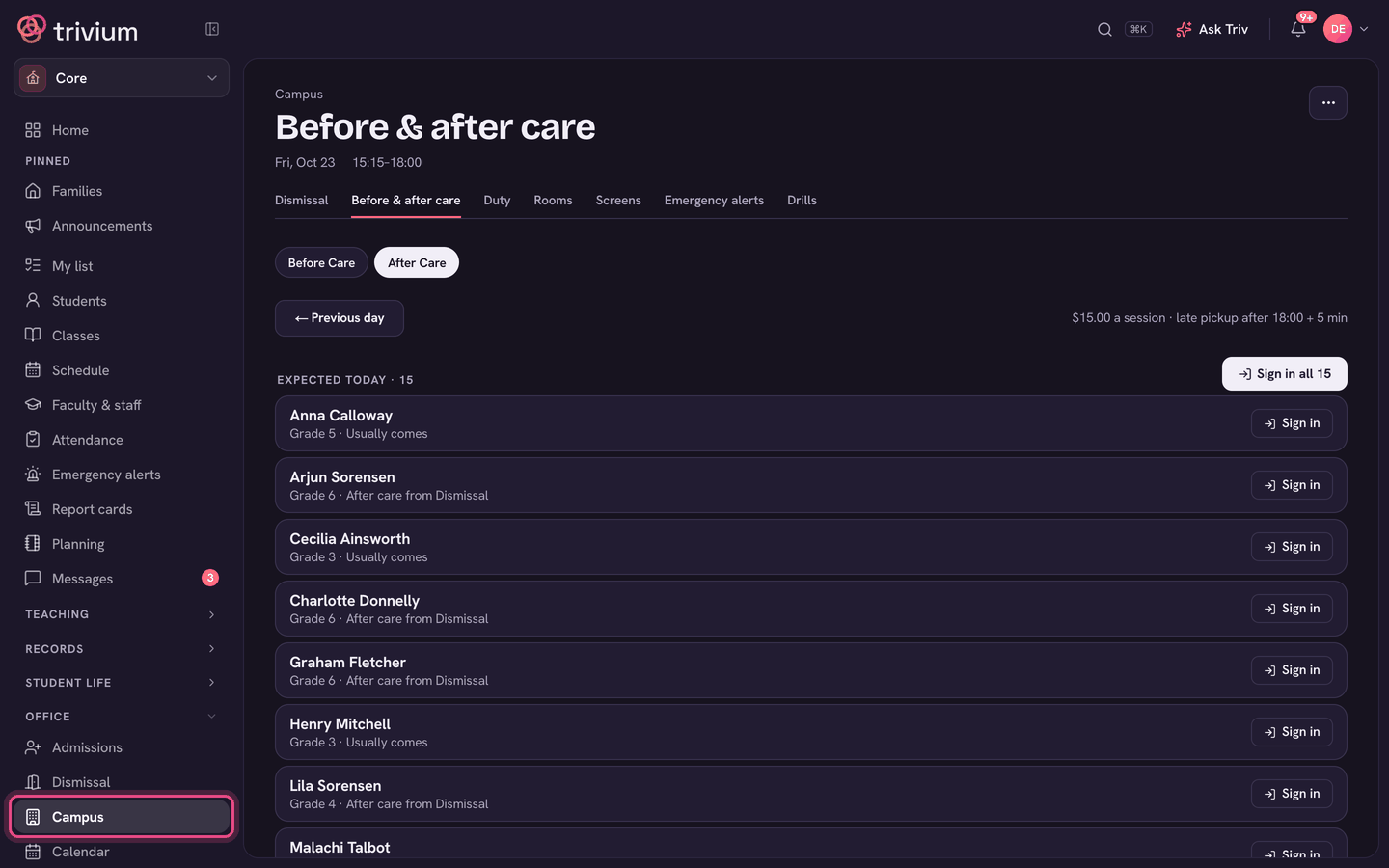
Admins: choose Campus in the sidebar, then the Before & after care tab. Teachers: open the Students group in the sidebar and choose Before & after care. Parents: choose Before & after care in the Family group. The row shows once your school runs a care program.
Set up a program (admins)
- The first time, choose Set up after care or Set up before care. Later, open ⋯ → Programs and fees and use + Add after care or + Add before care.
- Give it a Name, the times it Opens and Closes, and the days it Runs on.
- Under Fees, set the Fee per session, the Late pickup fee, any Plus per minute late, and the Grace (minutes).
- Choose Add program. Edit changes a program later, and Pause stops it running (Resume brings it back).
Late pickup only applies to after-school programs. Once closing time plus the grace minutes has passed, the late fee is charged, plus the per-minute rate counted from closing.
Run the sheet
- The sheet opens on the program that's running now. If you have more than one, switch with the chips under the title. Previous day and Next day move through the days.
- Expected today lists children who should be coming: those whose family chose after care today, whose usual way home is after care, or who usually come. Choose Sign in on each, or Sign in all.
- For a drop-in, type their name in the search box and choose Sign in.
- When someone arrives to collect a child, choose Sign out. Tap a name from the child's pickup list (or type one) and choose Sign out.
- The child moves to Gone home with their times and who collected them. A late pickup shows the minutes late and the fee.
- Half an hour after opening, an expected child who hasn't come shows Not arrived.
- After closing, children still here show Past closing.
- Signed someone in by mistake? Choose Remove. Signed out by mistake? Choose Undo under Gone home.
- Admins can Waive a late fee (or Charge it again) until the month is billed.
If you type a name that isn't on the child's pickup list, the sheet warns you. Check with the office if you're unsure.
Bill the month (admins)
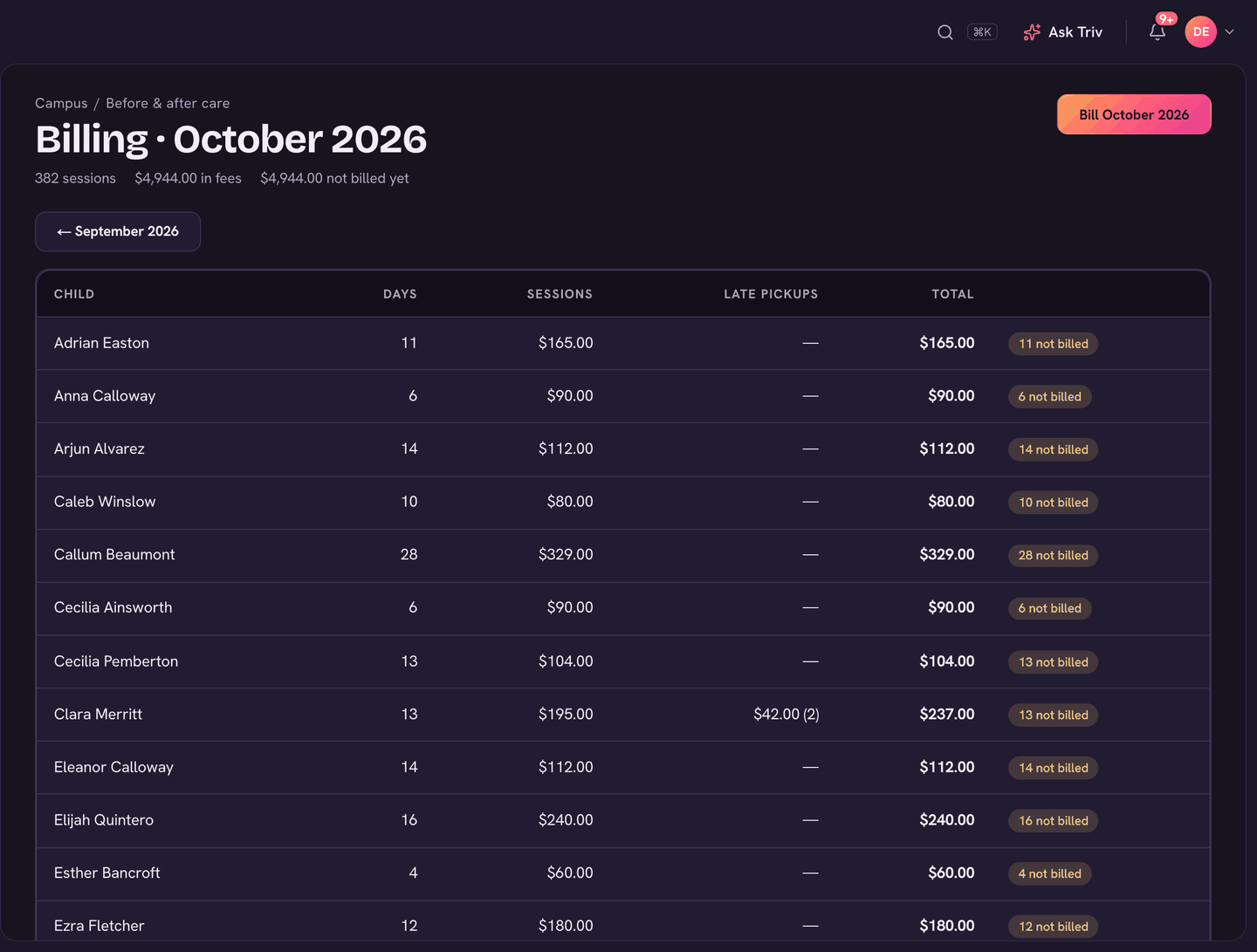
- Open ⋯ → Billing on the care sheet.
- Each child's row shows the Days, Sessions, Late pickups and Total. Use the month arrows to look back.
- Choose Bill (the month) and confirm. Each family gets one invoice for their children's care that month, and the rows show Billed.
For families
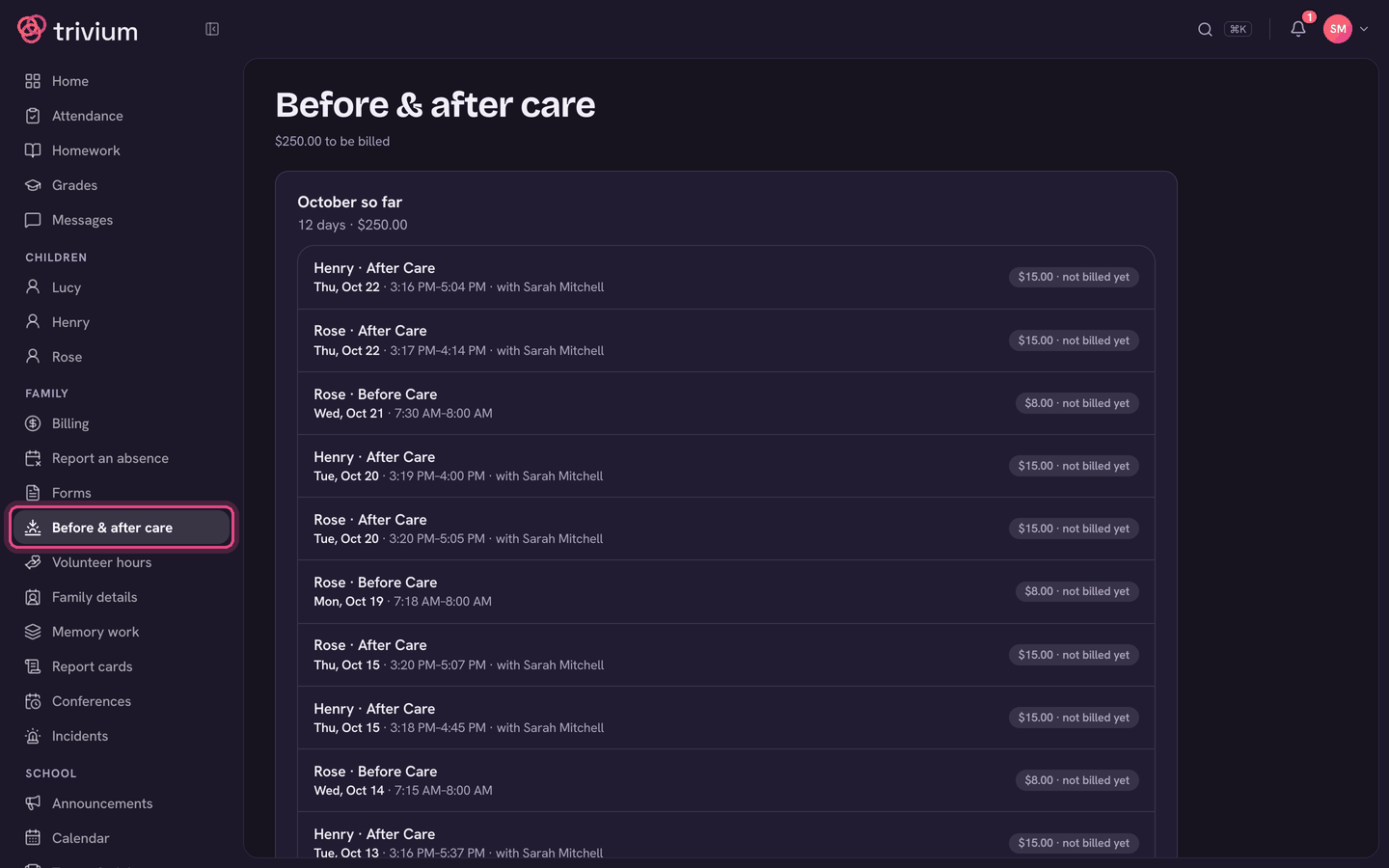
- The top card shows this month so far: how many days, the cost, and any late pickups, with each day listed below.
- Each day shows the times, who collected your child, and the cost. not billed yet means the office hasn't billed that month. No charge means the fee was waived.
- On a day after care runs, the Today section has Staying for after care and Not today for each child. Your choice goes straight onto the care sheet and today's dismissal list.
- Who can collect lists the people the school may release your children to. Edit takes you to Family details to change it.
- Care is billed once a month. It shows under Billing with your other invoices.
On the app
Families: open the menu (tap your avatar) and choose Before & after care under Family. It shows the same month, the Today buttons and Who can collect. Running the care sheet, setting up programs and billing are on the web only.