Rooms shows one day across every bookable room: the timetable's classes and everyone's bookings. Any staff member can book a free room. Trivium refuses a double booking or a clash with a class.
Where to find it
Teachers: choose Rooms in the sidebar. Admins: choose Campus in the sidebar, then the Rooms tab.
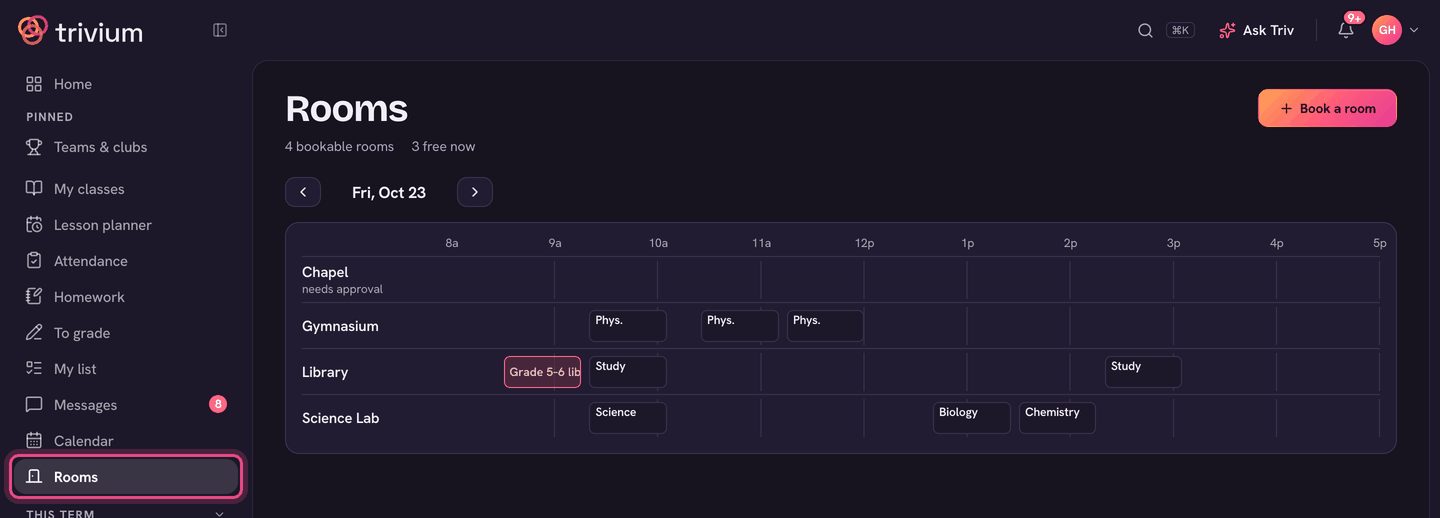
Read the day
- Periods shows a column for each period of the timetable. Timeline shows the day as a strip, for odd times. Switch between them at the top right.
- Classes are grey. Bookings are in colour, and striped while they wait for approval.
- On today's view, the top line says how many rooms are free now.
- Use the arrows by the date (or Today) to look at another day.
- On a phone, Rooms opens on the rooms free now and next. Whole day grid shows everything.
Book a room
- Choose + Book a room at the top, or + Book in a free slot on the grid (that fills in the room and the times).
- Pick the Room, say What for, and set the Date, From and To.
- To book the same time every week, change Repeat from Just this once to Weekly for 2 to 12 weeks.
- Add any Notes ("Set out 20 chairs") and choose Book.
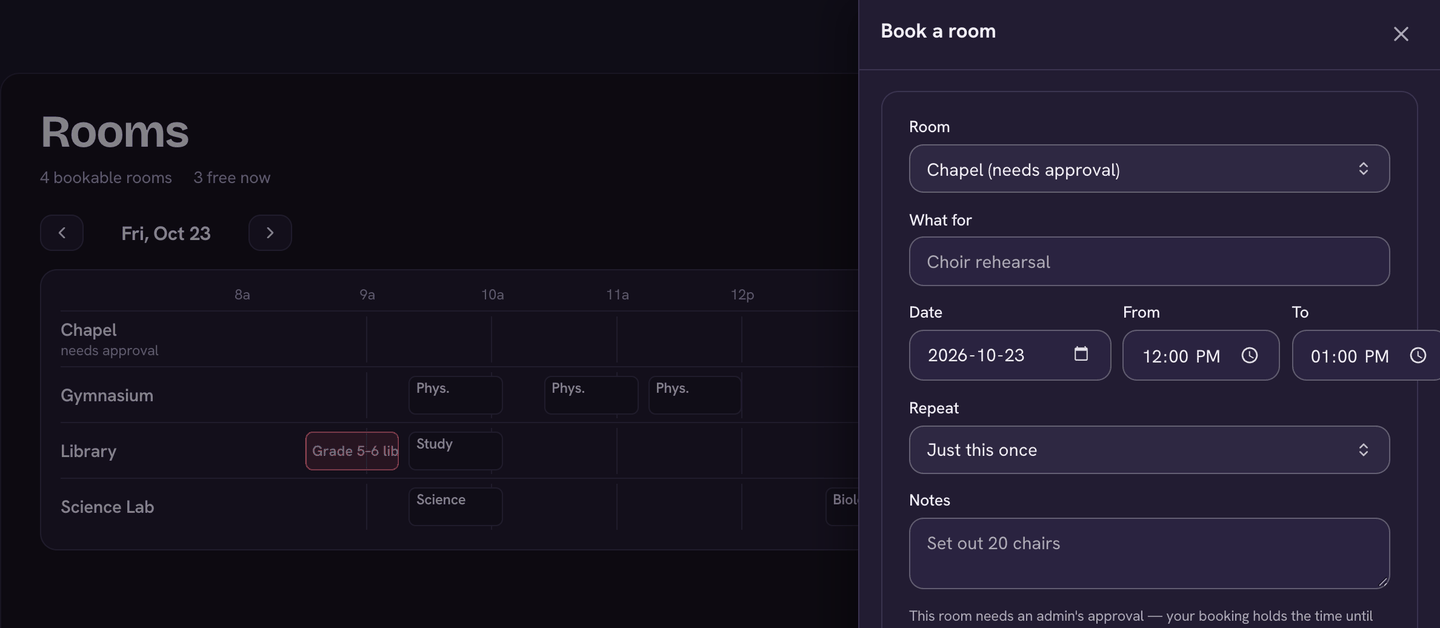
A room marked (needs approval) holds your time until an admin decides. Your bookings are listed under Your upcoming bookings, with waiting for approval beside any that aren't approved yet.
To cancel, choose your booking on the grid and choose Cancel booking. For a weekly booking you can also choose Cancel this and later weeks.
For admins
- Waiting for your approval lists bookings for rooms that need it. Choose Approve or Decline.
- Clashes in the header shows rooms where two classes (or a class and a booking) hold the room at once. Fix in Schedule takes you to the timetable. If the classes really do share the room, choose Shared room on the clash.
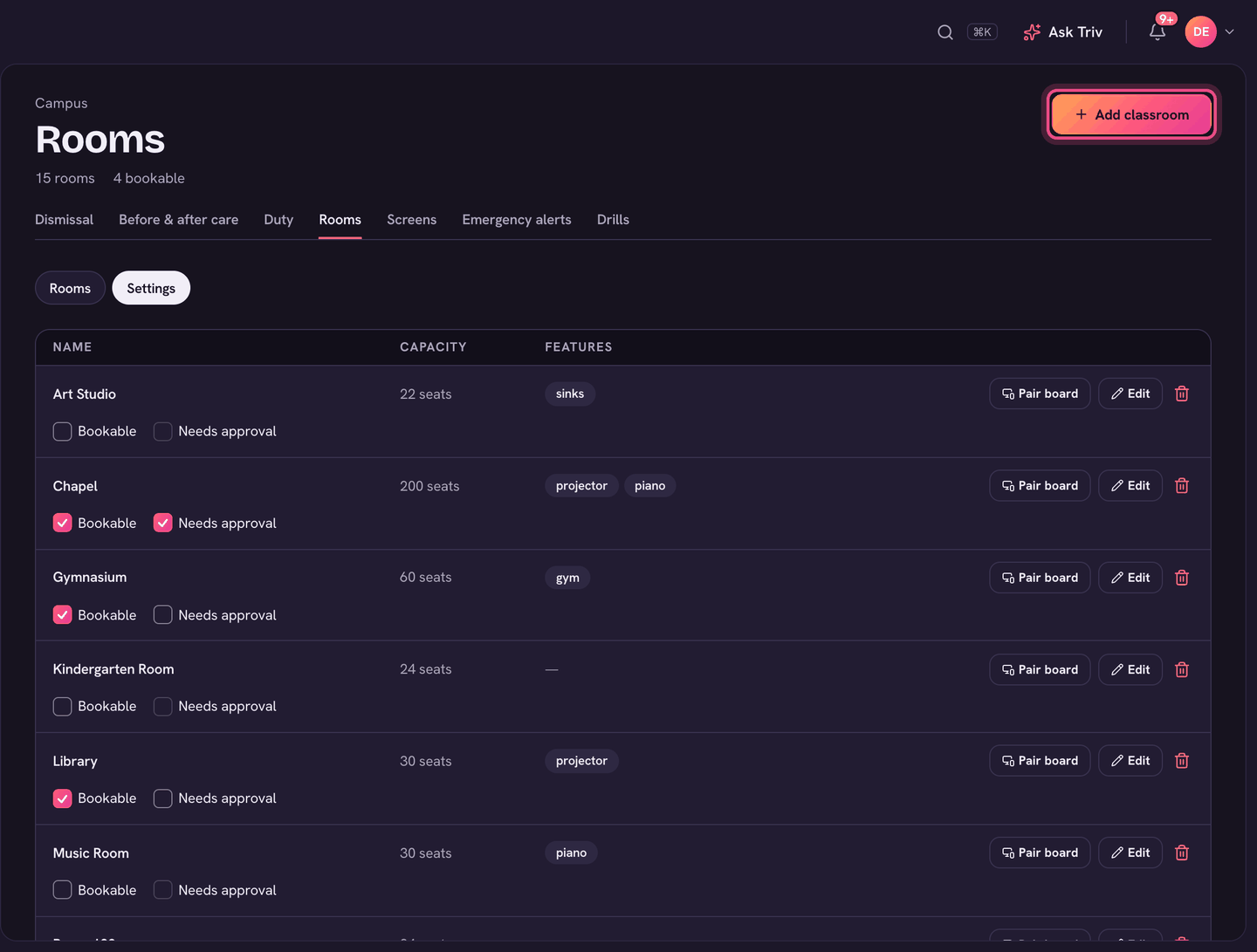
- Open the Settings tab on Rooms to see every room with its Name, Capacity and Features.
- Choose + Add classroom to add one. After adding, open the room to set its eligible subjects.
- Under each room, tick Bookable to put it on Rooms for staff to book, and Needs approval if bookings need an admin's yes.
- Choose a room's name to edit its details, its Eligible subjects (which subjects the scheduler may place there) and its Boards.
Capacity and subjects feed the master scheduler. It flags a lesson placed in a room that's too small for the cohort or isn't set up for the subject.
On the app
Rooms and room booking are on the web only. On a phone, open Trivium in your browser: Rooms opens on the rooms that are free now.