Any TV or screen with a web browser can be a hallway sign. It shows today's bells, hallway notices, upcoming events and the weather, and it takes over for every emergency alert. It never shows a roster or a student's name.
Where to find it
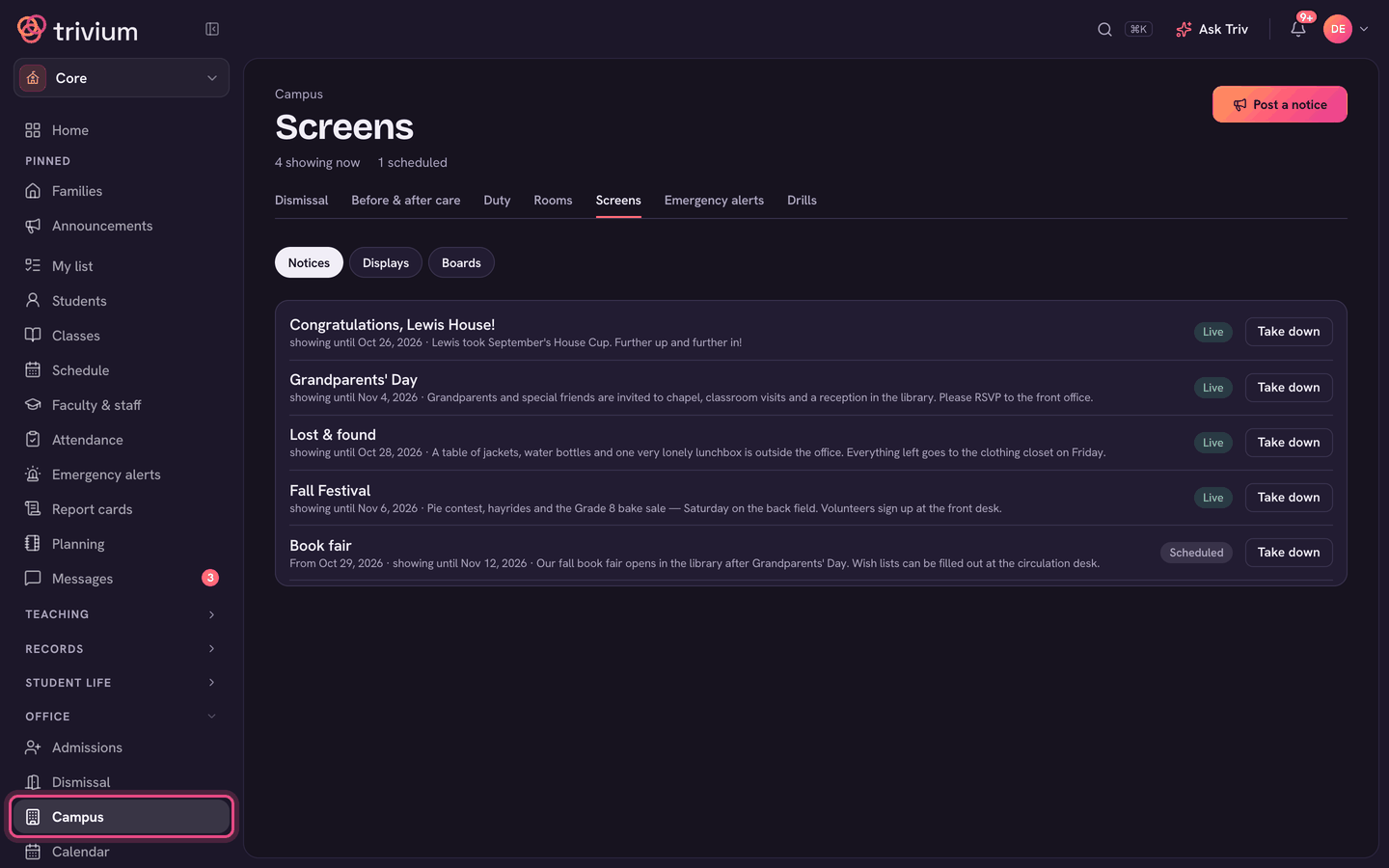
Choose Campus in the sidebar, then the Screens tab. Screens has three parts: Notices (short messages for the hallway), Displays (pair a TV and open the display builder) and Boards (classroom boards).
Put a sign on a TV
- On Screens, open Displays.
- Under Hallway displays, give the screen a Board name (for example Front lobby) and choose Pair a hallway display. A short code appears. It lasts 10 minutes.
- On the TV, open usetrivium.com/board in its web browser and type the code.
- The sign starts straight away. Move the mouse (or tap) and choose Full screen.
- Each paired screen is listed with when it was last seen. Unpair takes one off.
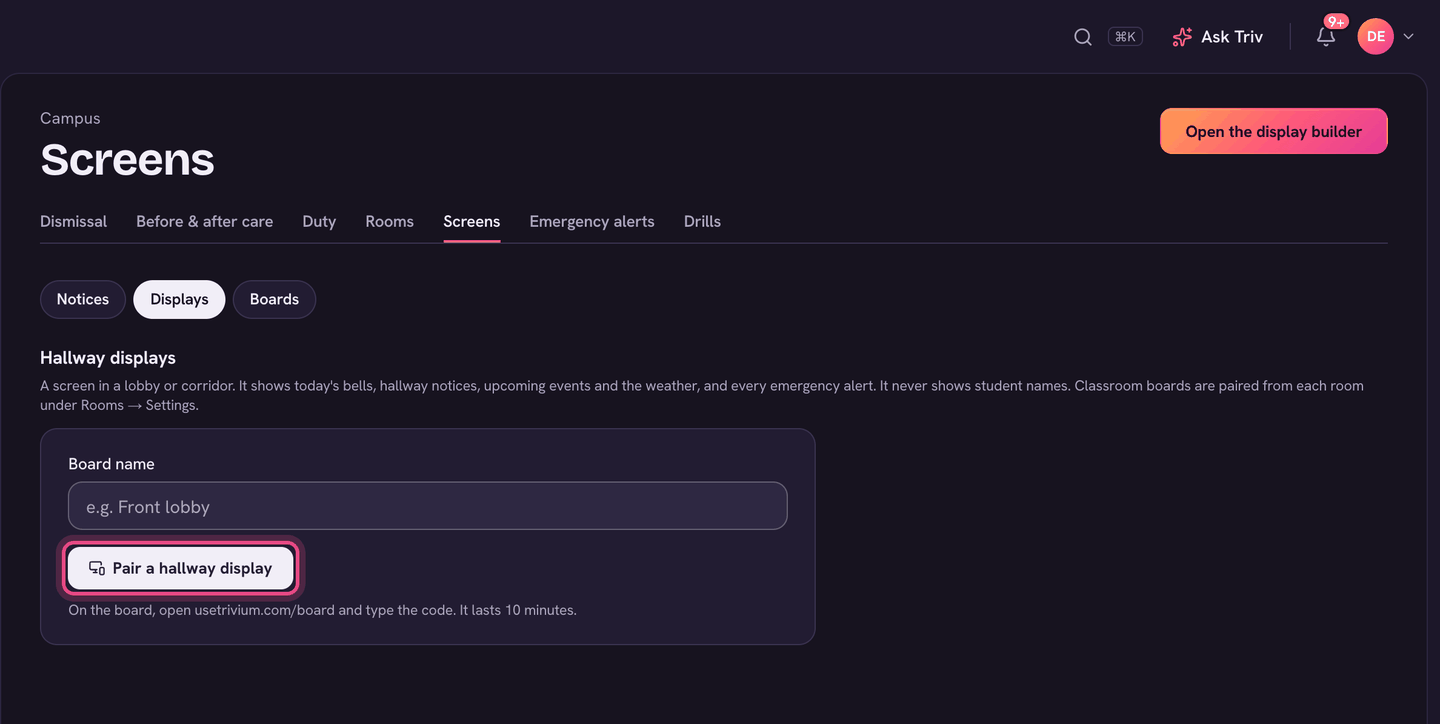
The TV's pairing screen talks about Rooms → Settings. That's for classroom boards. For a hallway TV, the code comes from Screens → Displays.
Choose what it shows
Every hallway sign at your school shares one layout. Open it with Open the display builder on Screens → Displays.
- 1 · Choose a look: Classic, Big panel, Learning wall or Calm.
- 2 · Show on the screen: switch each part on or off. The parts are Today's schedule, Memory work quiz, Hallway notices, Upcoming events, Weather, House Cup and Helpers.
- 3 · Sound & extras: turn on the Bell if you don't have a PA bell (choose when it rings), a Two-minute warning, and Seasonal touches & evening mode.
- Want more control? Customize where things go lets you click a place on the screen and pick what goes there.
- Choose Save to screens. Every paired screen updates within a minute. Discard throws away unsaved changes.
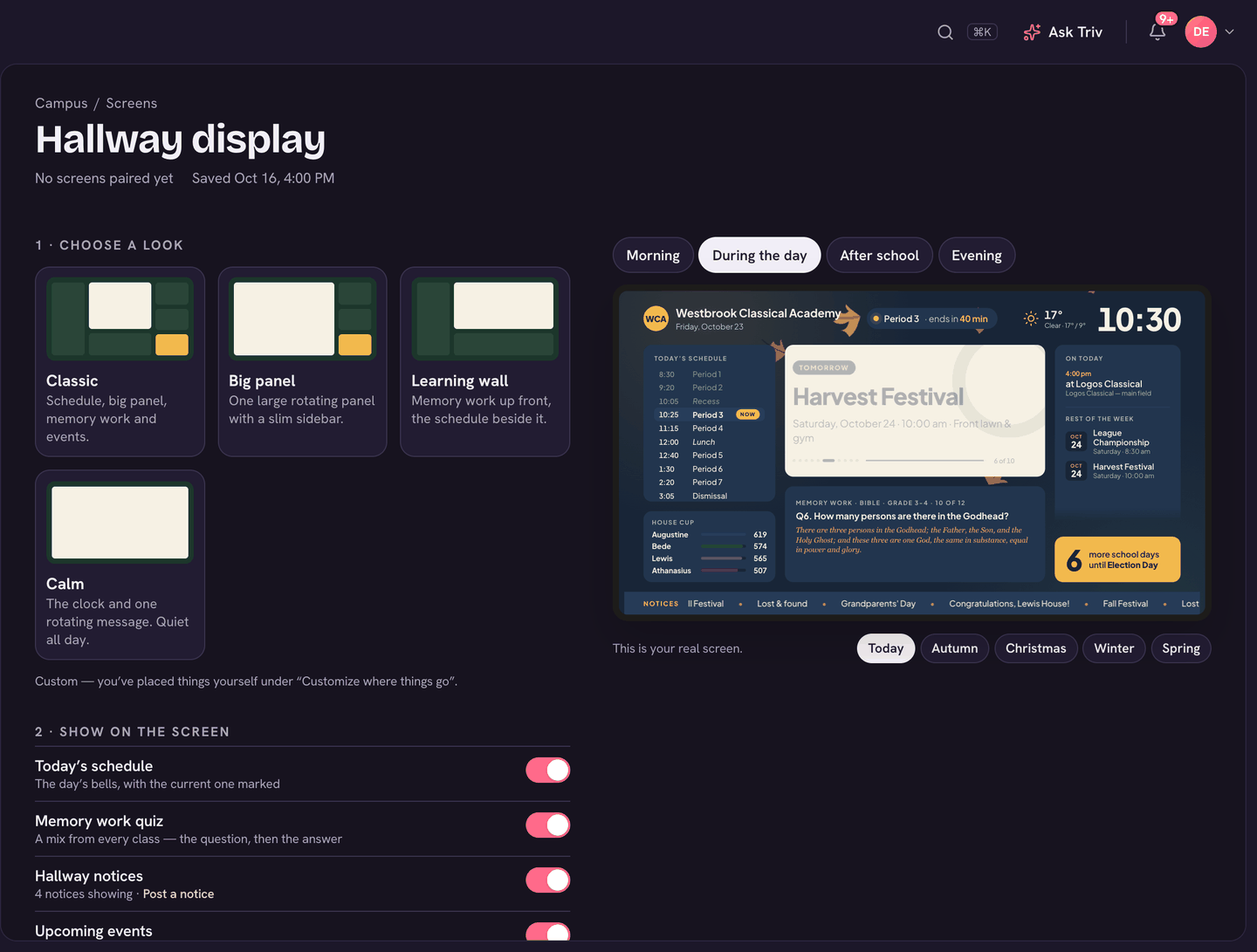
The preview is your real screen. Use Time of day (Morning, During the day, After school, Evening) and the season switch beside it to see how the sign changes through the day.
Post a hallway notice
- On Screens (Notices), choose Post a notice.
- Write a short Headline, and an Extra line if you need one. You can add a photo.
- Set Show from and Last day.
- Choose Post to hallway screens. It shows as Live (or Scheduled, if it starts later) and comes down by itself after its last day. Take down removes it early.
Hallway notices are for students and visitors in the building. Announcements to families don't appear on the hallway screens, and notices don't go to families.
Classroom boards
The Boards part of Screens lists the classroom boards and sets the school's board passcode. Classroom boards are paired from each room under Rooms → Settings. See Board mode: your classroom display.
On the app
Screens and the display builder are on the web only.