When you teach from a lesson's slides, you can write straight on them: circle a word, work a problem, underline a date. Your ink is saved with that slide for the class and the day, so going back to a slide brings your writing back.
Where to find it
Open a lesson that has slides and choose Teach. On the Slides card, the pen button (Annotate the slide) sits beside the arrows. In the full-screen presenter, it's the Annotate button.
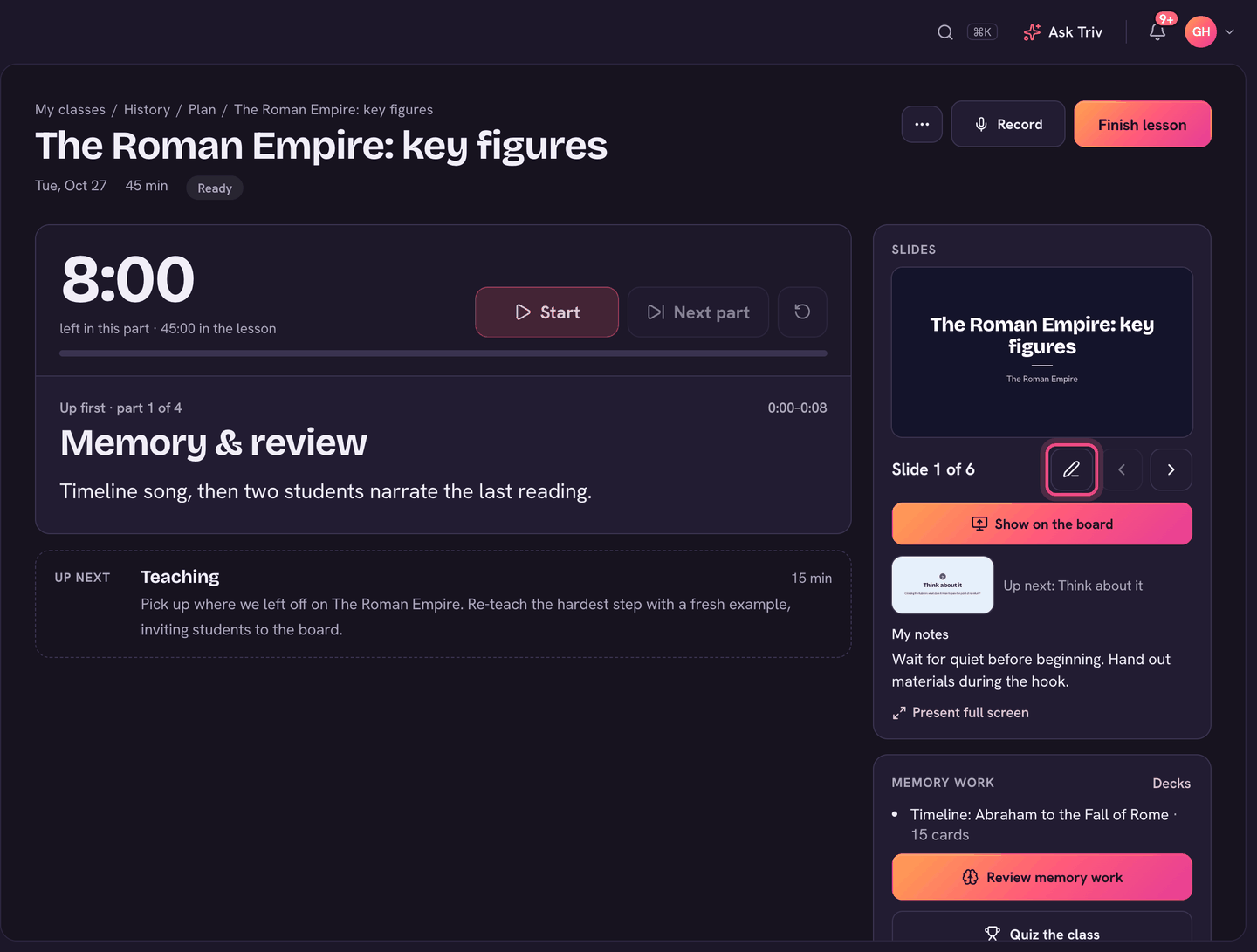
Write on a slide
- In Teach mode, tap the pen on the Slides card. Or choose Present full screen, then Annotate.
- Draw with your mouse, pen or finger. The pen tools along the bottom include Pen, Highlight, Erase and Undo, with colours beside the pen.
- Move to the next slide as usual. Each slide keeps its own ink.
- Choose Done annotating (or tap the pen again) to put the pen away. The ink stays on the slide.

On a dark slide, the pen switches to a light colour so your writing shows up.
How long it's kept
- Ink belongs to that slide, that class and that school day. Teach the same lesson tomorrow and the slides start clean.
- To wipe a slide during the lesson, open More in the pen tools and choose Clear page…, then Yes, clear the page.
- If you recorded the class, playing the recording back shows your ink appear on each slide as you wrote it.
On the classroom board
When your slides are showing on an unlocked classroom board, Annotate is there too. The board and your laptop write to the same slide, so ink from either one shows when the slide is next opened. They don't update each other live.
Writing on slides is on the web and the classroom board. The Trivium app doesn't have it.