Once a lesson is taught, the Debrief lets you record how the class went for each student: who joined in, who has a skill, any conduct worth noting, and house points. Everyone starts at Full, so most days you only tap the few who weren't.
Where to find it
- On Home, after a class ends, a card asks How did [lesson] go? with Done, Didn't finish and Skipped. Pick one to finish the lesson. Debrief is on the same card.
- After you finish a lesson (Done or Didn't finish), the Finish sheet offers Debrief the class.
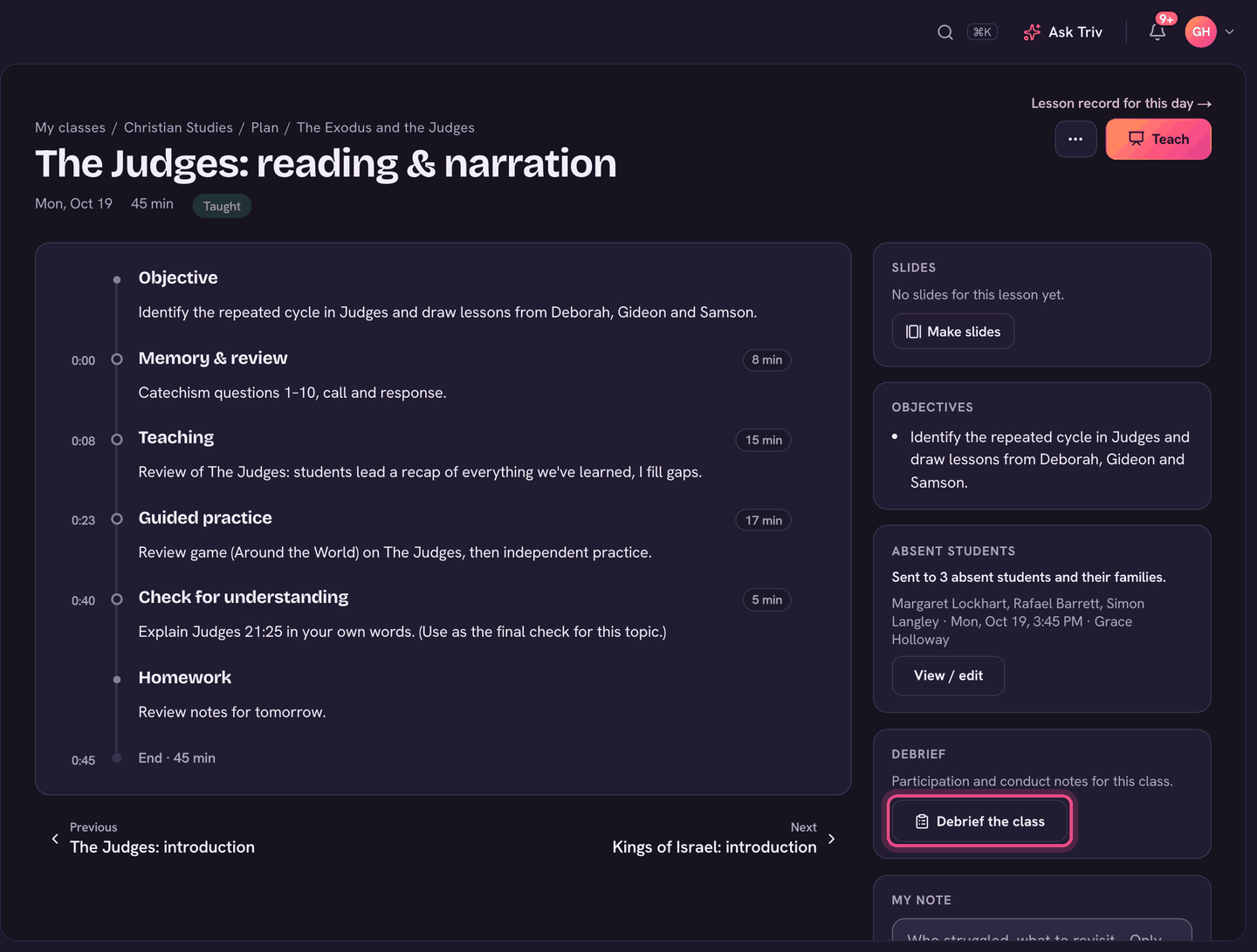
- On a taught lesson's page, and in Teach mode, choose Debrief the class.
Done, Didn't finish and Skipped are the Finish sheet. See Teaching from your plan: Teach mode, slides & the Finish sheet for what each one does to your plan.
Debrief a class
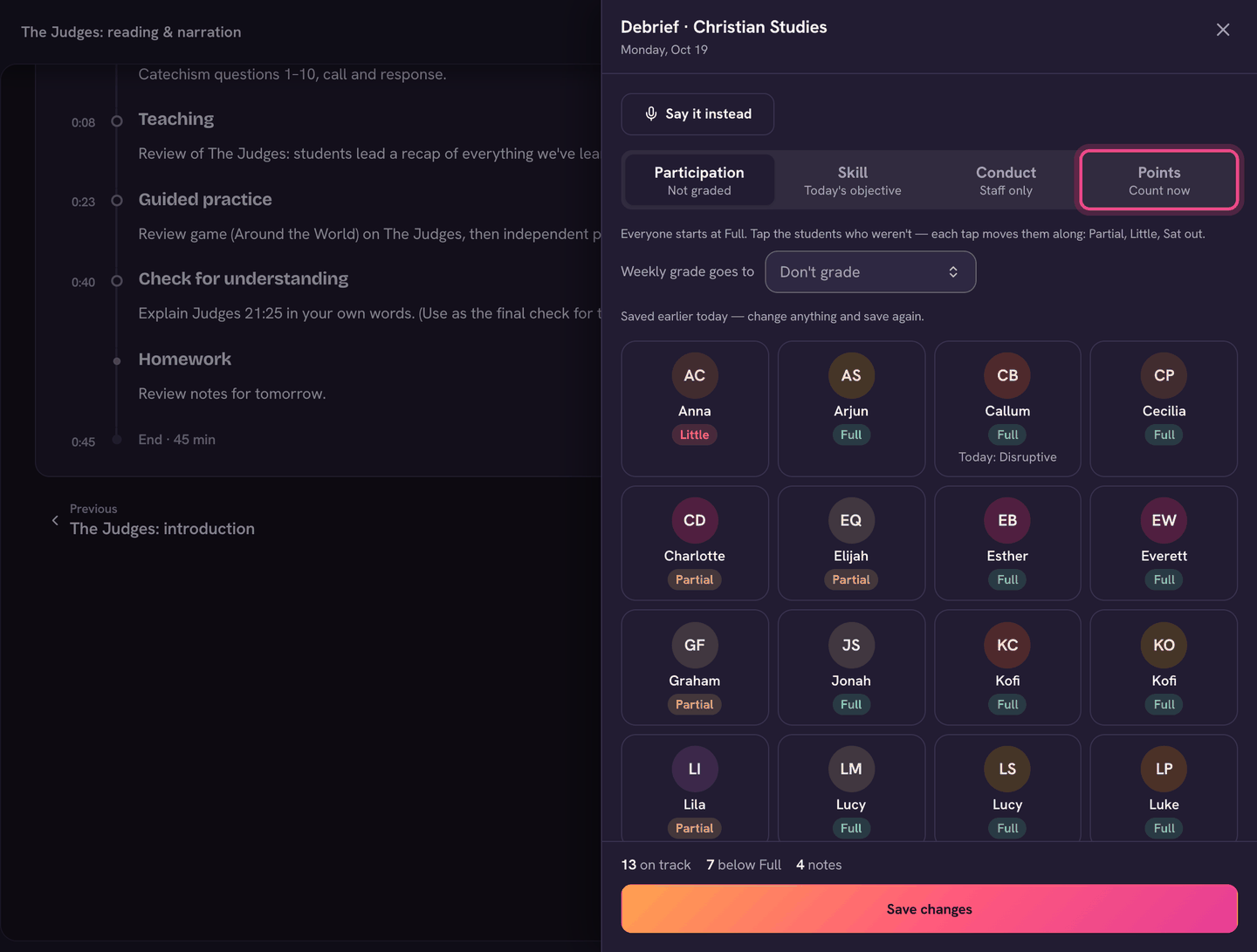
The sheet has up to four tabs across the top: Participation, Skill (when the class has objectives), Conduct, and Points (when your school runs houses). Students marked absent show as Absent and are skipped. If you haven't taken the roll yet, everyone is shown as present.
- Participation: everyone starts at Full. Tap a student who wasn't, and each tap moves them along: Partial, Little, Sat out.
- Under Weekly grade goes to, pick the gradebook category, or Don't grade.
- Skill: pick an objective (today's lesson objective comes first), then tap students to set their level: Needs work, Improving, Proficient or Mastered. This updates the class's Mastery board.
- Conduct: select one or more students, then tap a tag such as Great effort, Helped a peer, Off-task or Unprepared. Add a note if you like.
- Points: give house points the same way as the class's Give points board. Points count as soon as you tap.
- Choose Save debrief. Debrief saved. shows what was recorded.
No time to tap? Choose Say it instead and talk for a few seconds ("Marcus and Eli were off-task, Priya was a great captain"), or type it. Trivium matches the names to your class and shows Here's what I heard. Nothing is saved until you press Save.
What happens to it
- Participation becomes one weekly grade per class (for example "Participation · week of Oct 12", out of 10): the average of each day, where Full is 10, Partial 7 and Little 3. Sat out and absent days don't count.
- Conduct notes are staff only. They show on the student's profile, on the Conduct tab, under Class notes.
- To tell the family about a concern, tick Track as a behaviour issue. That files a conduct note the family sees, and lets them know.
- After you save, Trivium may suggest a word with a family (a student with several concerns this week) or Send some good news home? for a positive tag.
- You can reopen the debrief any time that day to change it.
Notes from the classroom board
On an unlocked classroom board, choose Notes, then tap a student. Pick a conduct tag or a participation level. The board shows only that it was noted, never what. The note is waiting in your debrief when you open it.
See Board mode: your classroom display for unlocking a board.
On the app
- On Home, tap How did it go? on a class that's over, then pick Done, Didn't finish or Skipped and save. Lesson finished offers Debrief the class.
- In Teach, the Debrief button appears once the lesson is taught.
- The Debrief has the same tabs, Say it instead, and Save debrief.
- No signal? The debrief is saved on your phone and sends when you're back online. House points need a connection.