Planning lives in two places. Lesson planner (in the Teaching group of the sidebar) shows your lessons across every class by Day, Week or Month. Each class's Plan tab holds its units and the lessons inside them.
Your week: Lesson planner
- Open Lesson planner and pick Day, Week or Month; move with the ‹ › arrows or This week / Today.
- Choose + Add lesson — pick the Class, Date, Title and Unit (or New unit…) — or choose Plan on an empty slot in the week grid.
- A lesson's menu offers Open lesson, Bump this class forward…, Move to…, Copy to another day… and Copy to another section….
- The ⋯ menu holds My documents, I missed a day… (push your lessons in every class at once, with Undo), Print this day / Print this week, Share this week…, and Start your year….
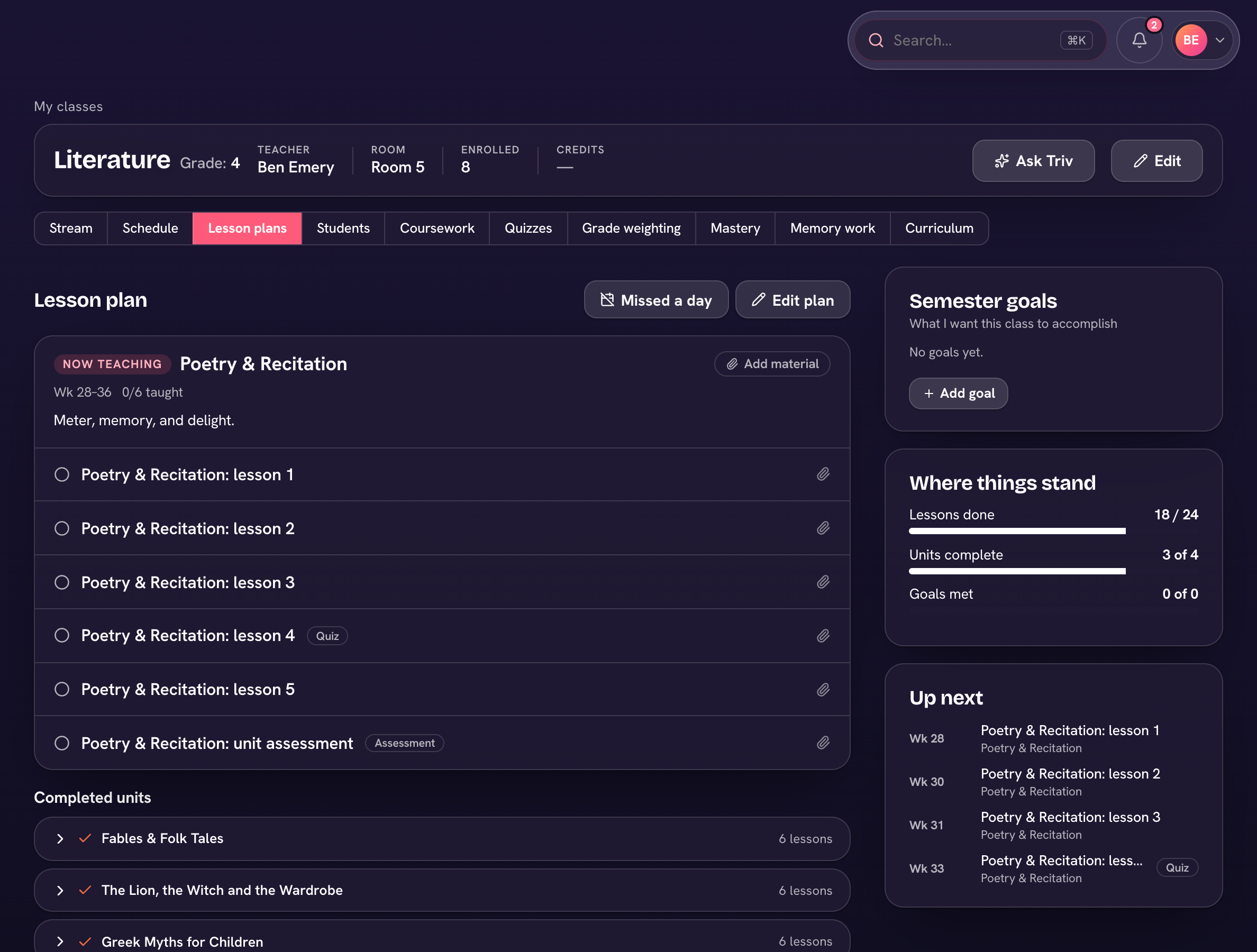
A class's plan: the Plan tab
- Open the class and choose the Plan tab. Start with + Add unit (e.g. "Fractions") — or Reuse a plan… to bring one in.
- Choose + Add lessons and Type titles, Paste a list, or Fill a date range; lessons land on your class days.
- Use a unit's ⋯ to rename it, add a goal, set its Term & weeks…, or reorder; a lesson's ⋯ has Edit, Move to…, Duplicate lesson, Skip and Save as template….
- Plan tools keeps the year on track: Missed a day…, Buffer days…, Lay out term… and Compress overflow…, plus Standards coverage.
The lesson editor
Open a lesson and choose ⋯ → Edit lesson. Build it from parts — each with a heading (e.g. Warm-up) and minutes — and fill the Objectives, Materials, Homework and Memory work cards beside it. Already written it? Paste it into "Paste a lesson" and choose Turn into lesson parts. Homework you add here becomes real homework for the class. Choose Done when you're finished.
Want the whole week at a glance on one class? Class ⋯ → Show the week grid. Admins set school lesson templates under Settings → Lesson templates; teachers keep their own from class ⋯ → Lesson templates.