Don't rebuild from scratch each year. Reuse a plan copies units and their lessons into a class — from last year's matching class, another class, or a single unit — and can lay them out on your class days.
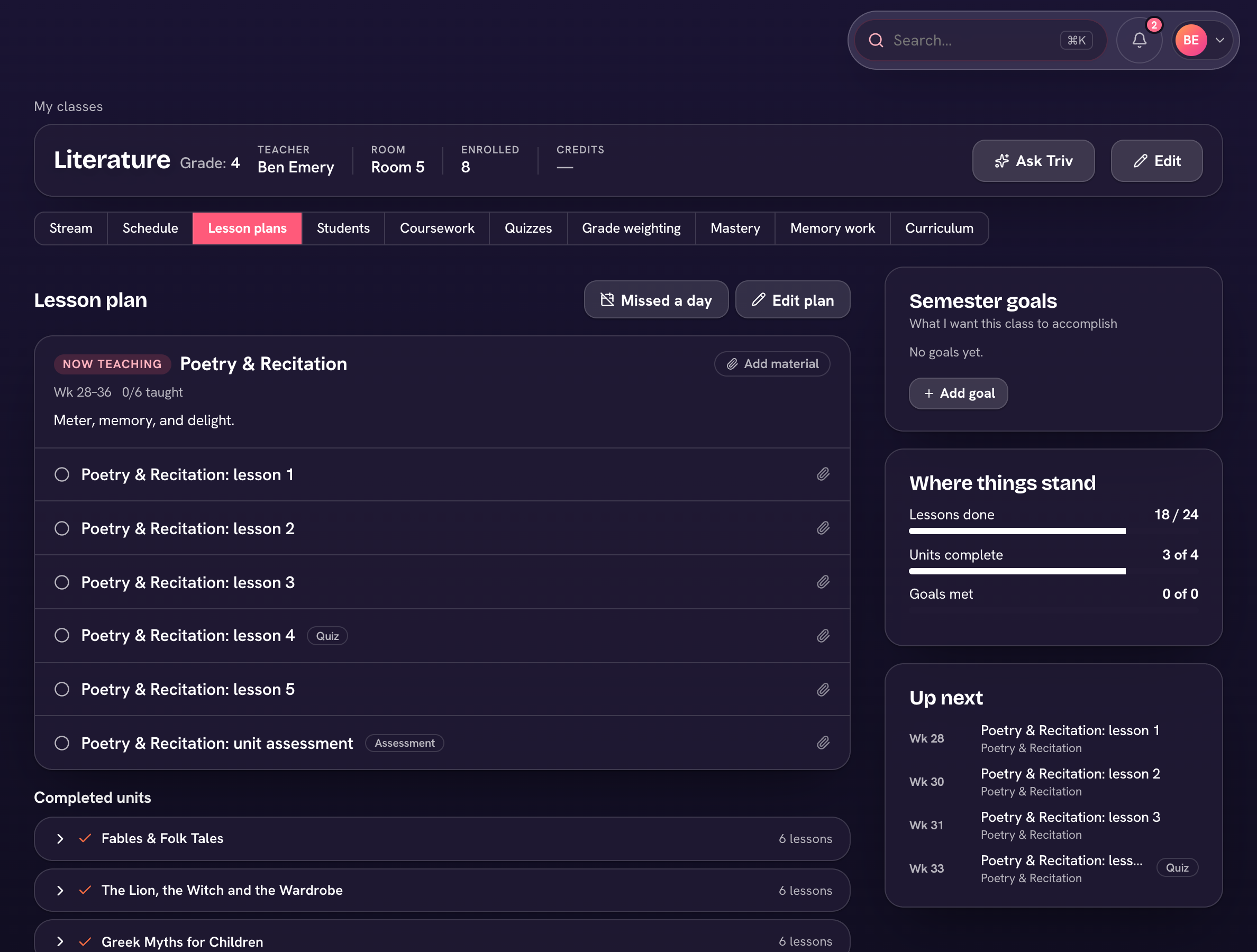
- Open the class and go to its Plan tab.
- Choose Plan tools → Reuse a plan… (or a unit's ⋯ → Reuse this unit…).
- Pick the source — Last year, Another class, or A unit — and tick the Units to bring.
- Under Bring, choose what comes along: lessons and their order always, plus Plans & minutes, Objectives, Materials and Notes for next year.
- Optionally tick Schedule from [date] on class days, then choose Reuse N lessons.
Start your year
At the start of a year, Lesson planner → ⋯ → Start your year… does every class at once, in three steps: Choose (Reuse last year's plan or Start fresh, per class), Review last year (the lessons you marked 👎 and your notes "For this year"), and Lay out (Lay the lessons out on class days). Finish with Copy all N plans, then Open the planner.
The notes you write in a lesson's Finish sheet ("Note for next year") are what Start your year shows you — a minute at the end of a lesson saves an hour next August.