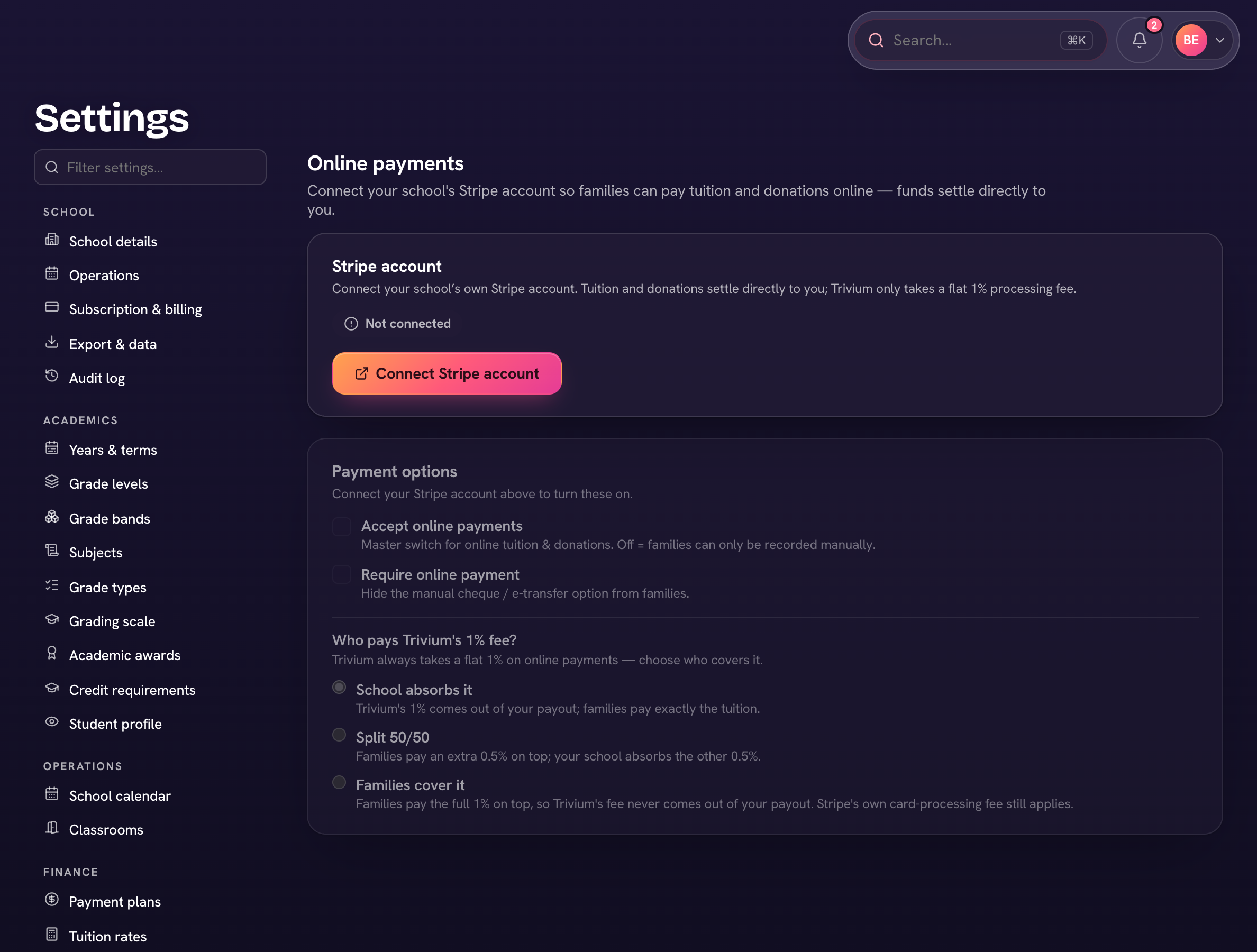
Online payments run through your school's own Stripe account — payouts go straight to your bank. A school admin sets it up once.
- Open Settings → Online payments.
- Already take payments with Stripe? Under I already have Stripe, choose Connect existing account and sign in to Stripe. New to Stripe? Under Set one up, choose Create a Stripe account (about ten minutes: school details and a bank account).
- Back in Trivium, choose Refresh status until it reads Active — ready to take payments.
- Under Payment options, turn on Accept online payments (tuition and donations). Turn on Require online payment to hide the manual cheque / e-transfer option.
- Under Who pays Trivium's 1% fee?, choose School absorbs it, Split 50/50, or Families cover it. This is the default; families can change it at checkout.
Finance → Online payments lists every payment that came in, flags any that need attention, and breaks the money down by category with an Export CSV.