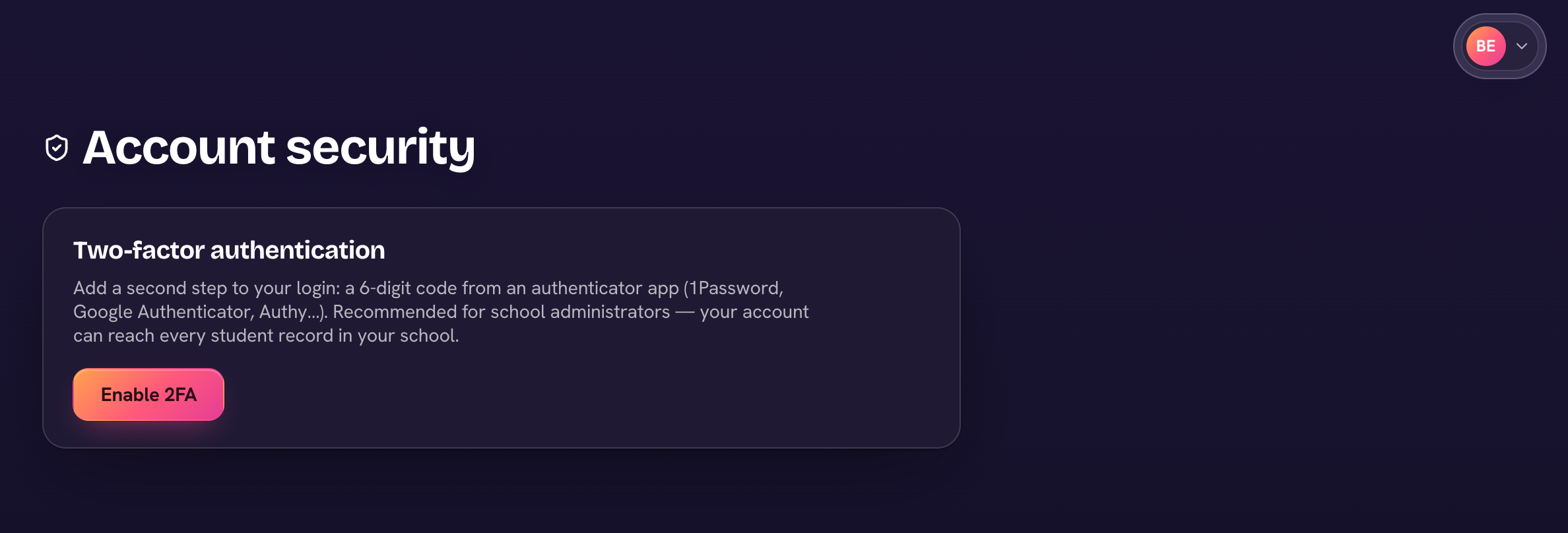
An admin account can reach every student record in the school, so a password alone shouldn't be the only lock. Two-factor authentication adds a second step at login: a 6-digit code from an authenticator app (1Password, Google Authenticator, Authy…).
- Open your avatar menu (top-right) and choose My account. The Two-factor authentication card is below Password.
- Choose Enable 2FA.
- Scan the QR code with your authenticator app — or enter the secret manually if you can't scan.
- Type the 6-digit code the app shows and choose Turn on 2FA. From your next login, you'll be asked for a code after your password.
Two-factor authentication is available to admins, headmasters, teachers and assistants. It's your own setting — it follows you across every school you work in. Removing 2FA requires a current code from your app, so a stolen laptop can't quietly turn it off.
We recommend every school admin and headmaster turn this on — it's the single best upgrade to your school's security posture.