Trivium is built around your day. Home shows the class you're teaching right now, the roll you owe, tonight's homework and anything waiting on you. Everything else is one click away in the sidebar.
Where to find it
Your sidebar starts with your everyday pages: Home, My classes, Lesson planner, Attendance, Homework, To grade, My list, Messages, Calendar and Rooms. Below them are folded groups: This term (Report cards, Progress notes), Teaching, Students and School.
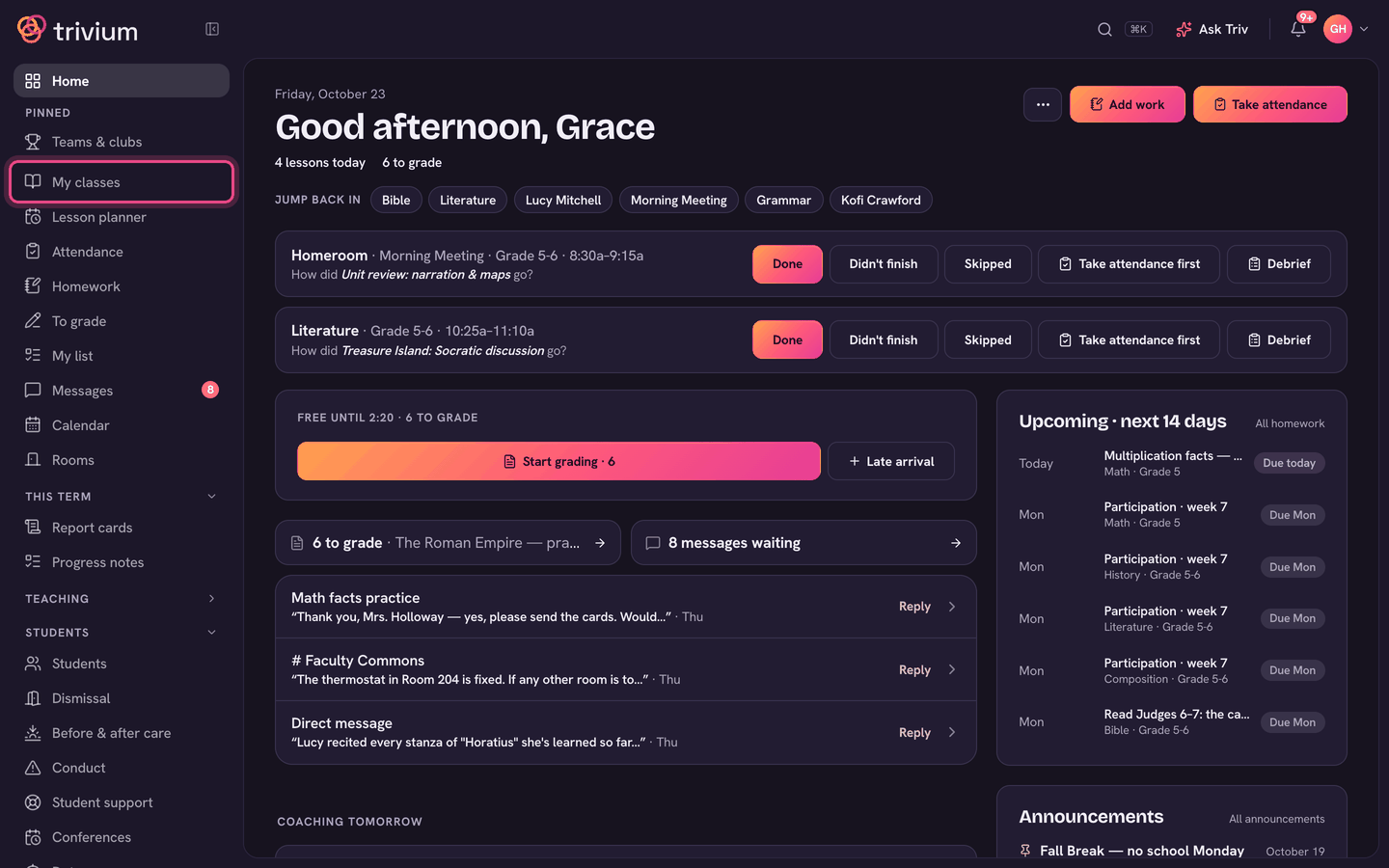
Home: your day at a glance
Home greets you with today's date. The two buttons at the top are the two jobs you open it for: Take attendance and Add work. Everything else (I'm out, Message class families, Late arrival) is under ⋯.
- The Now card shows the class you're in (or the next one). Its Roll section lets you take the roll in place: tap All here ✓ when everyone is in, or Open roll to mark someone absent or late.
- Under Tonight, Set (or Add more) opens Add work already on that class. Under Class work, Send home unfinished sends work home with the students who didn't finish.
- Teach and Slides open today's lesson when it's planned. If it isn't, Plan takes you to the planner.
- Below the card, tiles show how much is waiting to grade and how many messages are waiting, with Reply on the newest ones.
- My day lists what you need to do today: rolls, grading, tasks from the office and your own to-dos.
- Your schedule for the rest of the day follows, with a Today | Tomorrow switch.
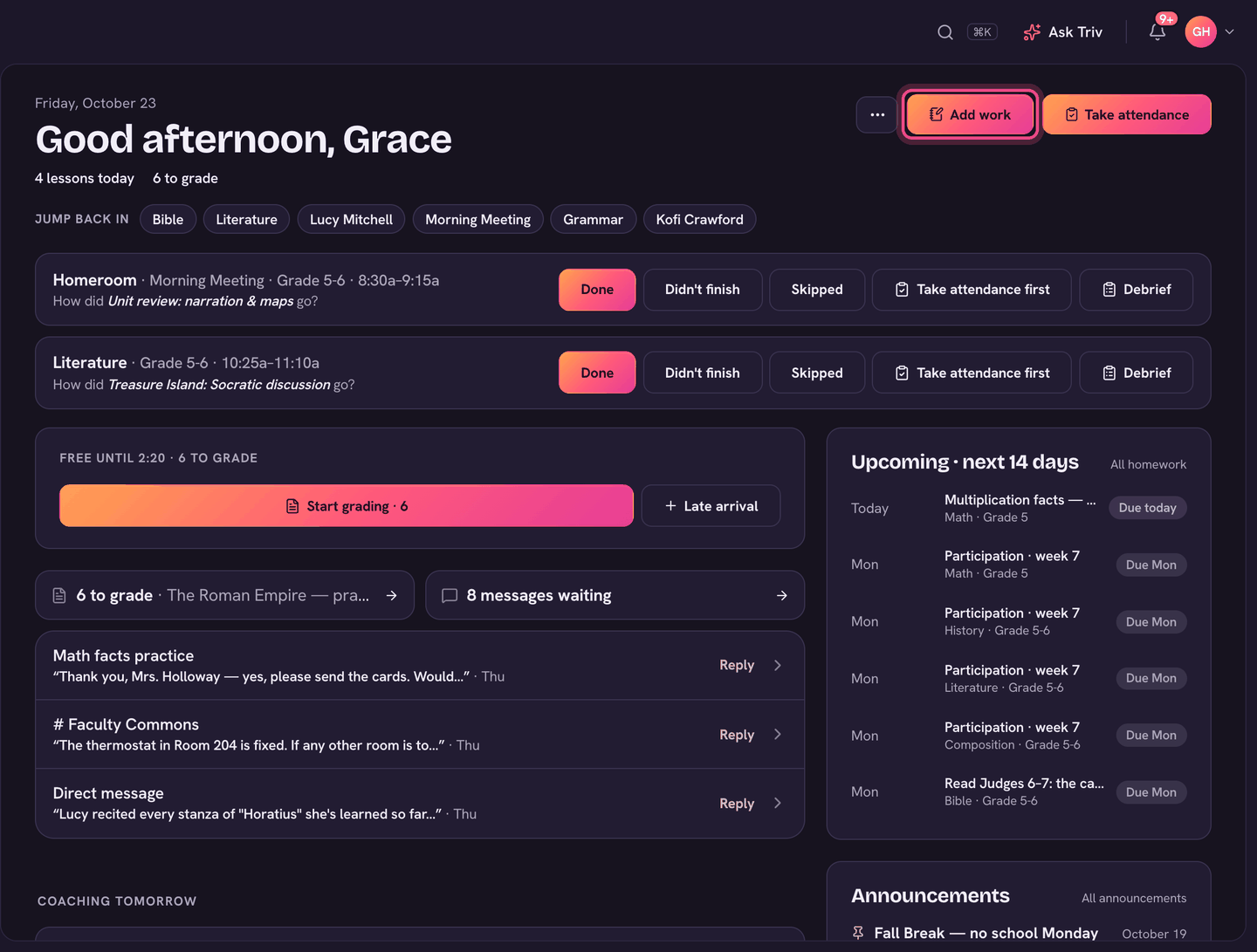
Tapping All here ✓ saves the roll after a five-second Undo. If you leave the page before then, it saves straight away.
My classes and a class page
- Choose My classes in the sidebar. Each row shows the grade, how many students, when it meets, and how many items are To grade and Missing. A Today pill marks the classes you teach today.
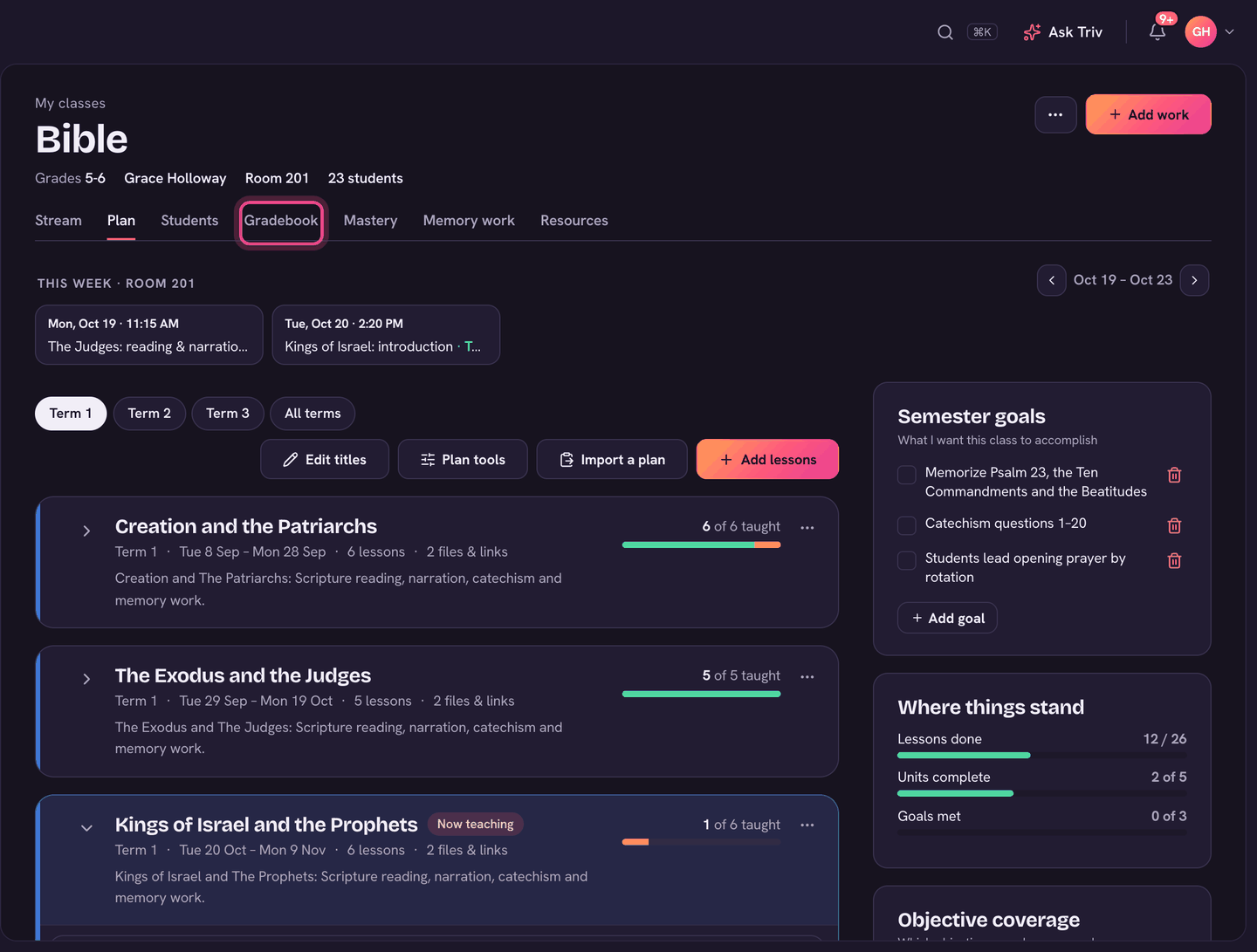
- Open a class. Its tabs are Stream, Plan, Students, Gradebook, Mastery, Memory work and Resources.
- Add work (top right) is on every tab except Students. It opens the same form as the Homework page, already set to this class.
- ⋯ holds the rest: Message families, Lesson templates, Emergency sub plan, Sign-up sheets, Print roster and more. On the Gradebook tab it adds Grading settings and Write report card comments.
Where everything else lives
- Attendance: every roll you owe today. See Taking attendance.
- Homework: everything you've set, across all your classes, with Add work at the top. See Posting homework, tests & projects.
- To grade: everything turned in or past due that still needs marks. See Your To grade list and The gradebook.
- My list: your own to-dos plus tasks from the office. See My list: your to-do list for the day.
- Messages: families, colleagues and staff channels. See Messages: your inbox and Sending a group message.
- Lesson planner: your plans for every class. See The lesson planner.
On the app
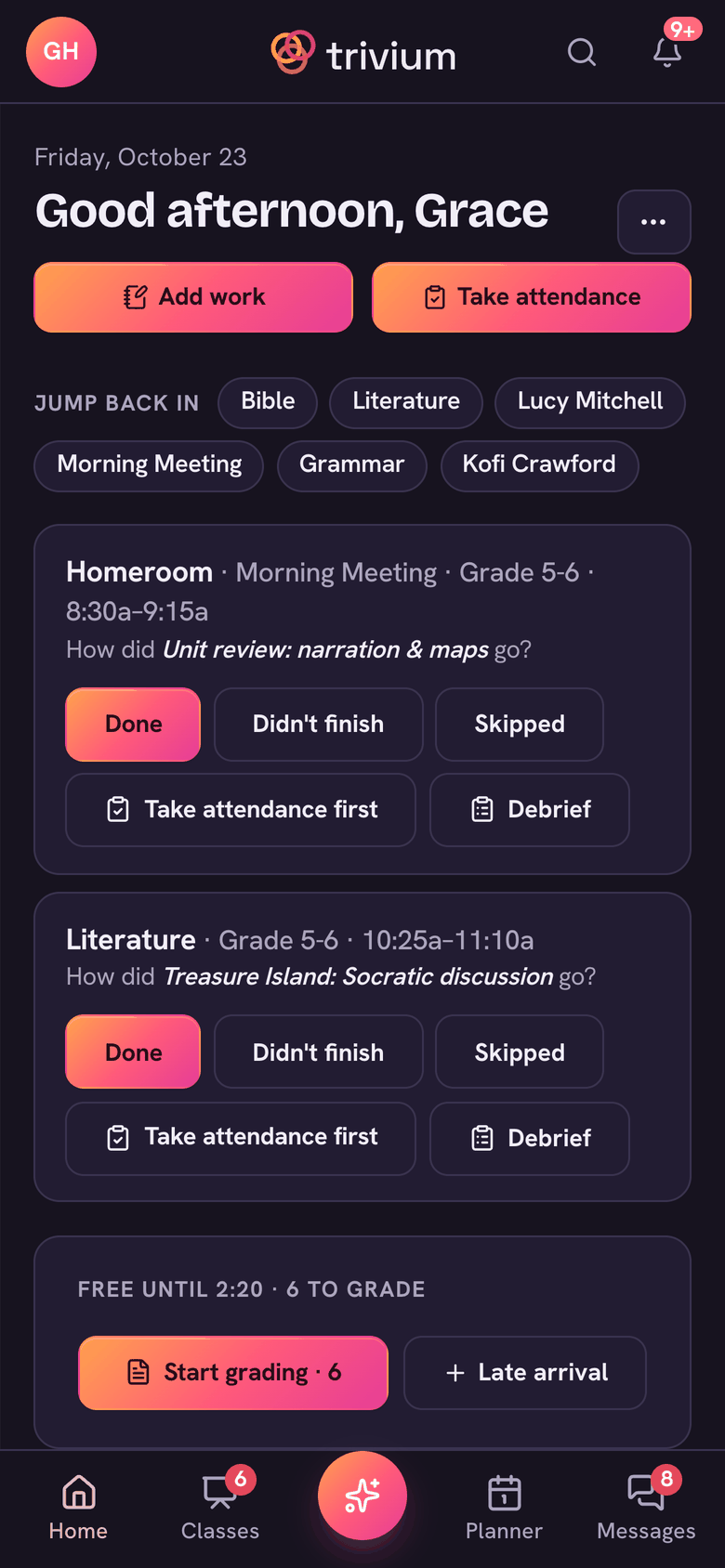
The Trivium app gives you the same day on your phone. Its bar along the bottom is Home, Classes, Triv (or + if your school doesn't have Triv AI), Planner and Messages.
- Home has the same Add work and Take attendance buttons, and the same Now card: All here ✓, Set homework, + Late arrival and Record.
- Classes lists your classes, with To grade at the top. A class opens on Plan, Students, Work and Resources.
- Tap your avatar (top left) for the menu. Under Teaching you'll find Attendance, Homework, Recordings, Schedule, My list, Report cards, Progress notes and Memory work.
Something not where you expect? See Finding things: navigation & search to jump straight to a student, class or page.