- Go to your school's Trivium address and enter your email and password.
- If you've forgotten your password, use the reset link on the sign-in page.
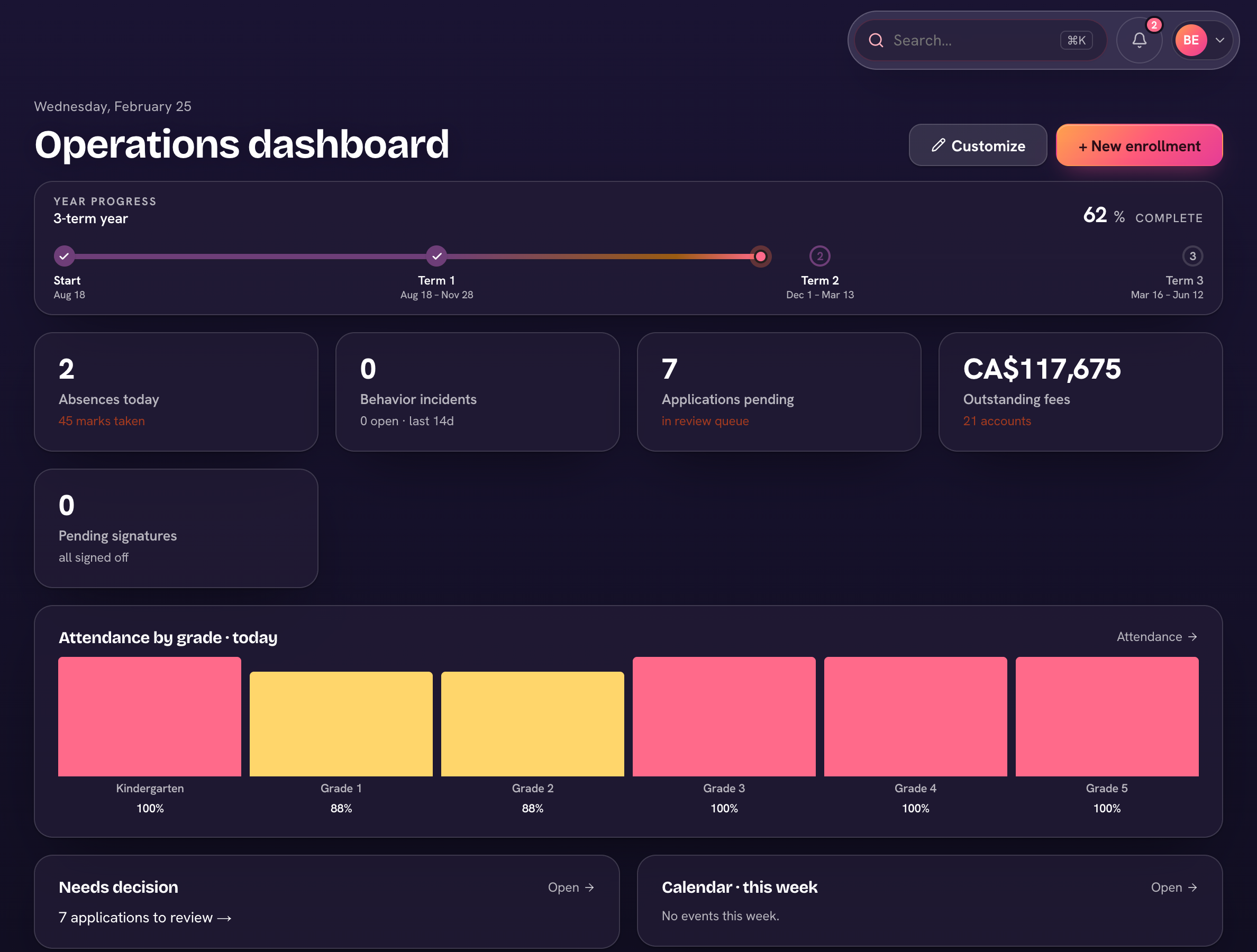
- You'll land on your home page — tailored to your role.
- Admins see Needs you now — what's waiting on them — and four headline tiles; charts are under Analytics.
- Teachers land on Today: a Now card for the class you're in (take the roll in place, see tonight's homework) with Take attendance and Add homework at the top.
- Parents see Home: today for the whole family, a Needs you list (sign-offs, forms, payments), tonight's homework and the rest of the week.
- Students see Home, with Homework and Grades one tap away.
On a phone, tap your avatar (top-left) to open the menu — the view switcher is at the top, and My account, theme and sign-out are at the bottom. The bell (top-right) is notifications, and the bar along the bottom holds your everyday pages with Ask Triv in the middle.