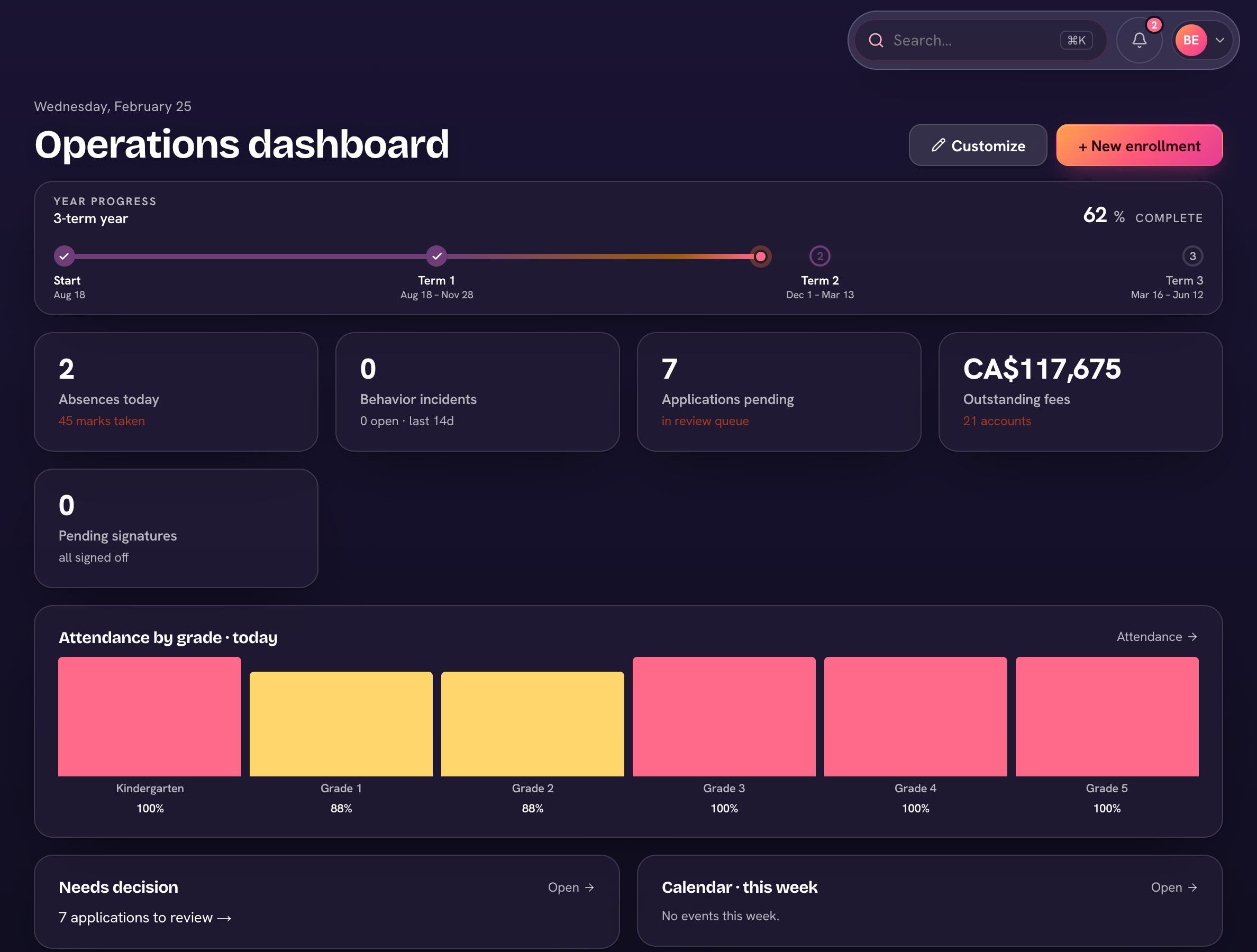
Some people are both staff and a parent at the school. When you hold more than one role, your account menu lets you switch which view you're in — the nav and home screen change to match.
- On a computer, open your account menu (your avatar, top-right). It shows the view you're in under “Viewing as”.
- Choose Switch to Teacher view (or Parent, or Headmaster — shown as Admin if you're not the headmaster).
- The navigation and home screen switch to that role — switch back the same way.
On a phone, tap your avatar (top-left): “Viewing Trivium as” at the top of the menu lets you tap the view you want.