Trivium has its own app for iPhone, iPad and Android. It's the quickest way to take attendance, check homework and grades, read and answer messages, and get notifications. Everything also works in your phone's web browser, so you can use Trivium on a phone today even without the app.
Where to get it
The app is called Trivium. It's in early access with our schools, so your school office sends you the link to install it. On Android it installs from Google Play. On iPhone and iPad, the link your school sends will open the App Store or Apple's TestFlight app.
Can't find the app or don't have a link yet? Ask your school office. In the meantime, open usetrivium.com in your phone's browser and sign in. It's laid out like an app.
Sign in and pick your school
- Open the Trivium app.
- Type the Email your school has for you and your Password, then tap Log in. Or tap Continue with Google if your school uses Google.
- If you belong to more than one school, tap the school you want on Choose a school. You can change it later from Switch school at the bottom of the menu.
- The first time, the app may show you around. Then it asks Turn on notifications?
Turn on notifications
- When the app asks Turn on notifications?, tap Turn on notifications, then Allow on your phone's prompt.
- Tapped Not now? Tap your avatar (top left) to open the menu, then Settings. Under Notifications, tap Turn on push notifications on this phone.
- If you said no on your phone's own prompt, tap Open device notification settings in the same place and turn notifications on for Trivium.
Once you've signed in on the app, you can choose which notifications it sends: messages, announcements, the daily update and reminders. See Notification preferences.
Finding your way around the app
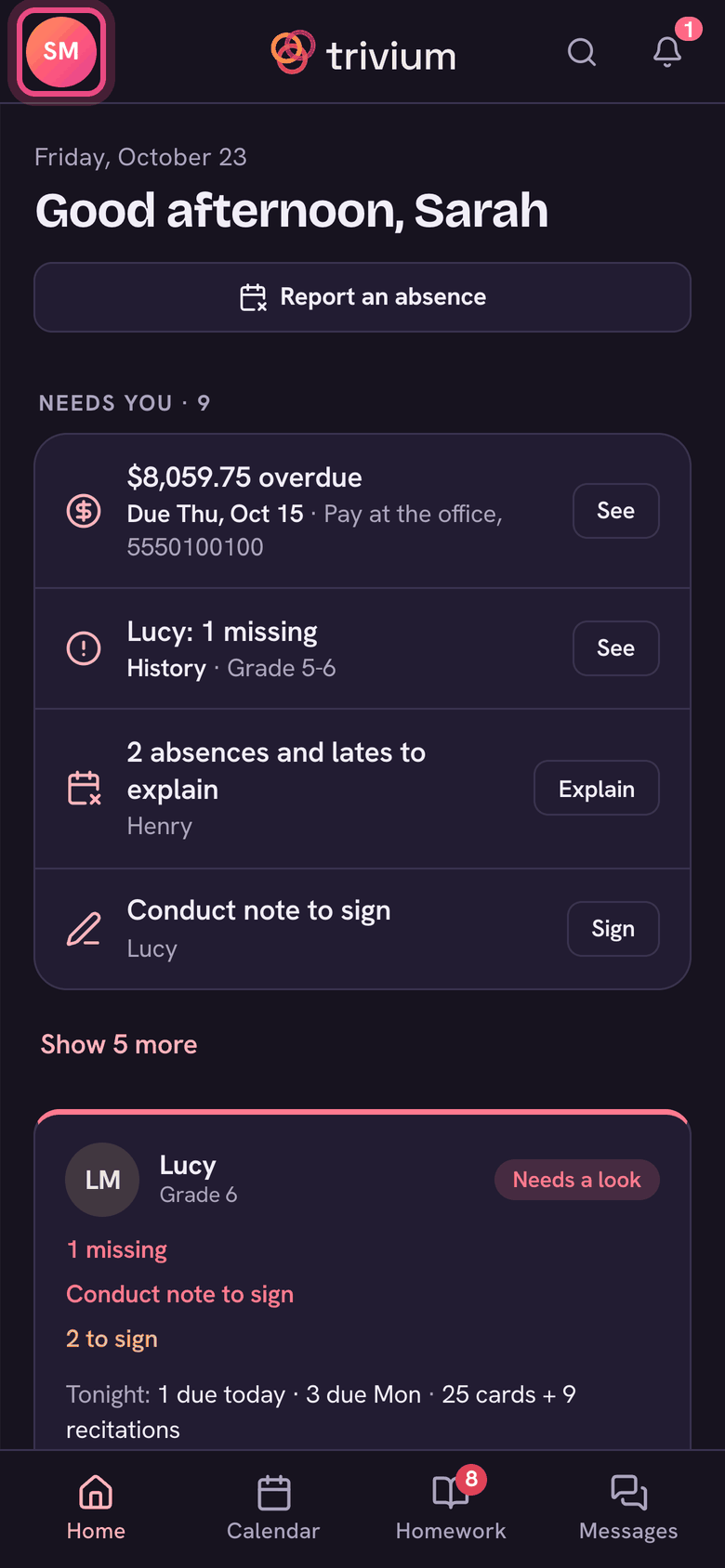
- Top bar: your avatar (top left) opens the menu; the bell (top right) opens Notifications.
- Bottom bar: Home on the left, Messages on the right, and Triv (the sparkle) in the middle.
- Teachers: Home, Attendance, Triv, Homework, Messages.
- Admins: Home, Students, Triv, Classes, Messages.
- Parents: Home, Calendar, Triv, Homework, Messages.
- Students: Home, Homework, Triv, Grades, Messages.
- Menu: everything else, plus Settings, Report a bug, Sign out and Switch school.
What's on the website only
The app covers the daily work for teachers, families and students. Setting up and running the school still happens on the website:
- School settings, years and terms, and roles.
- Tuition setup, invoices and family billing for the office. Parents can see and pay their own bill in the app.
- Admissions, reports and data exports.
- Admins: the app's menu has an Admin dashboard row that opens the website for you.
Some rows in the app's menu open the website in your browser. They show a small arrow icon so you know before you tap.
Using the website on a phone
Open usetrivium.com in your phone's browser and sign in. You get a top bar (your avatar opens the menu, the bell is on the right), a bar of everyday pages along the bottom with Ask Triv in the middle, and the same pages as the computer in the menu. My account, Help & support, Report a bug on this page, the Light / Dark / Auto theme and Sign out are at the bottom of the menu.
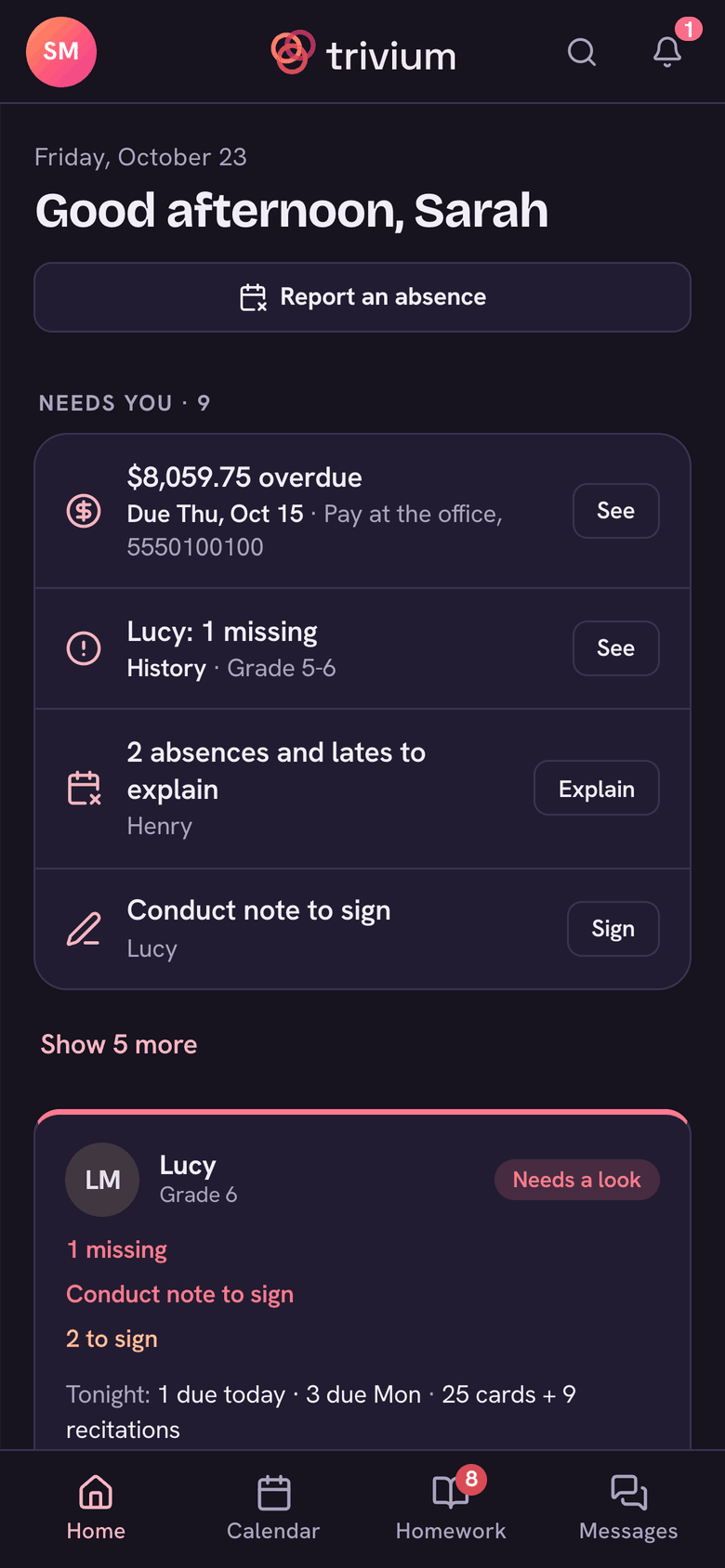
The website's bottom bar is a little different from the app's. Teachers: Home, Classes, Ask Triv, Planner, Messages. Admins: Home, Students, Ask Triv, Classes, Messages. Parents: Home, Calendar, Ask Triv, Homework, Messages. Students: Home, Homework, Ask Triv, Grades, Messages.