Home is the first row in your sidebar, and the page you land on after signing in. It's built around what needs doing today.
Where to find it
Click Home at the top of the sidebar. On a phone, tap Home on the left of the bottom bar.
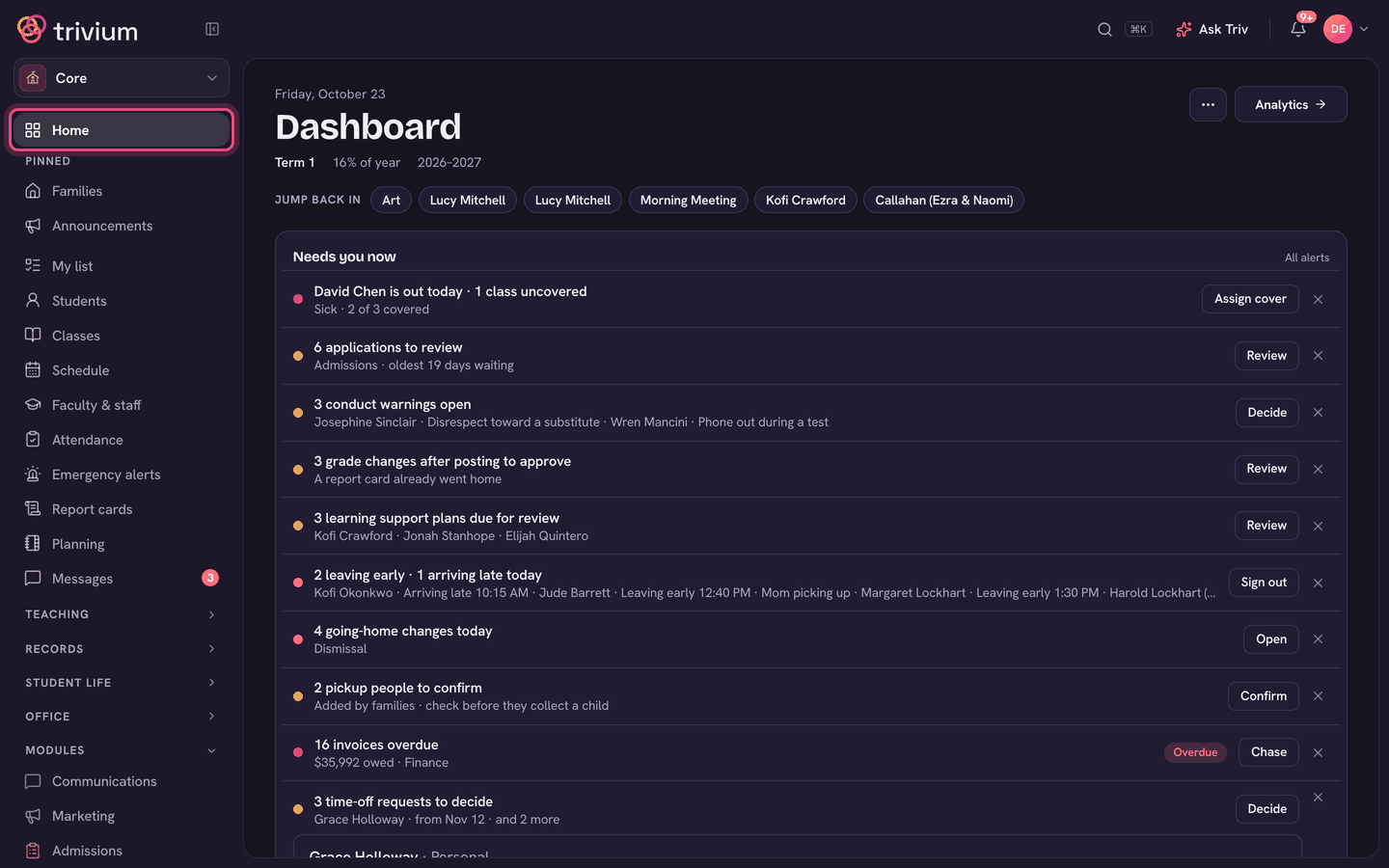
Admins and headmasters: Needs you now
Your Home page opens with the date and Dashboard. At the top is Needs you now: one short list of what's waiting on you, each row with a button that takes you to where it's dealt with. When nothing is waiting, it says "Nothing is waiting on you right now."
- Staff out today with classes uncovered (Assign cover).
- Applications to review and admissions follow-ups due.
- Open conduct warnings, enrollment agreements to send, report cards to post and grade changes to approve.
- Overdue invoices, draft invoices not issued, and time-off requests to decide. Time off can be approved or denied right in the list.
- Students missing a lot of school, students to watch, and students failing a subject.
- Alerts from Ask Triv. All alerts (top right of the card) opens the full list.
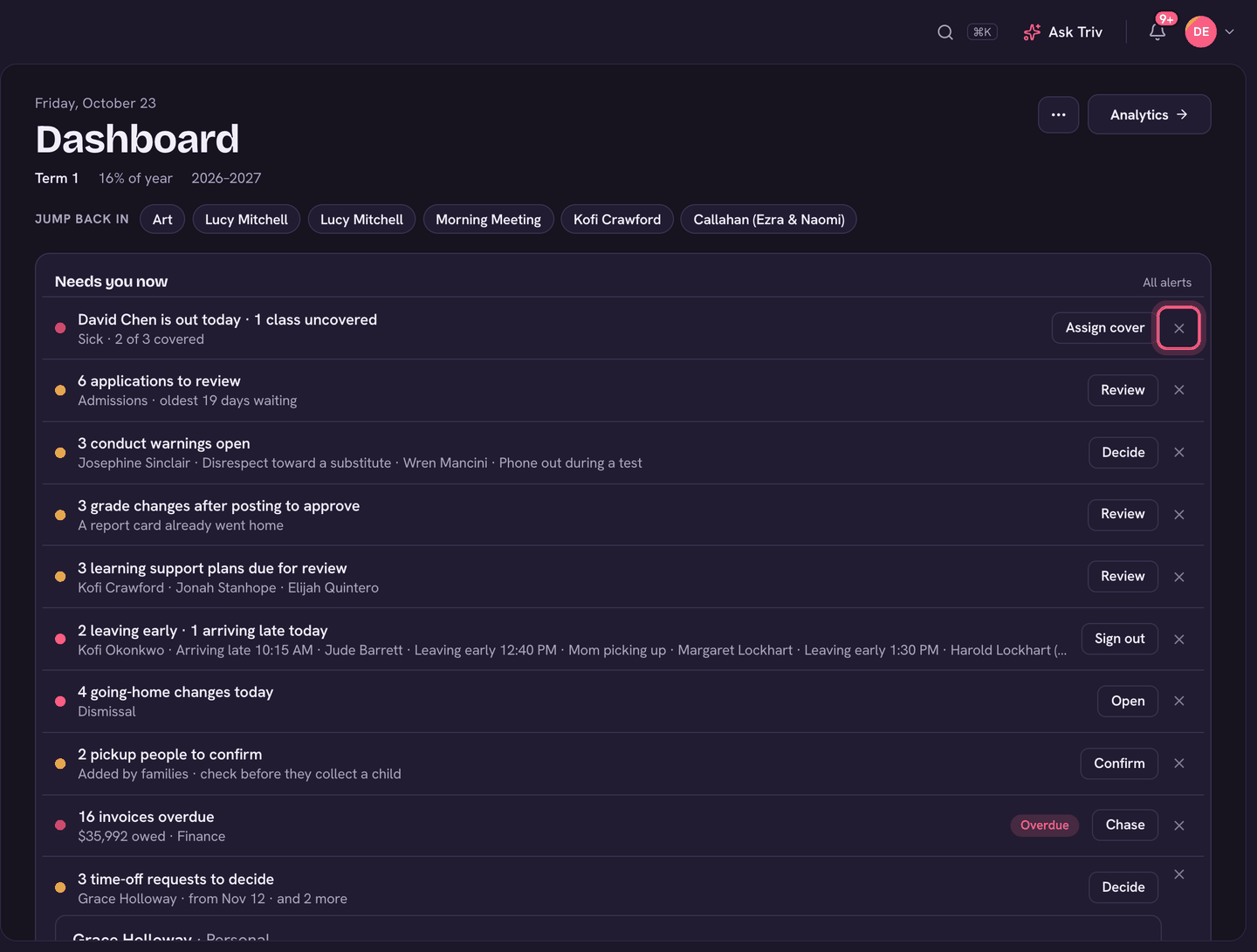
Clear a row you've handled
- Point at the row and click the × at its right end (it's labeled Dismiss).
- The row disappears for you only. Other admins still see it.
- It comes back if something changes, for example a new application arrives or the count goes up.
Below Needs you now, admins who teach see My teaching today (with Take roll), then My day (your own tasks and to-dos), then the dashboard tiles. Analytics (top right) has the charts, and the ⋯ menu has Customize dashboard, Send tuition reminders, Saved reports and All alerts.
Teachers: your day
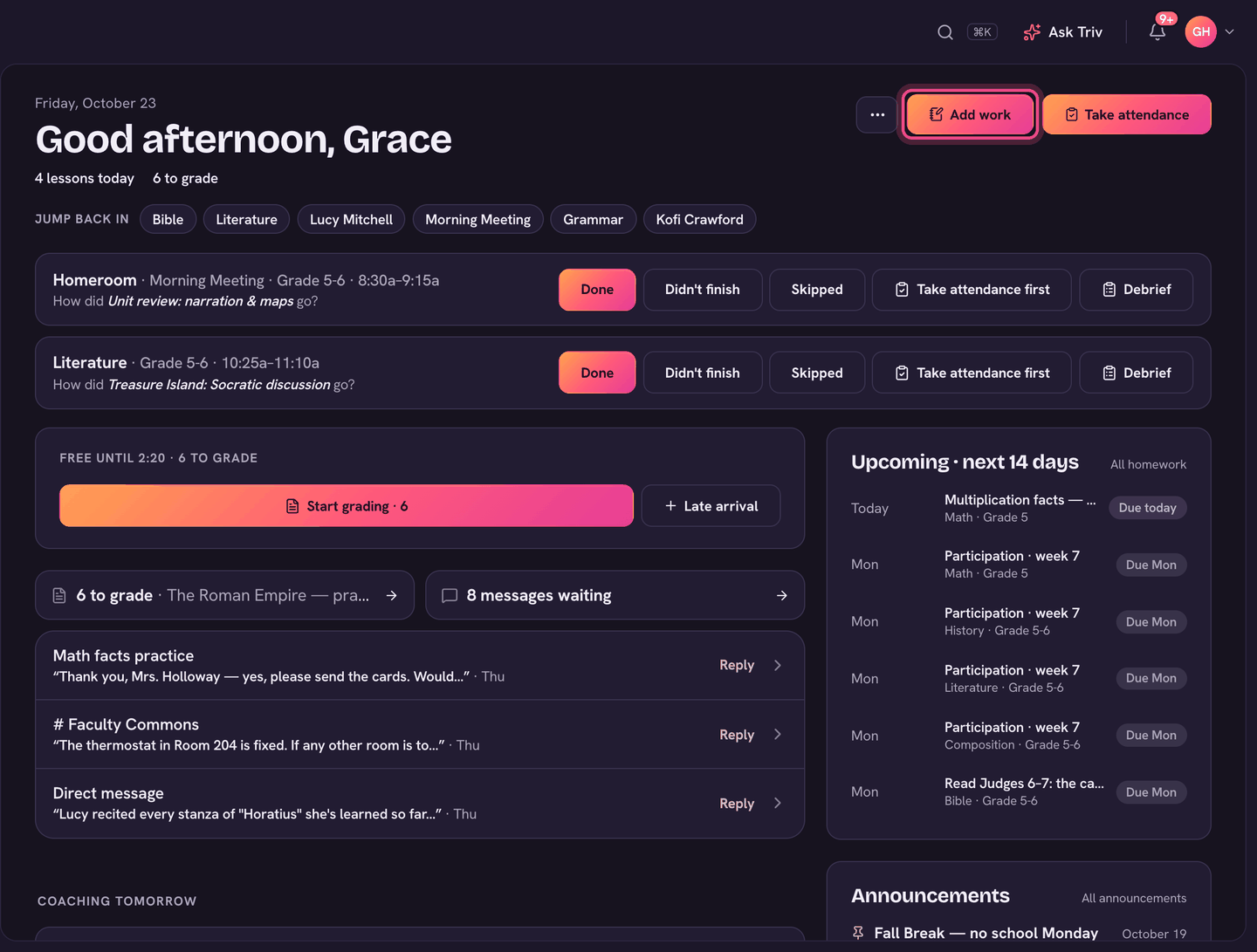
Your Home page greets you by name ("Good morning, …") with two buttons at the top: Take attendance and Add work. When you have a class to register, the first button names it (Take roll · and the class). The ⋯ menu beside them has I'm out, Message class families, Record class and Late arrival.
- The Now card: the class you're teaching right now, so you can take the roll in place.
- My day: what's waiting on you today, from tasks the office gave you to your own to-dos. Type in Add a to-do to add one.
- Today's schedule, with a switch to see tomorrow.
- Announcements and the next 14 days, on the right.
- In My day, click the check box beside a row when it's done.
- To put a row off, open its ⋯ menu and choose a day under Move to, Pick a day…, or Someday.
- Made a mistake? Choose Undo in the bar that appears.
My day shows today. Open My list in the sidebar to see everything, including later in the week.
Needs you in Messages
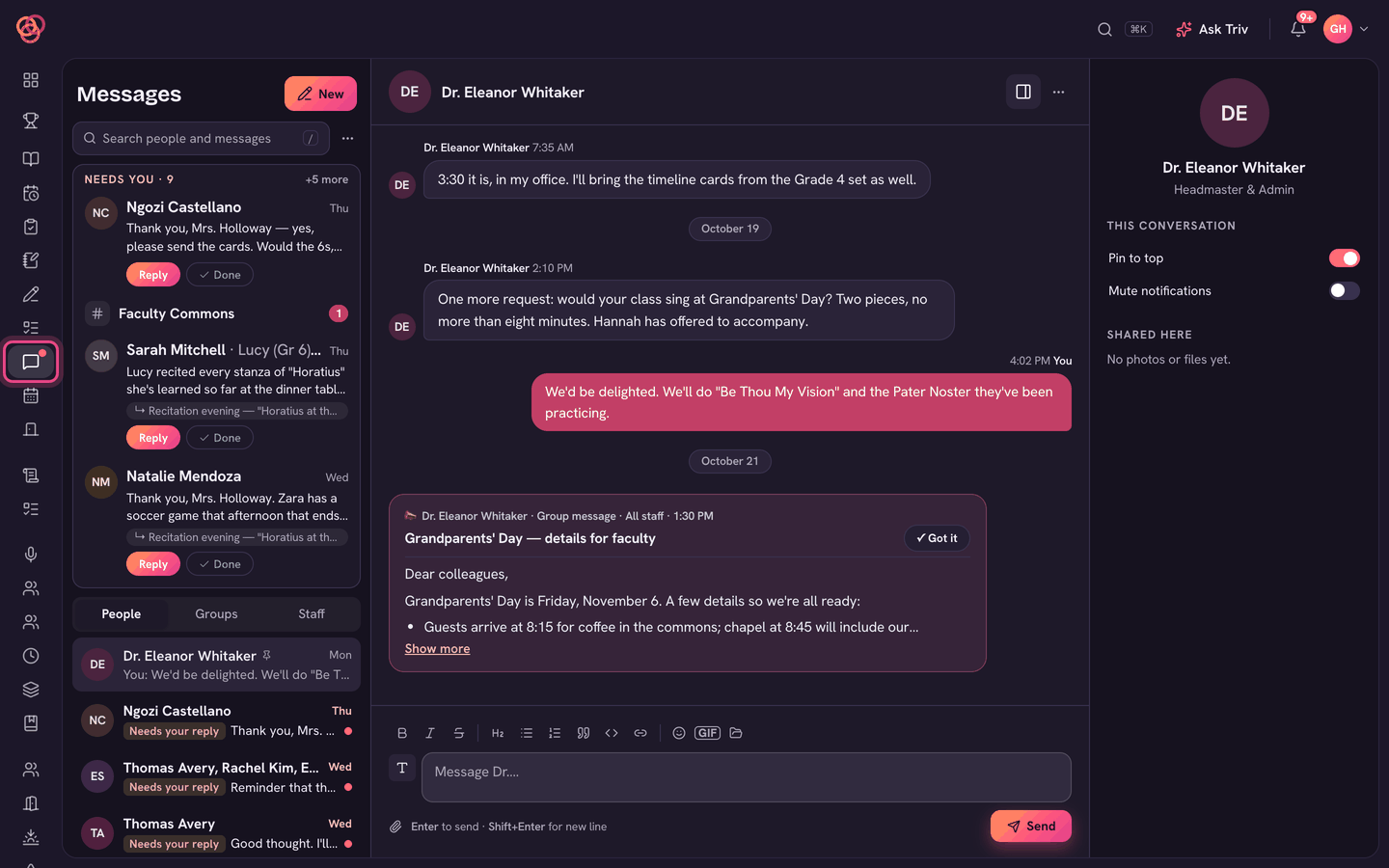
Messages has its own Needs you card at the top: every conversation that's unread or waiting on your answer, newest first. It shows four rows, then +N more.
- Click a row to open the conversation, or choose Reply.
- A row you've opened stays on the card until you reply, so it doesn't vanish before you've answered.
- Nothing to say? Choose Done to take it off the card.
- When the card is empty, it says All caught up.
On the app
Admins see the same Needs you now list near the top of Home. Swipe a row left to dismiss it; what you dismiss in the app is cleared on the website too. All alerts opens the full list. Teachers' Home has Take attendance (or Take roll · and the class) and Add homework at the top, then the class on now.
Dismissed something by mistake? It comes back as soon as what it says changes. For an alert, open All alerts.