Student support gathers the pages about students who need extra care. Each page is a tab, and you only see the tabs your role allows. Choosing the row opens the first tab you can see.
Where to find it
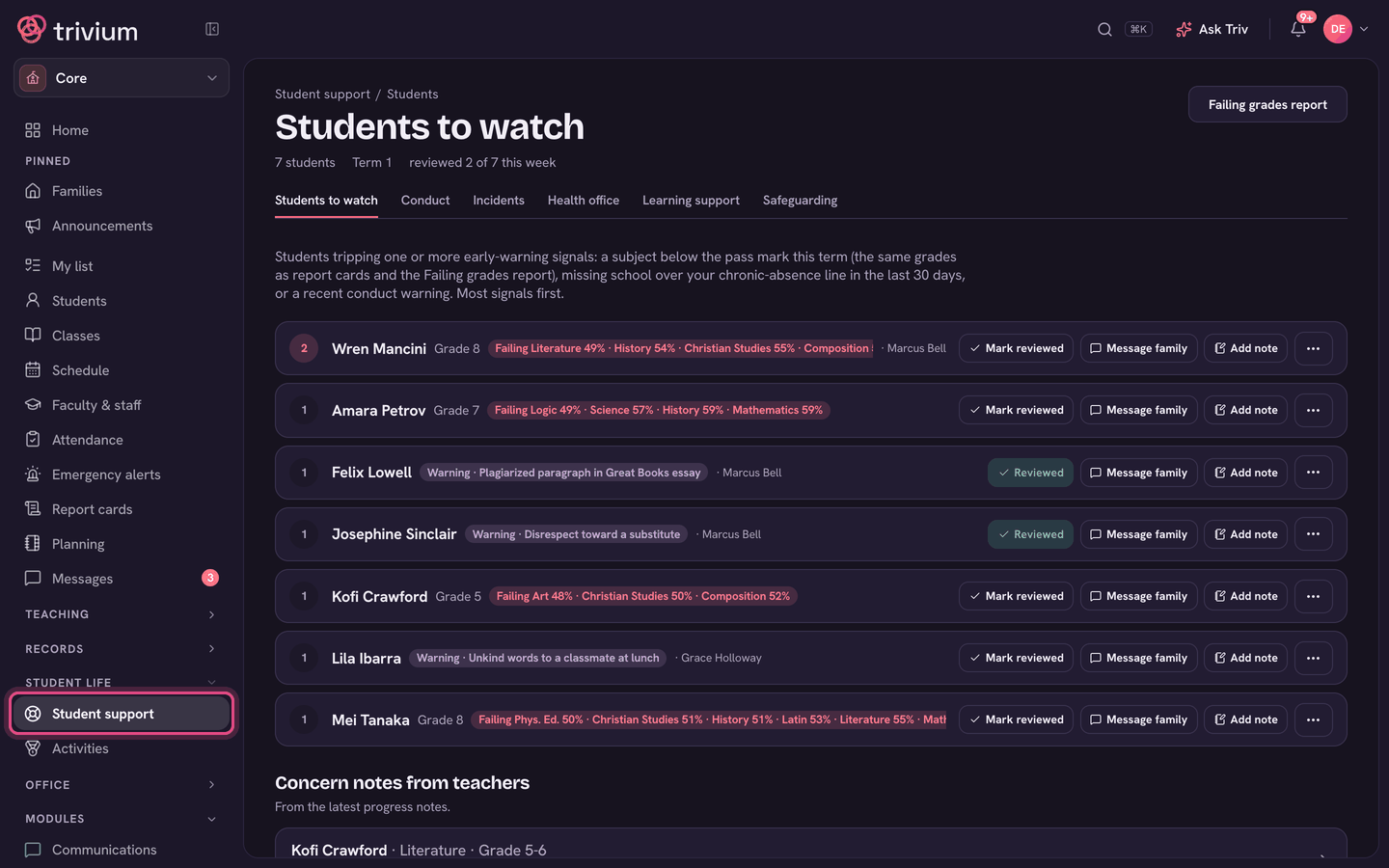
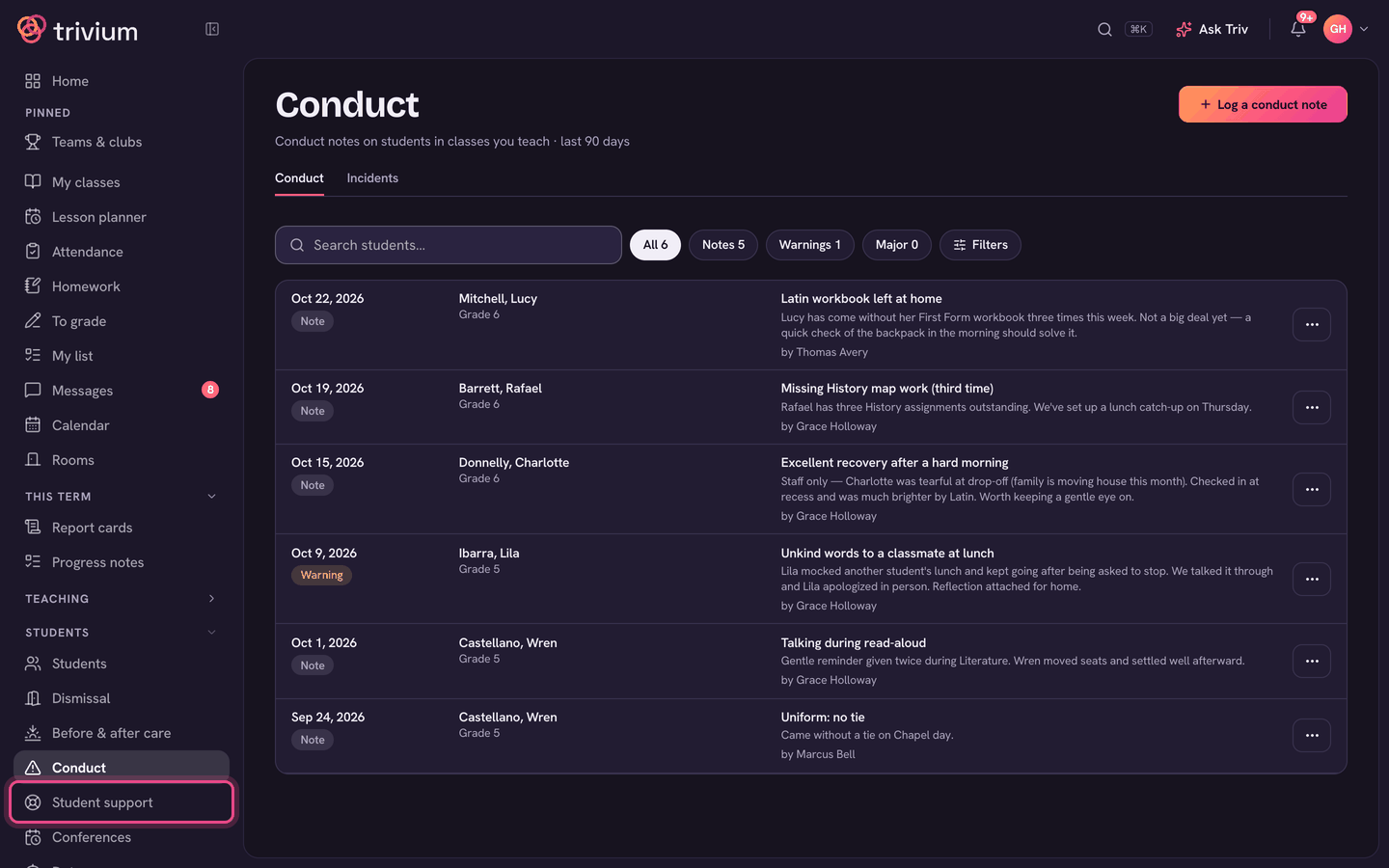
Choose Student support in the sidebar (under Student life for admins, under Students for teachers).
The tabs
- Students to watch (admins): students flagged by failing grades, chronic absence or recent conduct warnings, with the reasons. Mark reviewed, Add note or Assign a check-in from each row, and see Concern notes from teachers.
- Conduct: the conduct log. Teachers have Conduct as its own sidebar row too. See Conduct notes.
- Incidents: injuries, illness and accidents. See Incidents: injuries, illness & accidents.
- Health office: visits, medication due, the medical register and the visits report. See The health office log.
- Learning support: students' plans and accommodations. See Learning support & accommodations.
- Safeguarding: concerns Ask Triv flagged when a student said something that suggests they may be at risk of harm.
Who can see each tab
- Admins and the headmaster see every tab.
- Teachers see Conduct and Incidents. They see Health office or Learning support only if an admin put them on that care team.
- Teachers still see the accommodations of students they teach (unless a plan is office-only), and can log a health visit for their own students, without being on a team.
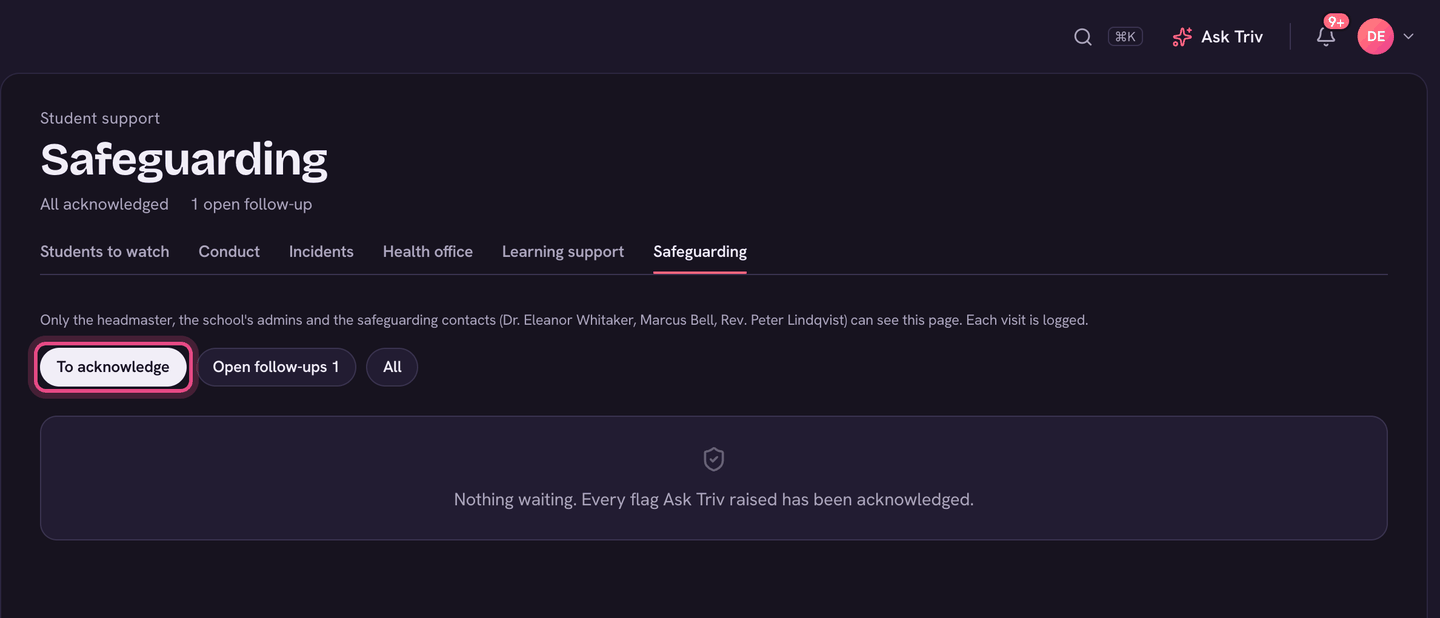
- Safeguarding is for admins, the headmaster and the school's safeguarding contacts only. Every visit to the page is logged.
Choosing the care teams (admins)
- Health office team: Health office → Settings, under Health office team. People named here can see every visit and give medication.
- Learning support team: at the bottom of the Learning support page. People named here can see and edit every plan.
- Safeguarding contacts: School settings → AI assistant. See Setting up Ask Triv for your school.
Safeguarding flags
- Open Student support → Safeguarding. New flags are under To acknowledge.
- Check in with the student and follow your school's safeguarding procedure.
- Write what you did, choose who owns the follow-up, and choose Acknowledge.
- The concern stays under Open follow-ups until you choose Close.
If a student may be in immediate danger, call 911 first. In the app, Incidents and Conduct are in the menu; Health office and Learning support open on the website.