A helper job is a room older students help in at break, like Grade 6 students helping in JK/SK at recess. Admins set up the job and pick the helpers. Trivium then reminds the helpers, tells the host room who's coming, and lets the host teacher mark who came.
Where to find it
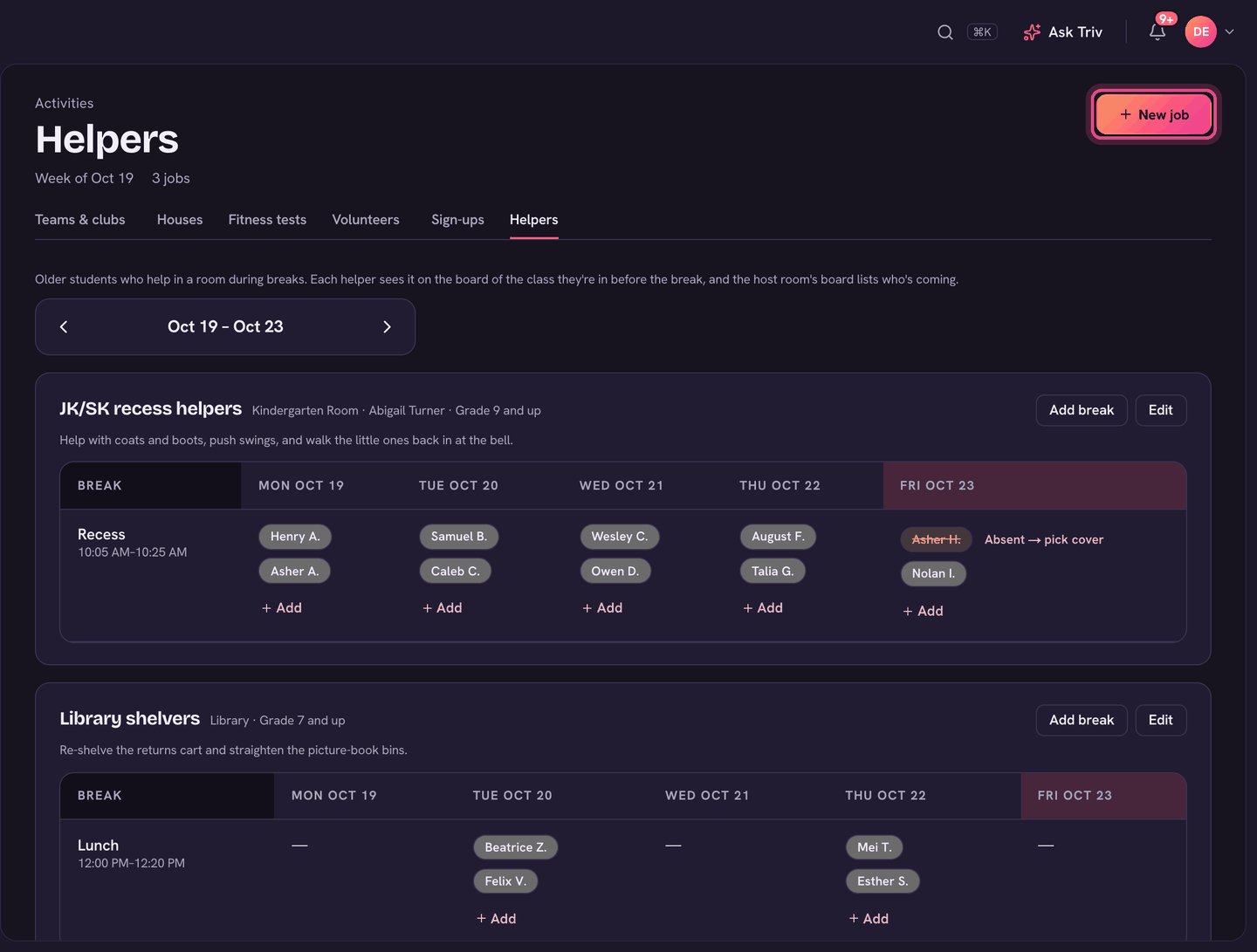
Admins: choose Activities in the sidebar, then the Helpers tab. Teachers see their helpers on Today and on the class's Plan tab (see below).
Set up a job (admins)
- Choose New job.
- Name the Job and, if you like, say What they do ("Help with snack and outdoor shoes").
- Pick the Room they help in and the Host teacher, who sees the helpers on Today and marks who came.
- Pick the Grade they help (the oldest grade in the room, SK for JK/SK). Any older student can help. Set Youngest helpers if you want only, say, Grade 5 and up.
- Choose Add job, then Add break on the job.
- Use a Quick-fill (Recess, Lunch or Afternoon recess) or type the break, its Starts and Ends times, how many Helpers it needs, and the days. Choose Add break.
Pick the helpers
- In the week grid, choose Add under a break.
- Choose Every Monday (or whichever day it is) or Just this day.
- Search or scroll the eligible students, grouped by grade. Each shows how many turns they already have a week, so you can share the job out fairly.
- A break that's still short shows a count like 1 of 2.
- Choose a helper's name for Off just Monday, Off every Monday from here, or Someone else covers Monday.
- A helper who's absent that day is struck through. Choose Absent → pick cover to send someone else.
- Use the arrows by the week to plan ahead. Days the school is closed show the closure instead.
Who sees what
- The host teacher: Your helpers today on Today. Tap a helper when they arrive. Once the break is over, anyone unmarked asks didn't come? with No or Excused.
- Admins: Helpers today on Home, for every job.
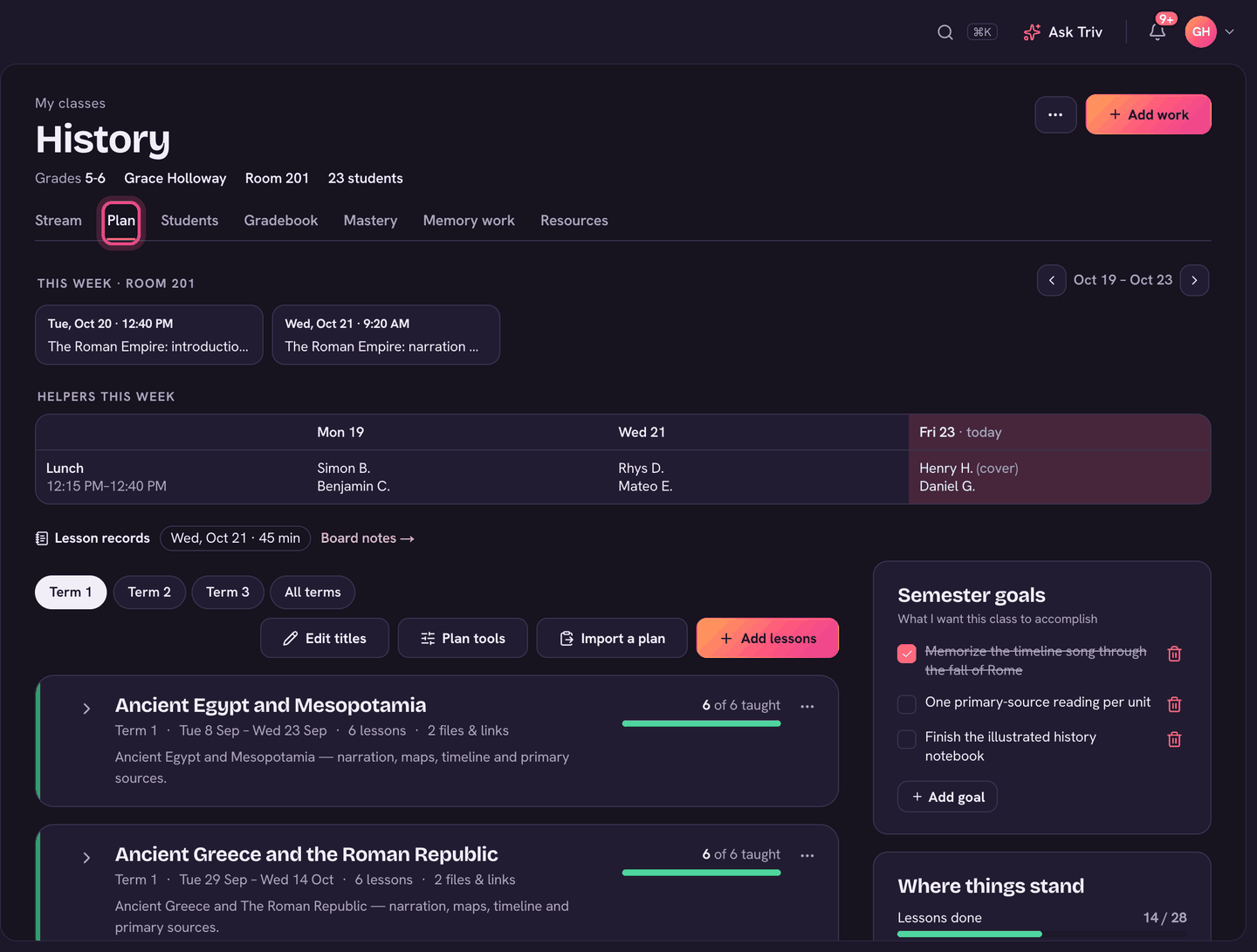
- Teachers of the room or the helped grade: Helpers this week on the class's Plan tab, with the breaks across the week and any cover already swapped in.
- The helper's own classroom board: five minutes before the break, a banner names the helpers and where they're going, with Got it.
- The host room's board: a Helpers coming here card. With the board unlocked, tap a helper when they arrive.
- Hallway signs can show the week's helpers by first name.
- Families and students: Helping today on Home (and a student's own Me page) on the days their child helps.
Helpers is on the website only for now. It isn't in the Trivium app.