Some families don't want their child's photo shown, and some don't want their child listed at all. Both are one setting on the student.
- Open the student's profile and choose Edit (on a phone: ⋯ → Edit).
- Set Photo/media consent to Granted, Denied, or Not on file.
- Tick "Exclude from family-facing directories & rosters" if the family has opted out of directories.
- Save — both take effect immediately across the app.
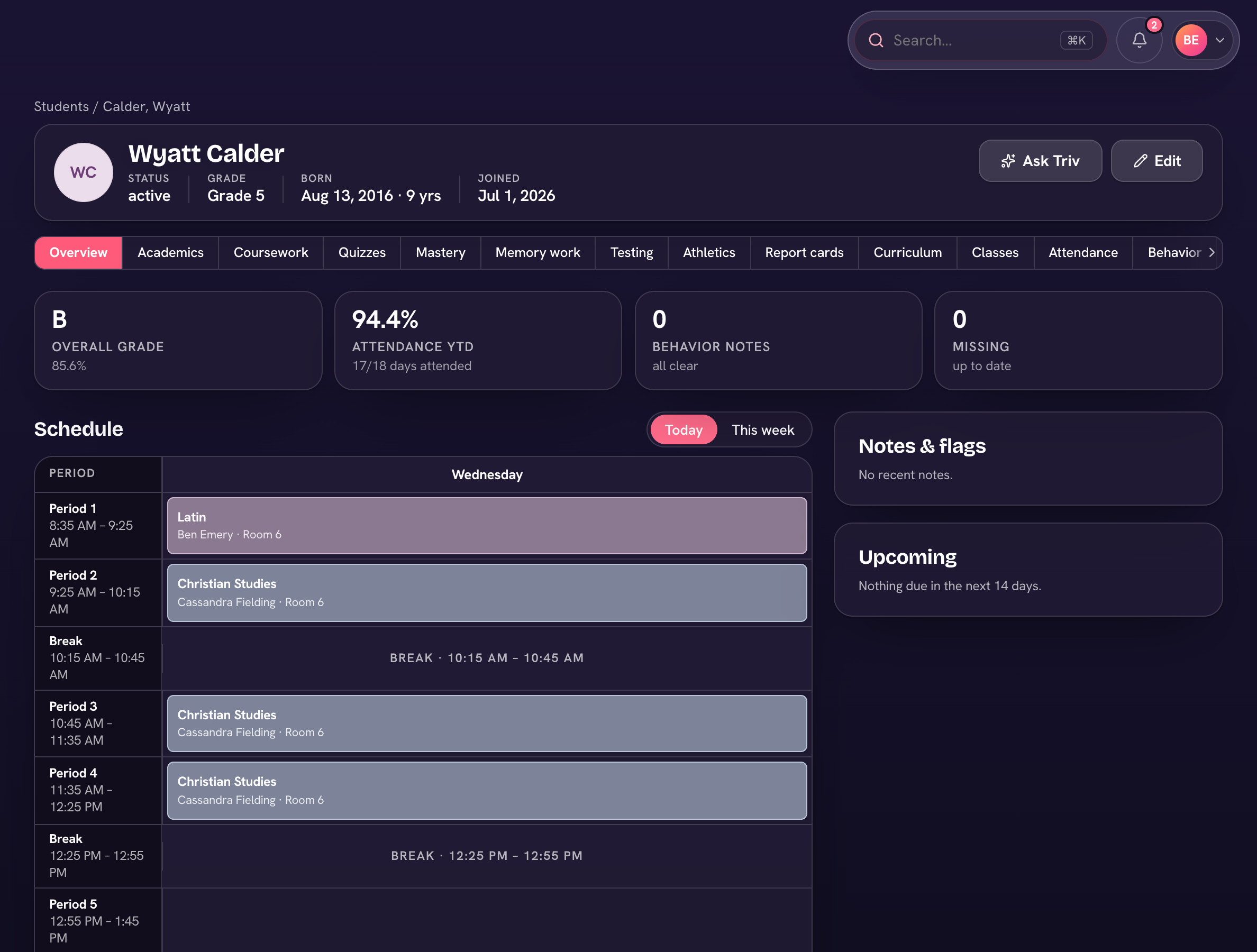
When consent is denied, the family and student portals show the student's initials instead of their photo. When directory opt-out is on, the student stays out of family-facing directories and rosters — staff screens are unaffected, so teachers still see their full class.
Collect consent once at enrollment (a custom Yes/No question on the application works well) and record it here.