- Open Students and choose Add student (admins and headmasters).
- Pick Add to existing family (choose the family) or Create new family (enter the parent's name, email and phone).
- Fill in each child's name, grade, full- or part-time, and date of birth — use + Add another student to add siblings at once.
- Save — each student gets a profile with tabs: Overview, Academics, Attendance, Conduct & notes, Family, Records and Tuition.
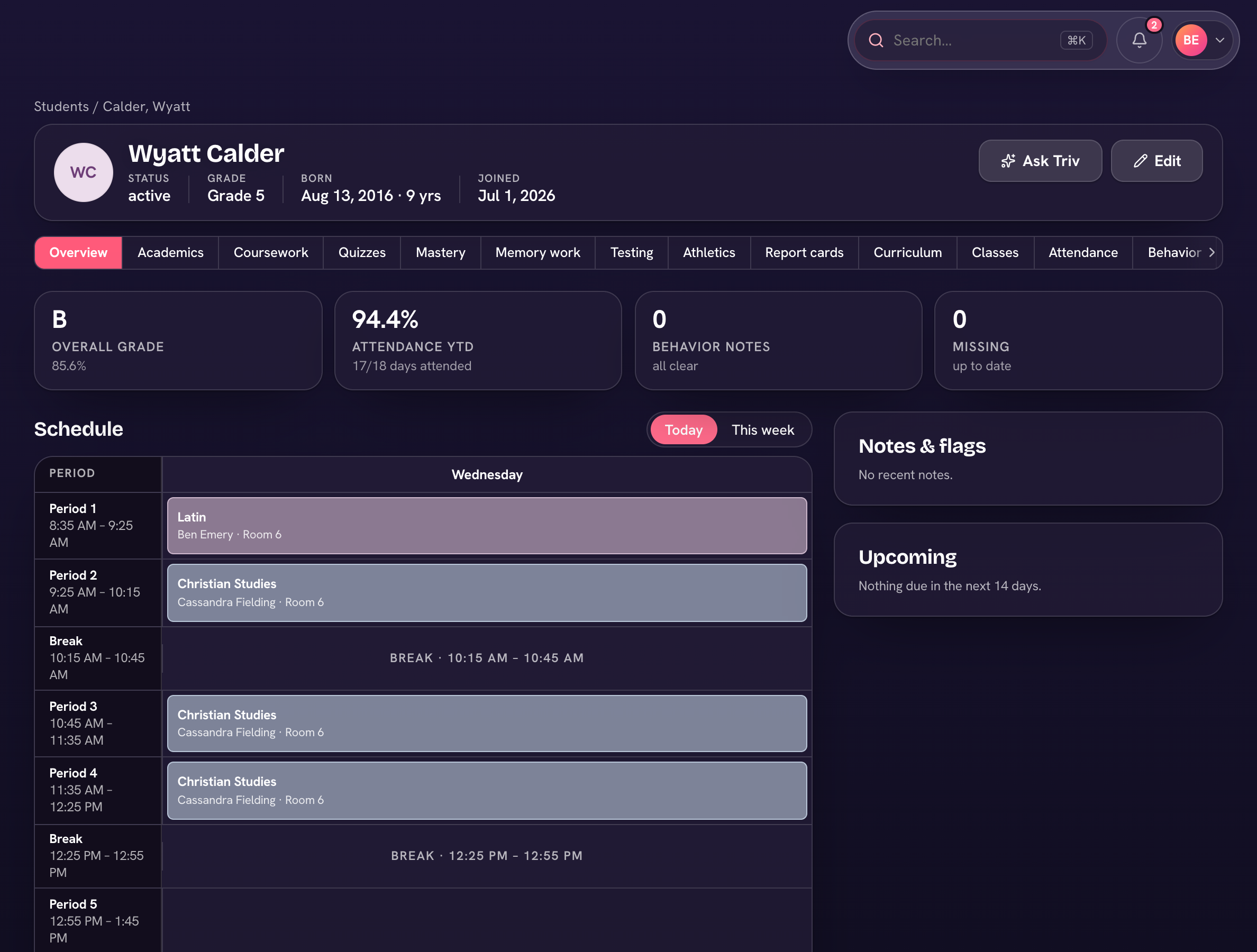
Academics holds Grades, Report cards and Testing; Conduct & notes holds Conduct and Notes; Records holds Health, Learning support, Documents and Library. Use Edit on the profile to change a student's details.
Photos
Hover (or tap) the student's avatar on their profile to upload or replace a photo. It then shows in rosters and lists across the app.
Use Filters (grade, status, enrollment) to narrow the list. Import students, Student logins, Archived students and Export CSV are under ⋯. Graduates live on the Alumni page (Records → Alumni).