Tours lets prospective families book a visit themselves. You add the times, share one booking link, and Trivium keeps the list. Each booking starts (or joins) that family's inquiry, so the tour sits on the same record as the rest of their admissions story.
Where to find it
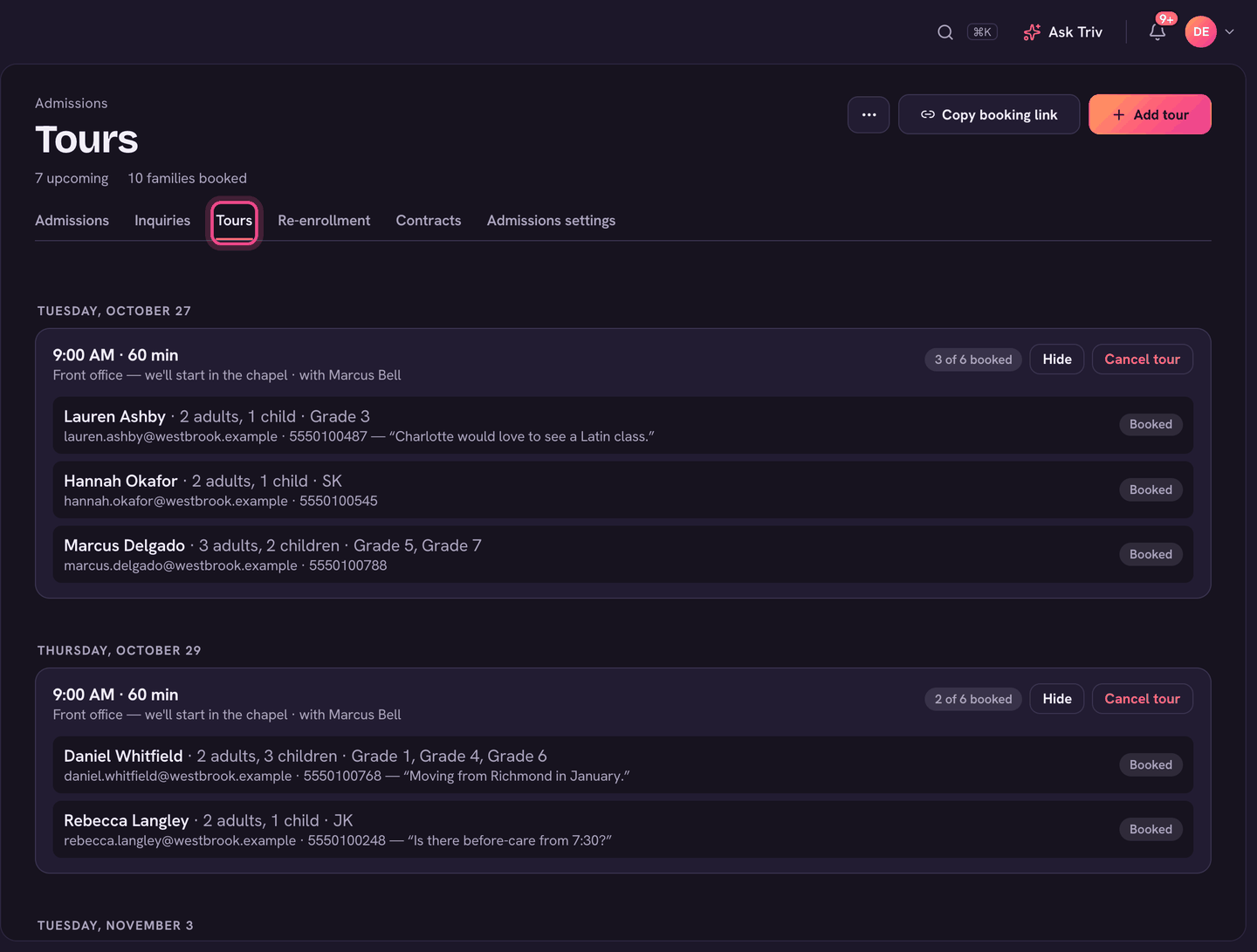
Choose Admissions in the sidebar, then Tours.
Add tour times
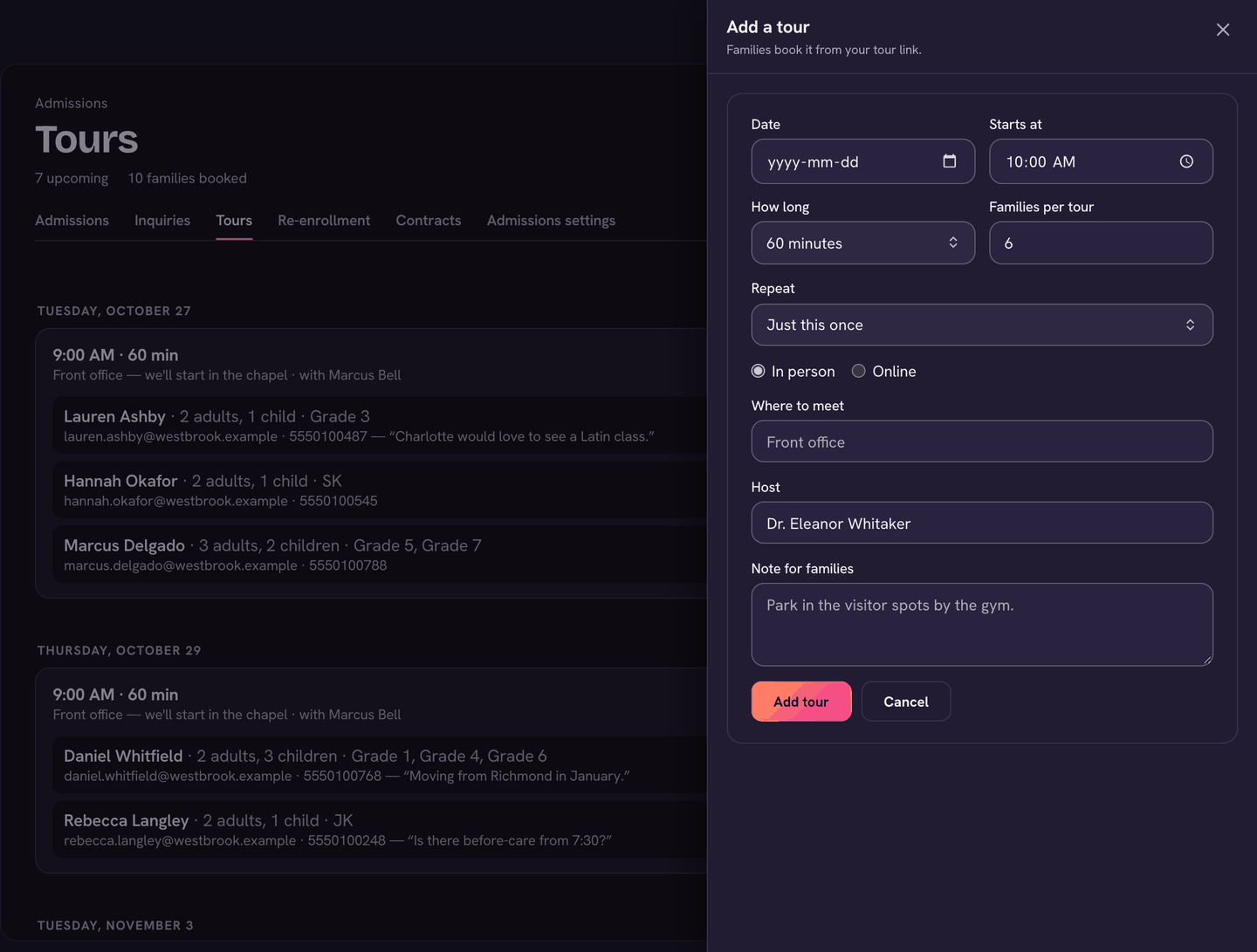
- Choose + Add tour.
- Set the Date, Starts at, How long, and Families per tour.
- To offer the same time every week, change Repeat from Just this once to Weekly for 2 to 12 weeks.
- Choose In person (with Where to meet) or Online (with a Video link).
- Check the Host and add a Note for families, like where to park. Choose Add tour.
Share the booking link
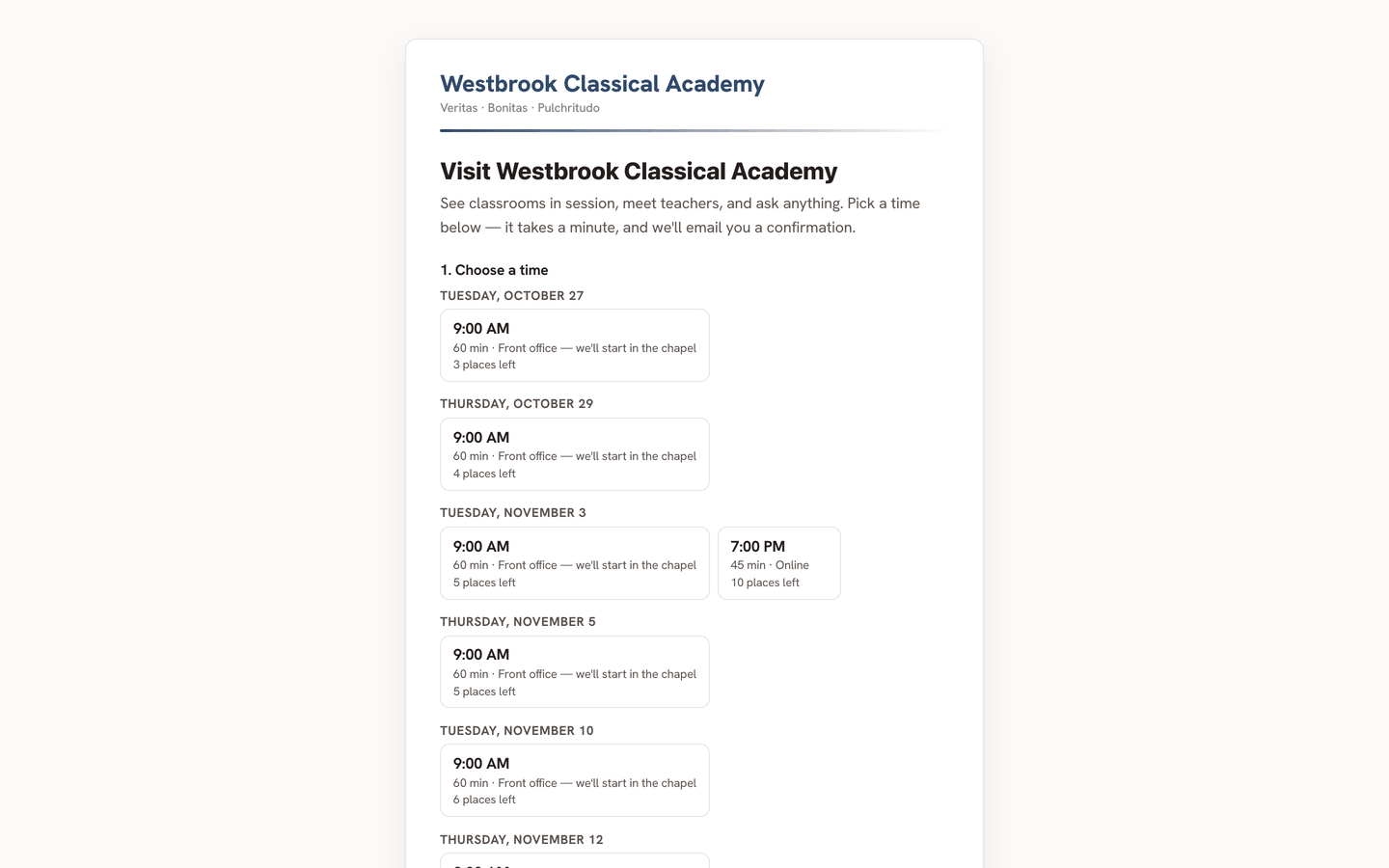
- Copy booking link (top right) copies your school's tour page. Put it on your website beside your enrollment link, or paste it into a reply to an inquiry.
- ⋯ → Open booking page shows it as families see it.
- Families pick a time, give their name, email and phone, how many adults are coming, how many children they're enrolling, and the grades they're interested in.
- They get a confirmation email and a reminder the day before. The email has a link where they can Change time or Cancel my tour.
- Your inquiry form also offers Book a tour whenever a tour is coming up.
Manage a tour
- Each tour shows the time, place and host, and how full it is. Each family's booking shows who's coming, their contact details and any note. Their name links to their inquiry.
- Hide takes a time off the booking page without cancelling it (it shows Hidden). Show puts it back.
- Cancel tour cancels a time that has bookings, and emails the families. A time with no bookings has Delete instead.
- ⋯ → Show past tours lists the last 90 days.
On the day
- Open Tours once the tour has started.
- Beside each family, choose Came or No-show.
- Follow up from the family's inquiry: choose their name to open it.
Tours are for admins and headmasters. To see where each family is in the process, see Handling inquiries and The admissions pipeline.
On the app
Tours are run from the web only.