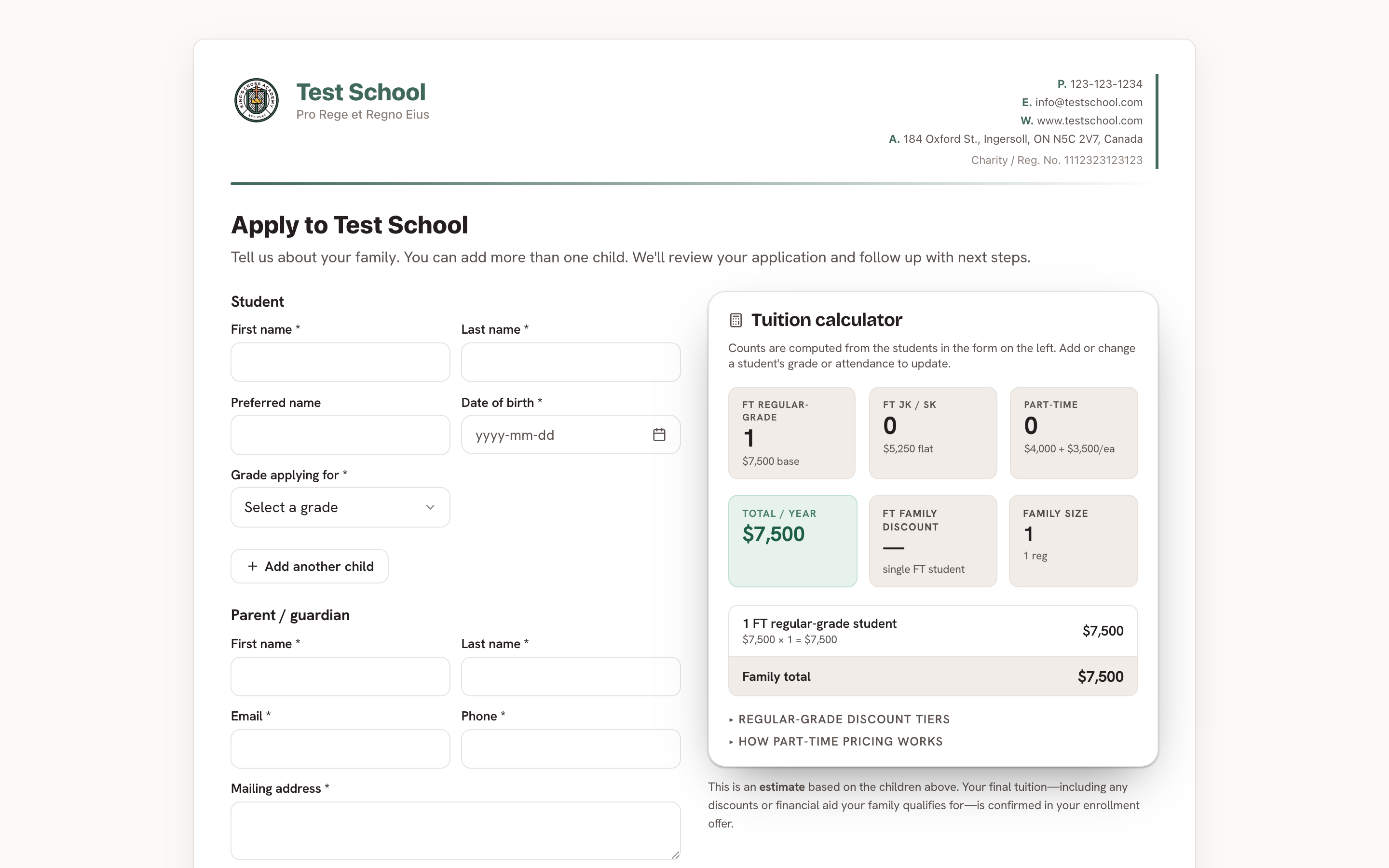
Your application mirrors your paper form — family and student details, the questionnaire, and the agreement to e-sign. Families complete it online at your school's public apply page, and what they enter flows straight into the student record on enrollment.
Add your own questions
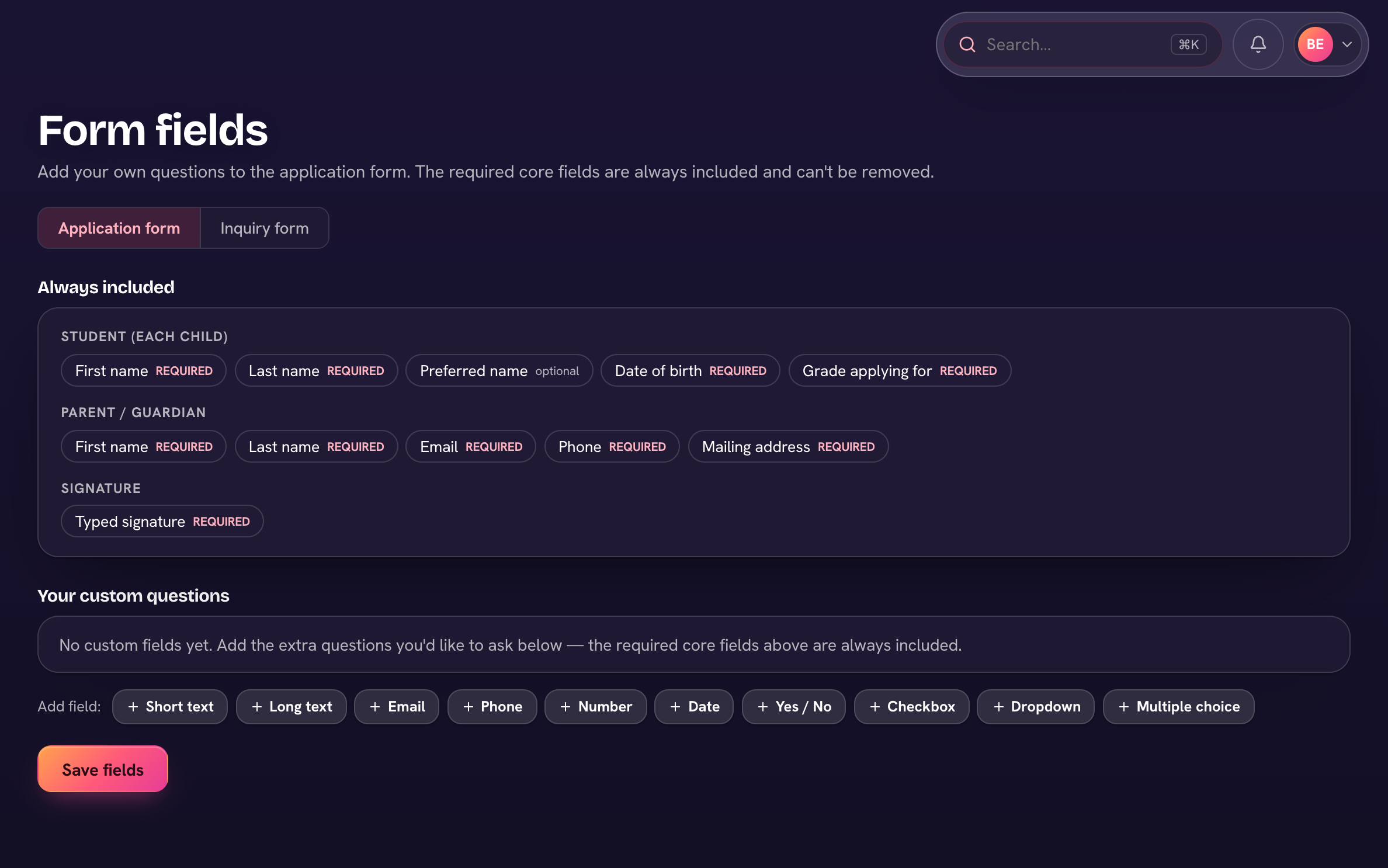
The required core fields are always included (the page lists them under "Always included"), and you can add your own questions to both the application and the inquiry form.
- Open Admissions → Admissions settings and choose Application form (or Inquiry form). Tabs at the top switch between the two.
- Choose Add question and pick a Type: Text box (short answer), Text box (paragraph), Email, Phone, Number, Date, Yes / No, Checkbox, Dropdown or Multiple choice.
- Write the Question, tick Required if it must be answered, and for Dropdown or Multiple choice list the Options comma-separated. Choose Add.
- Reorder with a question's ⋯ → Move up / Move down (Edit and Remove are there too).
- Choose Save at the top — the live form updates. Use ⋯ → Preview the form to check it.
"Notify on submission" on the same page sets who gets an email when a family submits.
Families' answers to custom questions show on the inquiry and application in the admissions area, right beside the core details.