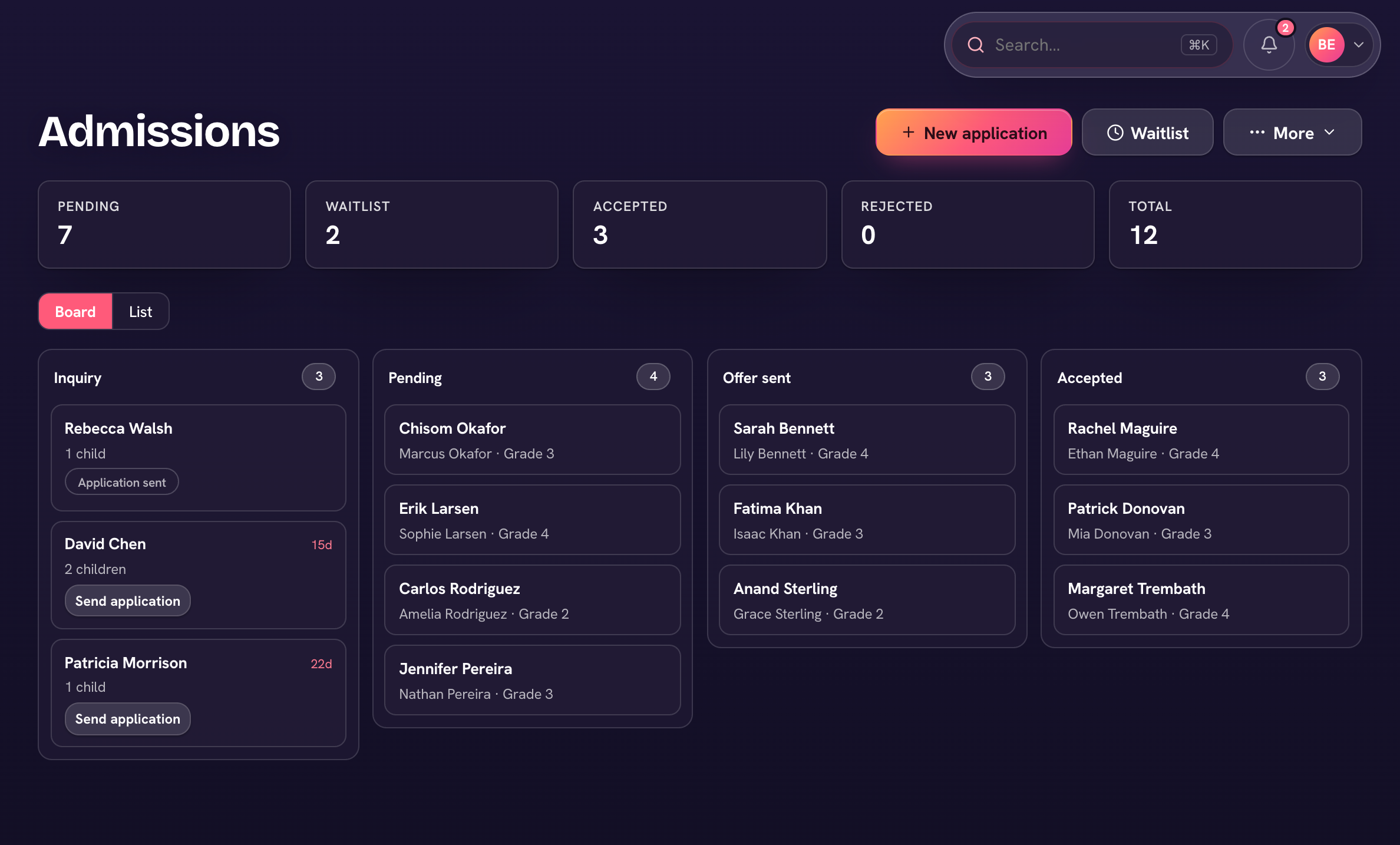
Admissions → Pipeline moves a family from first inquiry to enrolled. The board has four columns: Inquiry, Pending, Offer sent and Accepted. An inquiry becomes an application you send; the family completes it (and the student questionnaire); you create and send an offer; the family signs it and pays the registration fee; you countersign the agreement.
- Open Admissions → Pipeline. Switch between Board and List at the top (phones always show the list).
- On List, use the Status chip to see Pending, Waitlist, Accepted, Rejected or Withdrawn applications, and the Grade chip to narrow by grade.
- Add an application by hand with New application, or share your public form from ⋯ → Copy apply link.
- On an inquiry card, ⋯ → Send application emails the family the application.
- Open any card to review it, create the offer, and move it along.
After the family signs the offer (it carries the enrollment agreement and their payment plan) and pays the registration fee, countersign the agreement from the application's "Countersign the agreement →" link or under Admissions → Contracts.
Inquiry and Pending cards show how many days they've waited (for example "12d"), so stalled families stand out.