Requests is how you reach the Trivium team. Every request is tracked, so you can see where it stands, read our replies and answer them. You also get an email whenever we reply. Admins also see requests from their staff.
Where to find it
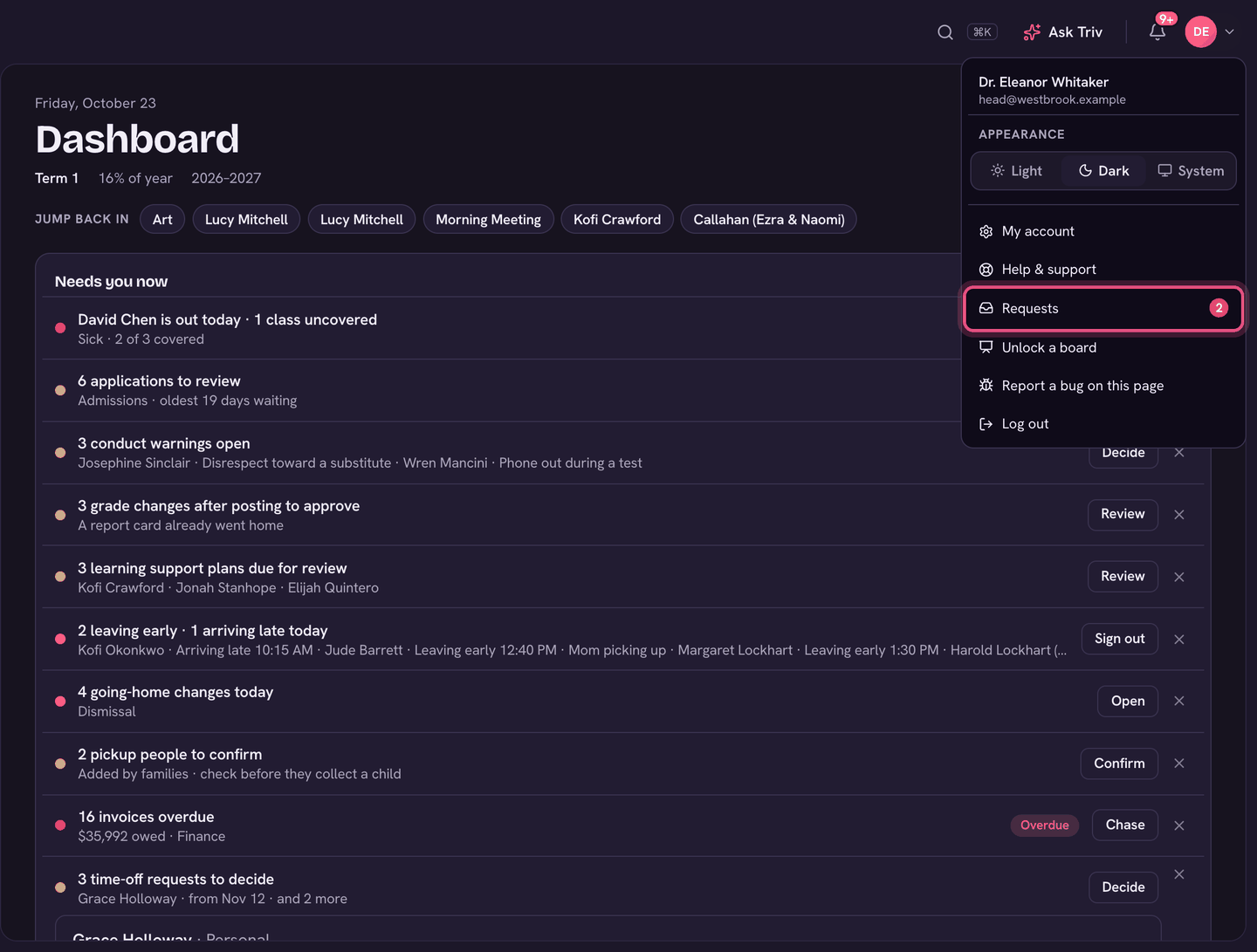
Click your avatar (top right) and choose Requests. A red number beside it means something is waiting on you. Requests is also a tab of Help & support.
Starting a request
- On Requests, choose New request.
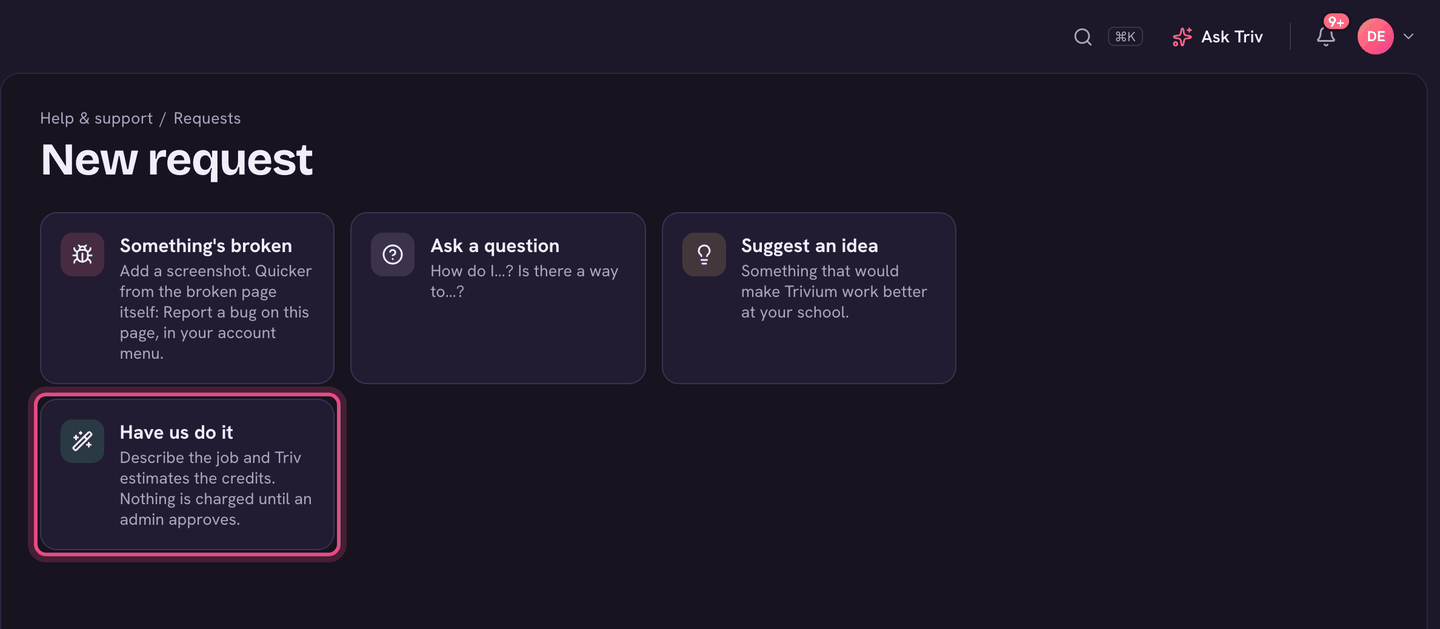
- Pick one: Something's broken, Ask a question, Suggest an idea, or Have us do it.
- Give it a Short title and describe it. Add a screenshot or files if they help.
- Choose Send request. You'll get an email when we reply.
Have us do it
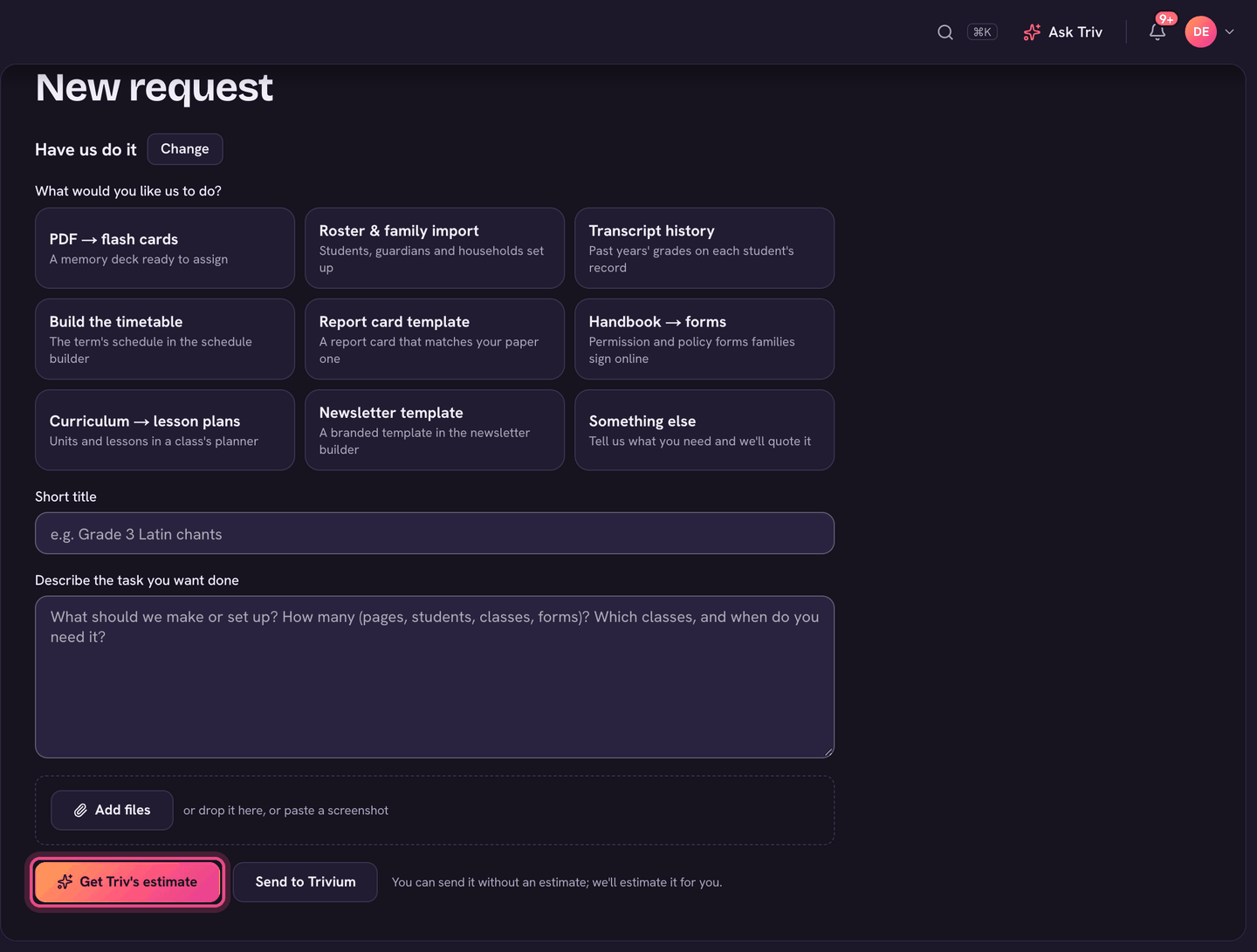
Have us do it hands a job to the Trivium team, such as PDF → flash cards, Roster & family import, Transcript history, Build the timetable, Report card template, Handbook → forms, Curriculum → lesson plans, Newsletter template, or Something else. It's paid for in credits. Each credit covers about 2 hours of work your staff won't have to do.
- Choose Have us do it, then pick the job under What would you like us to do? It tells you what to send us.
- Say how many (cards, students, classes and so on). You'll see roughly how much staff time it saves and about how many credits it is.
- Describe the task, and add your files.
- Choose Get Triv's estimate for a closer figure, or send it without one and we'll estimate it.
- Choose Send to Trivium.
Quotes and approving
The Trivium team confirms the credits and a due date. The request then shows Ready to approve, with the credits, the date it'll be done by, and how many credits your school has. Nothing is charged until it's approved.
- Approve takes the credits off your balance, and we start.
- If the balance is short, an admin sees Pay (amount) and approve, which buys just the missing credits by card. With Pay as you go on, the missing credits are bought on the card on file when you approve.
- Ask to change sends a note back so we can quote again. Not now closes the quote, with an optional reason.
Buying credits
- On Requests, choose Buy credits & history (admins).
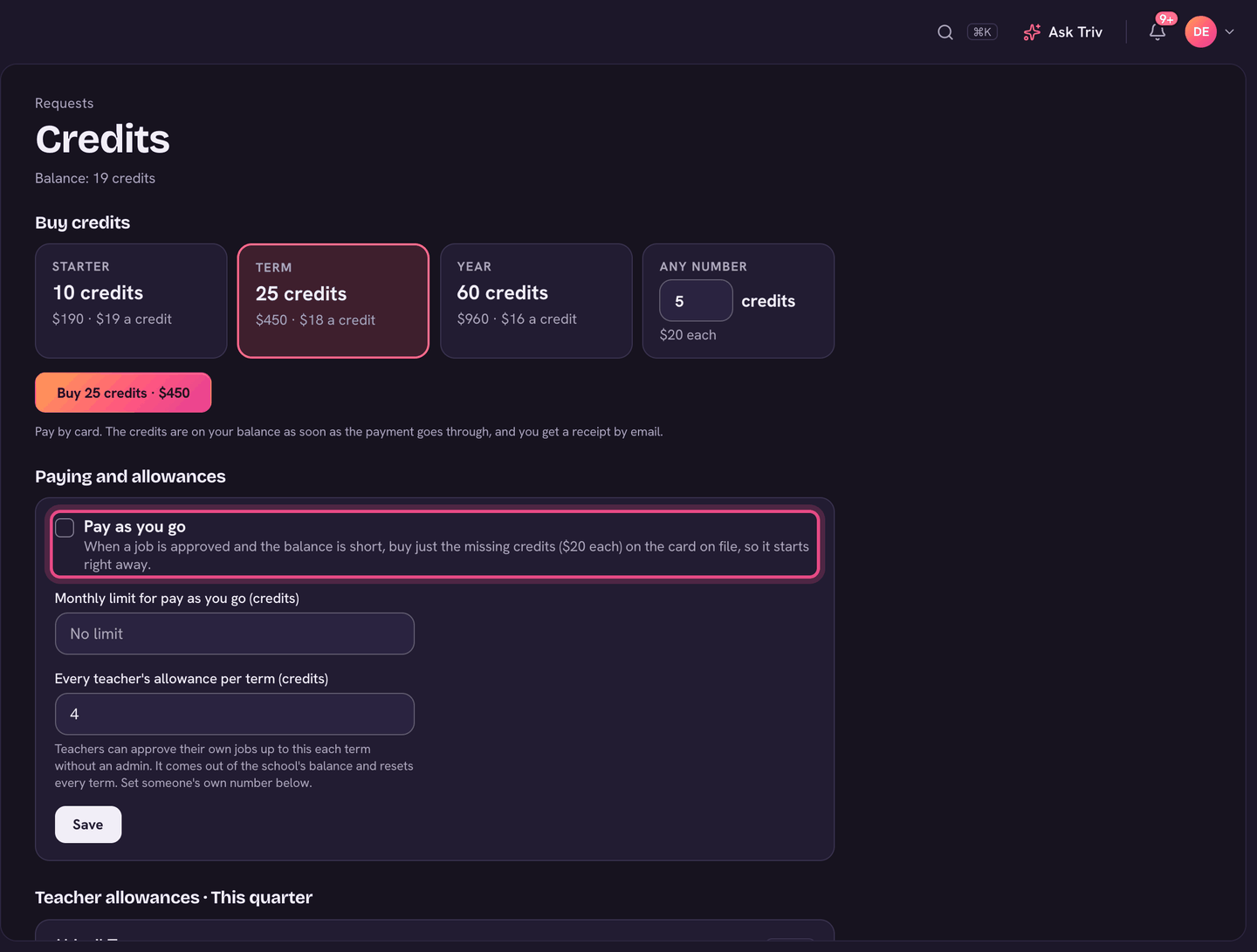
- Under Buy credits, pick a pack, or Any number.
- Choose the Buy button and pay by card. The credits are on your balance as soon as the payment goes through, and you get a receipt by email.
History lists every credit bought, used, added or refunded, with a link to the request it was for.
Pay as you go and teacher allowances
Under Paying and allowances on the Credits page:
- Pay as you go: when a job is approved and the balance is short, buy just the missing credits on the card on file, so it starts right away. Set a Monthly limit for pay as you go if you want one.
- Every teacher's allowance per term: teachers can approve their own jobs up to this each term without an admin. It comes out of the school's balance and resets every term.
- Teacher allowances lists each teacher with what they have left this term. Edit gives one teacher their Own allowance. Leave it empty to use the school's default.
- Choose Save.
For teachers
Teachers can start any kind of request too. A done-for-you job needs an admin's approval, unless it fits in your allowance: then the quote has Approve (credits) from my allowance. Bigger jobs go to an admin, and we email them.
Following a request
- Requests has three tabs: Waiting on you, Open and Closed.
- Each request shows where it stands: Sent, Looking into it, Waiting on you, Ready to approve, Approved, In progress, Done or Closed. Trivium replied marks a new answer.
- Open a request to read the conversation. Use Reply to the Trivium team and Send reply. If something isn't right after it's done, reply and we'll reopen it.
Reporting a bug
The quickest way is from the page that's wrong: click your avatar, then Report a bug on this page. Fill in What went wrong? and What were you doing, and what happened instead?, add or paste a screenshot, and choose Send report. The page you're on and your browser go along automatically. It becomes a request you can follow under Requests.
On the app
In the app, open Settings and tap Report a bug. Following requests, quotes and credits are on the web.
A question about a child or the school itself goes to your office in Messages, not to Trivium. Parents who open Requests are pointed there too.