Where to find it
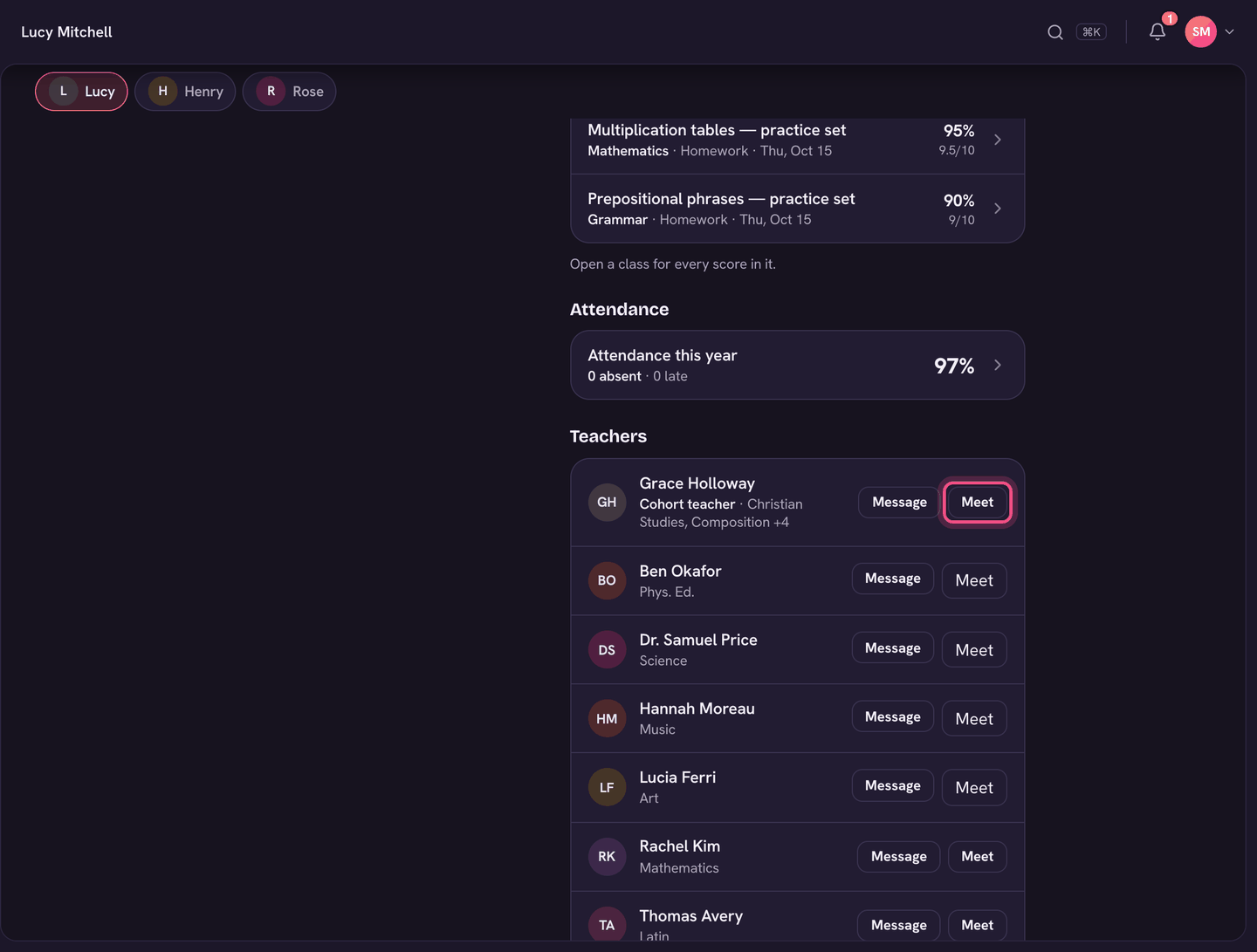
Open your child's page. Under Teachers, every teacher has Message and Meet. You can also open Conferences in the Family section of the menu.
Book an open time
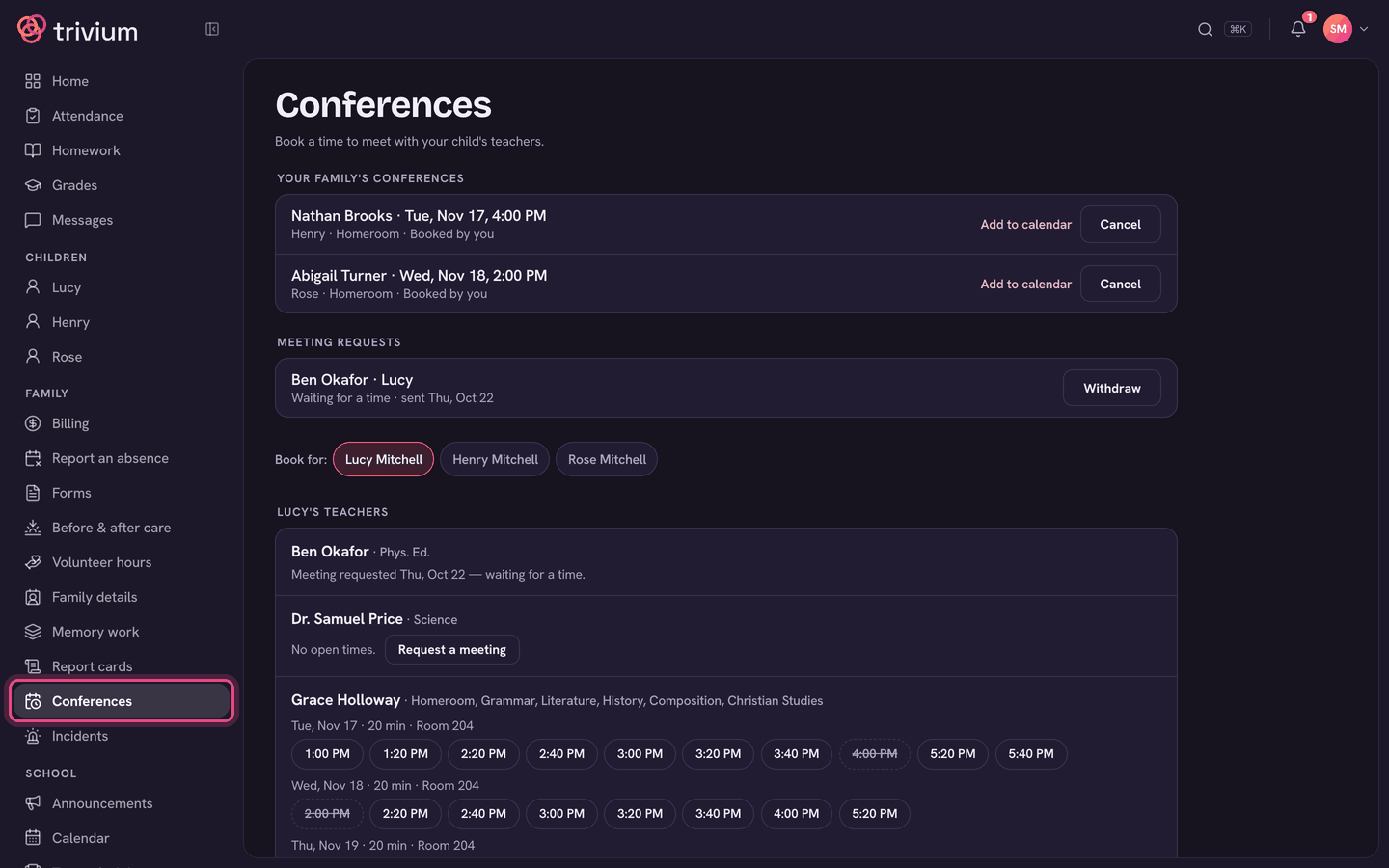
During conference season, teachers publish the times they're free. Meet takes you straight to them.
- Open Conferences. With more than one child, pick one under Book for.
- Under your child's teachers, tap a time.
- Check the details and choose Book. If the time clashes with another of your family's conferences, the button says Book anyway.
- You'll get a confirmation email with a calendar link. The booking is listed under Your family's conferences, with Add to calendar and Cancel.
Ask for a meeting
If a teacher has no open times, or none of them suit you, ask for a meeting instead.
- Choose Meet on your child's page, or on Conferences choose Request a meeting (or None of these work? Request a meeting).
- Under What would you like to talk about? (optional), add a short note so the teacher can prepare. From your child's page it starts with Could we meet about (your child)?
- Under Times that suit you (optional), add when you're free, such as weekdays after 3:30.
- Choose Send request.
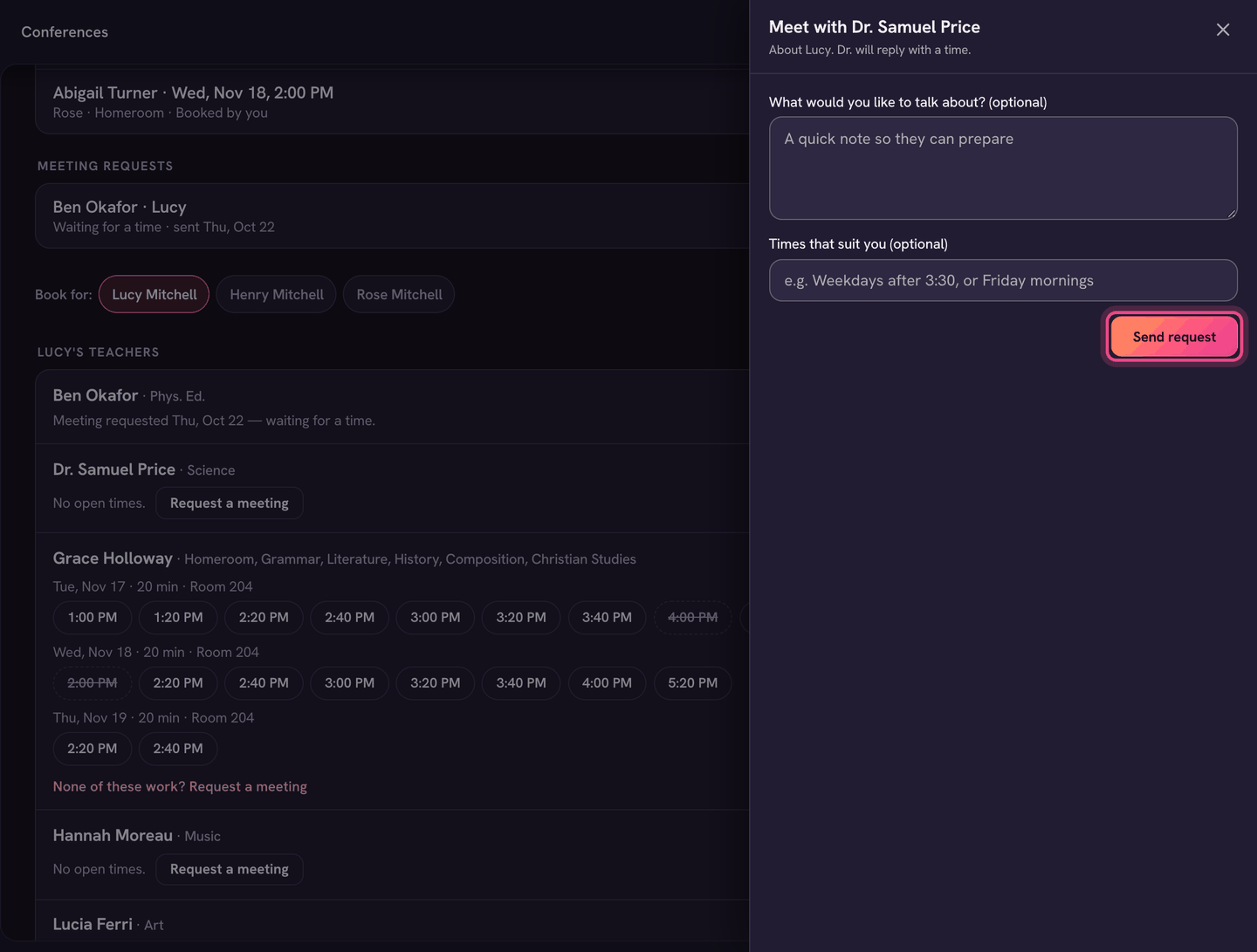
The teacher sees your whole note and replies with a time, and the meeting then shows under Your family's conferences. While you wait, Conferences lists the request under Meeting requests as Waiting for a time. Choose Withdraw to take it back. If the teacher can't meet, the request says Can't meet with their reply.
On the app
- On your child's page, tap Message a teacher, then Meet beside the teacher's name.
- If they have open times, you'll go to Conferences. Pick a time and tap Book.
- If not, the Meet with sheet opens. Add your note and the times that suit you, then tap Send request.
- Conferences is also in the menu, under Records & details.
To change a booked time, cancel it (the time reopens for other families) and book a new one.
Only need a quick word? Message the teacher instead. It's often faster than a meeting.