Each person signs in with their own email address. Staff are added from Faculty & staff, parents are invited from Families, and students 13 and older get a login from their student record. One person can hold several roles under one login, for example a teacher who is also a parent at the school.
Staff
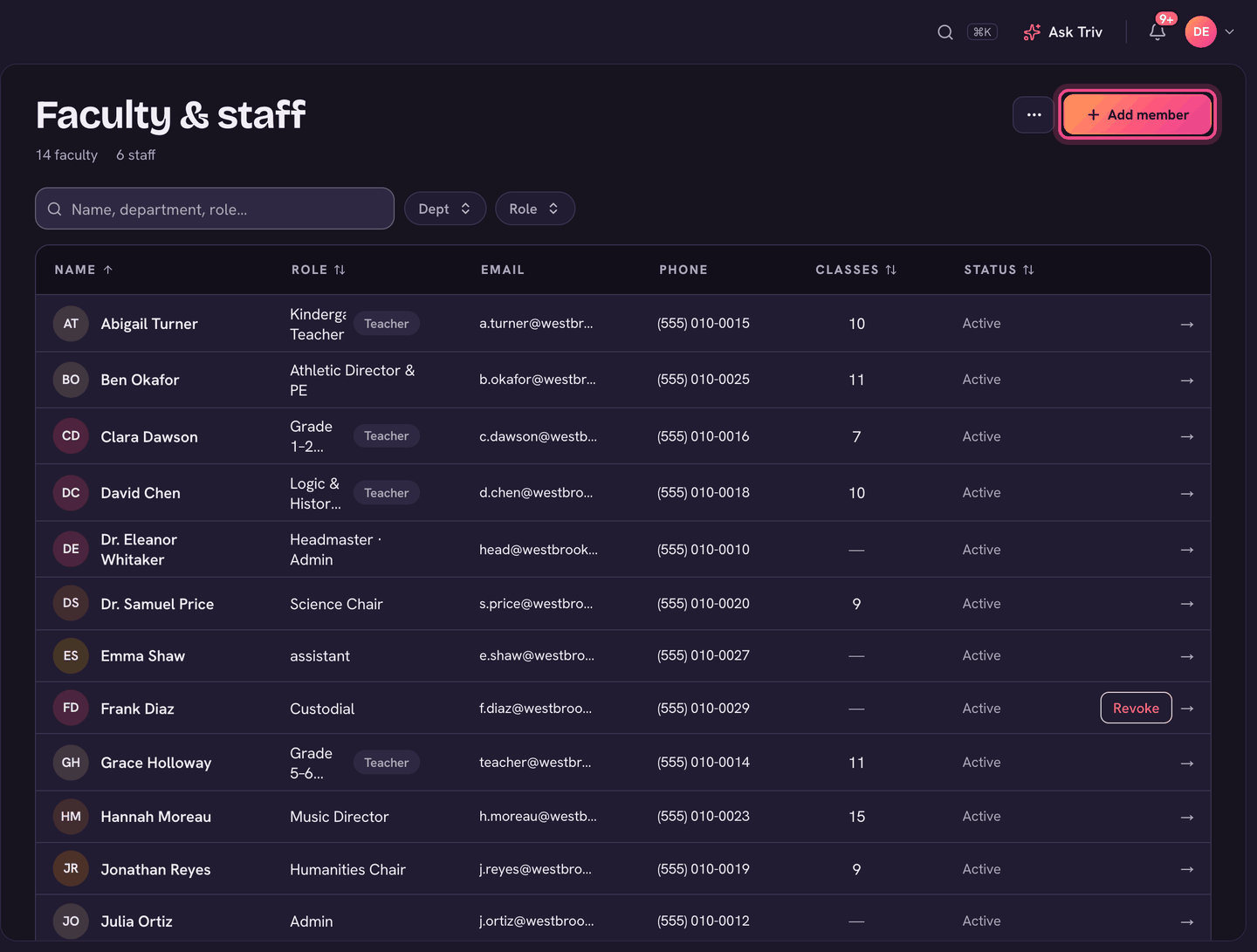
- Open Faculty & staff and choose Add member.
- Enter their First name, Last name and Email (Phone is optional).
- Tick their Roles. Teacher is ticked to start with; you can tick more than one. Your own role types are listed too.
- Choose Add. Their account is ready straight away.
Trivium doesn't email new staff. Tell them to go to the sign-in page, choose Forgot password?, and enter the email you used. They'll get a link to choose a password. If your sign-in page shows Continue with Google or Continue with Microsoft and their school email is that kind of account, they can use that instead. Or set a password for them: open their profile, then ⋯, then Reset password, and share it securely.
Adding a lot of staff? Faculty & staff, then ⋯, then Import staff takes a spreadsheet. The only required column is email.
Parents and guardians
Adding a family doesn't send anything. A parent gets a login when you invite them, and only parents with an email on file can be invited.
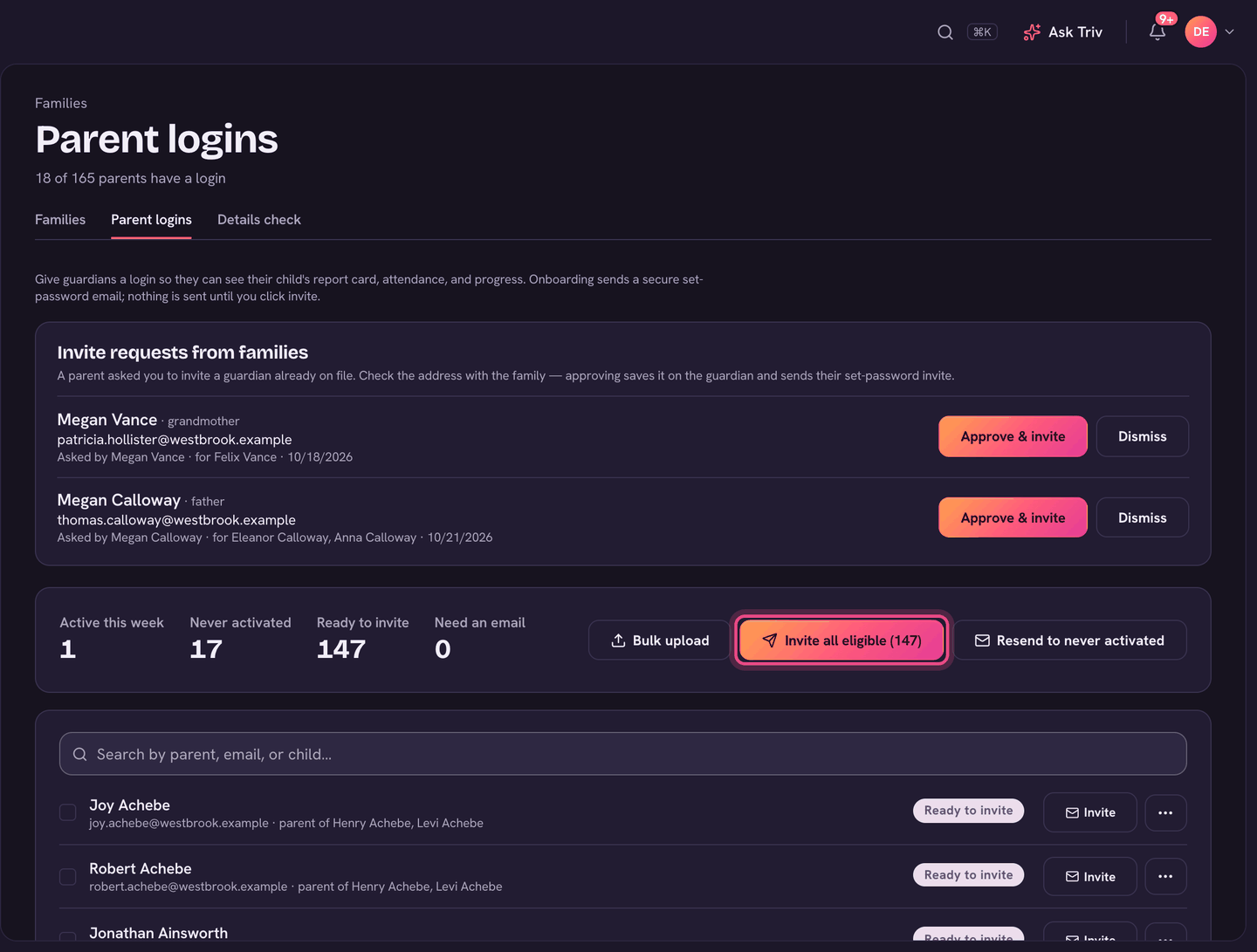
- Open Families and choose the Parent logins tab.
- To invite everyone at once, choose Invite all eligible. It goes to every parent who has an email and no login yet.
- To invite one parent, choose Invite on their row. For someone who already has a login, the button says Resend.
- Parents marked Needs email can't be invited yet. Choose Add email on their row, or Add emails to fix them all in one list.
Each parent gets an email called Set up your (school name) parent login with a Set your password button. The link works for 24 hours. After that they can go to the sign-in page, choose Forgot password? and set a password whenever suits them.
- Resend to never activated sends a fresh link to every parent who has a login but has never signed in.
- The counts at the top (Active this week, Never activated, Ready to invite, Need an email) are filters. Click one to see just those parents.
- A parent can ask you to invite a co-parent. Those requests show under Invite requests from families. Check the address with the family, then choose Approve & invite.
- To set a parent's password yourself, use the ⋯ on their row, then Set password.
Students 13 and older
Logins are for students who are 13 or older, with a date of birth and an email on their record. Younger students don't get one.
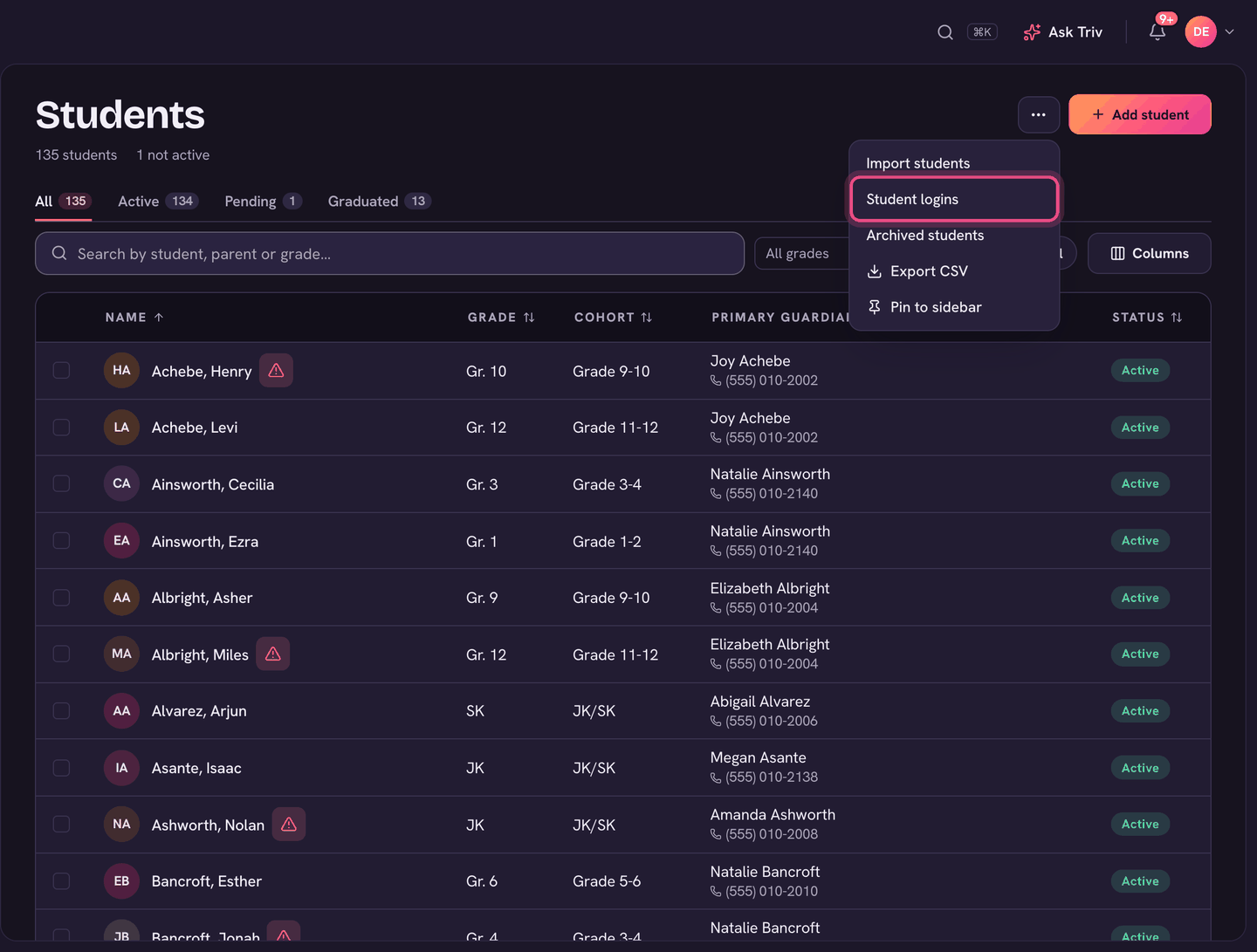
- To do a whole class or grade at once, open Students, then ⋯, then Student logins. Tick the students (or Select all) and choose Create logins (the button shows how many, for example Create 12 logins). No email is sent: choose Print sign-in cards, because these first passwords aren't shown again.
- To do one student, open their profile and choose Edit. Under Student login, enter the Student email and choose Save email, then Create login & send invite. They get an email called Set up your (school name) student login.
- To resend it, choose Resend invite in the same place. To give them a password instead, use Set a password directly.
When someone can't sign in
- Their link expired: invite links last 24 hours. Choose Resend, or have them use Forgot password? on the sign-in page.
- Email me a sign-in link only works for parents and students. Staff sign in with a password, Google or Microsoft.
- They're using a different email: check the email on their staff profile or guardian record. It has to match exactly.
- Their row says Unpaid seat: the account is locked until the seat is bought in School settings, then Subscription & billing.
- A student is under 13, or has no date of birth on file: they can't have a login.
- They were archived: archived staff can't sign in until you restore them from Archived faculty & staff.
Two logins for one person
Trivium keeps one login per person. If you change a staff member's or parent's email to an address that already has a login, Trivium shows That email already has a login and offers Merge into (that email). Everything from the old login (roles, classes, records, messages) moves across, and the old email stops working as a login. Merging can't be undone.
On the app
Inviting people is done on the web. Once someone has a login, they sign in to the Trivium app with the same email and password.
A teacher who is also a parent doesn't need two logins. Invite them as a parent using the same email as their staff account, and they can switch between views from their account menu.