Set up a new school in this order. Each step builds on the one before: classes need subjects and grade levels, the schedule needs classes, and families need students before they can be invited.
The checklist on your Home page
Until the basics are done, your Home page shows a Set up your school card with a progress bar. Its steps are Create an academic year, Mark a year as current, Create the year's terms, Add grade levels, Add subjects, Add teachers, Create classes, Build the weekly schedule and Enroll your first students. Click a step to go straight to it. Each one ticks itself off once it's done, and the card disappears when they all are.
New here? The guided tour starts the first time you open Home. Replay it any time from your account menu: Help & support, then Show me around.
Where to find it
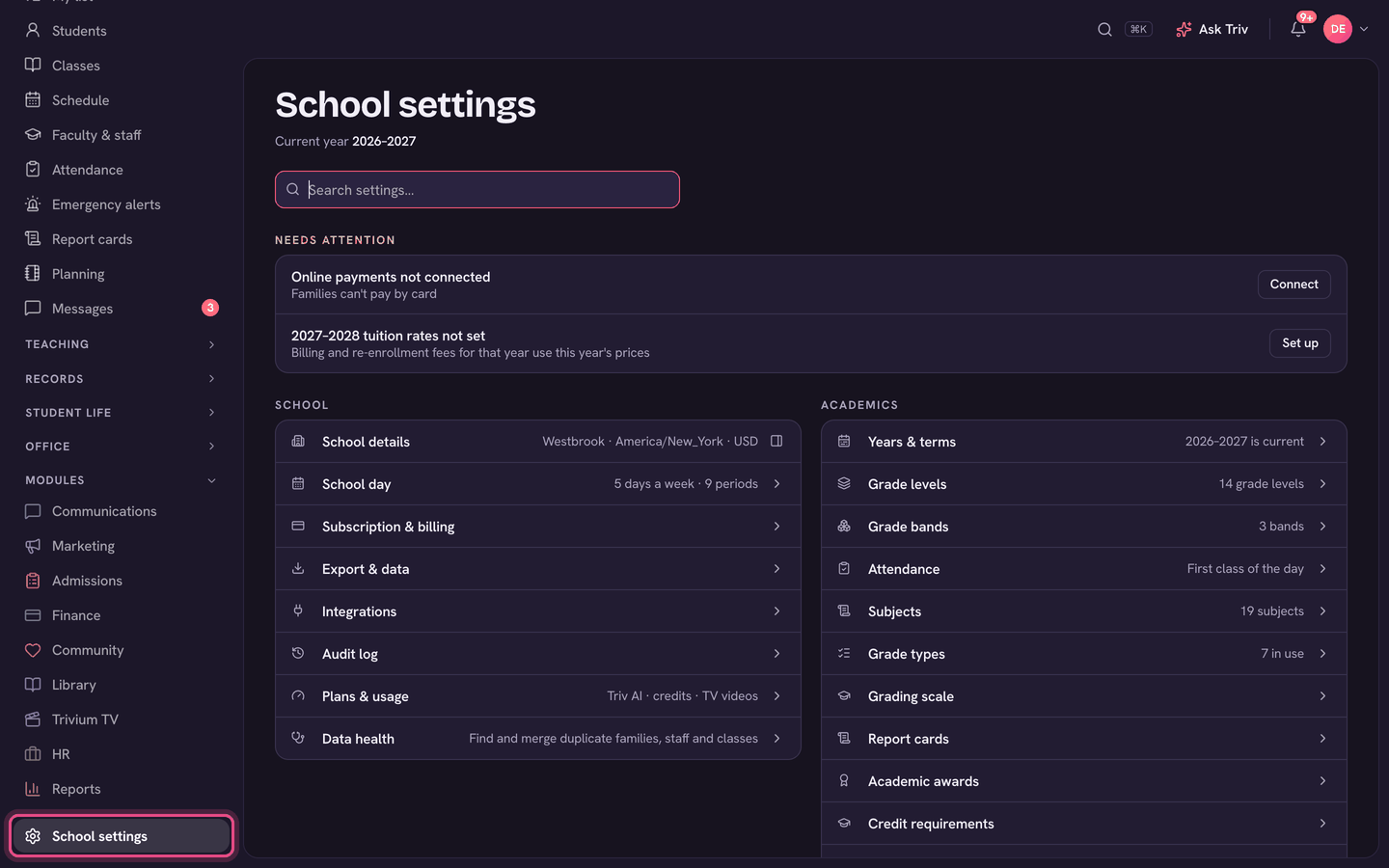
Most setup lives in School settings, at the bottom of the menu. It opens as one searchable list.
1. School details
- Open School settings, then School details.
- Add your logo, motto, brand colour, address, phone, contact email and website.
- Check the Timezone, Currency, Spelling and Time display. These drive every date, bill and email.
2. Academic year and terms
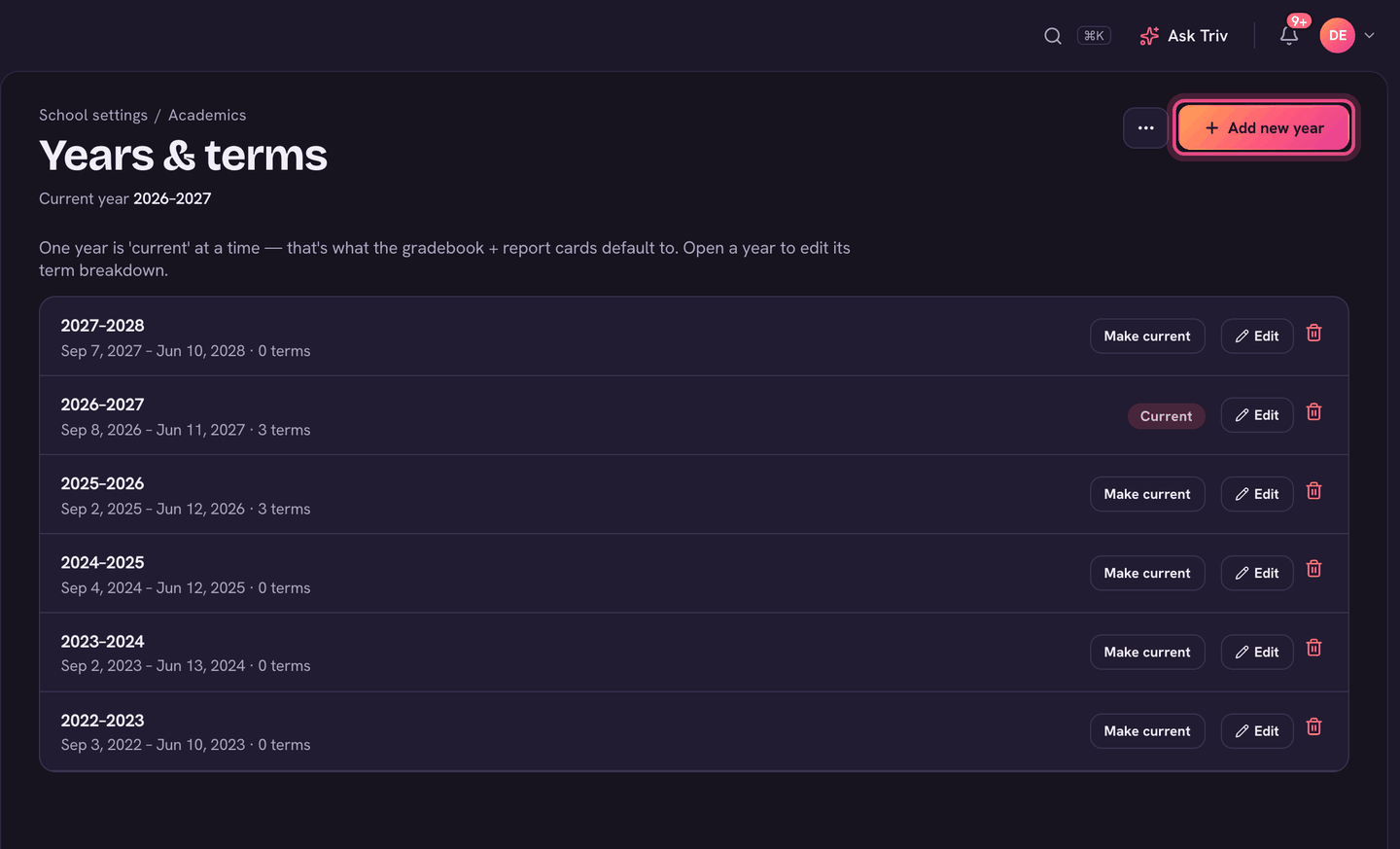
- Open School settings, then Years & terms, and choose Add new year.
- Enter its Label and Start and End dates, tick Mark as current year, and set the Number of terms. Then choose Create year.
- See Academic years & terms for the details.
3. Grade levels
School settings, then Grade levels. Seed Kindergarten through Grade 12 adds them all at once. To group them (Lower school, Upper school) use Grade bands. See Grade levels & bands.
4. Subjects
School settings, then Subjects. Type a name and choose Add subject. You can also make a subject while adding a class, with New subject. See Subjects.
5. The school day
School settings, then School day. Set your Operating days and Periods (the bell schedule). Use Rotation for A/B or Day 1–6 schedules, Cohorts to join grades taught together, and Chapel for a daily chapel time. Holidays and breaks go in School calendar.
6. Staff
Faculty & staff, then Add member (or ⋯, then Import staff for a spreadsheet). Pick each person's roles as you add them. See Inviting staff and families to sign in, and Roles & permissions.
7. Students and families
Students, then ⋯, then Import students brings in the whole roster from a CSV, with up to two guardians per student, and groups siblings into families. Or add them one at a time with Add student. See Bulk import: students & families, and Adding and managing students.
8. Classes and the schedule
Classes, then Add class (or ⋯, then Import classes). Then Classes, ⋯, Enroll all eligible students… puts every student in the classes their grade qualifies them for. Last, Schedule, then Edit schedule places each class in the week. See Classes, cohorts & the schedule.
9. Modules
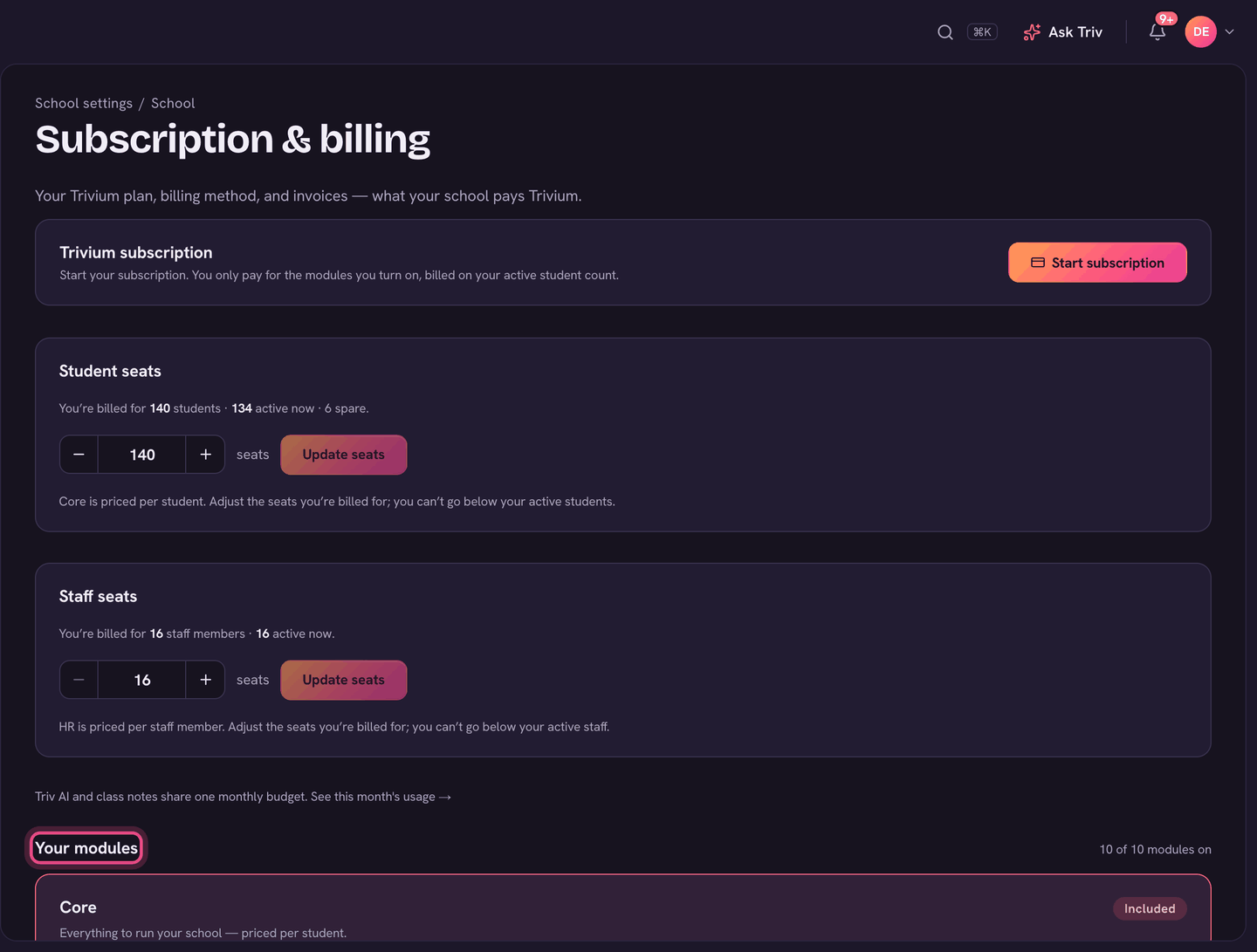
School settings, then Subscription & billing. Your modules lists Core (included) and each module with Add module or Active. See Turning modules on and off.
10. Invite families
Families, then the Parent logins tab, then Invite all eligible. Every parent with an email gets a link to set their password. See Inviting staff and families to sign in.
11. Online payments
School settings, then Online payments, to connect your school's Stripe account so families can pay tuition and give online. Set Tuition rates and Payment plans in the same Finance group. See Connecting Stripe for online payments.
On the app
Setup is done on a computer. The Trivium app doesn't have School settings, adding staff or building the schedule.
Type in the Search settings… box at the top of School settings. It matches words like "logo", "holidays" or "Stripe", not just section names.
Invite families after students and classes are in. A parent who signs in to an empty account on day one rarely comes back.