Three pages show a student's own work beyond grades: the Reading log (the books they read), the Portfolio (their best work, year by year) and Mastery (where their teachers have placed them on each skill).
Where to find it
Students: Reading log and Portfolio are under My work in the sidebar. Mastery is on each class's page: open Grades and choose a class.
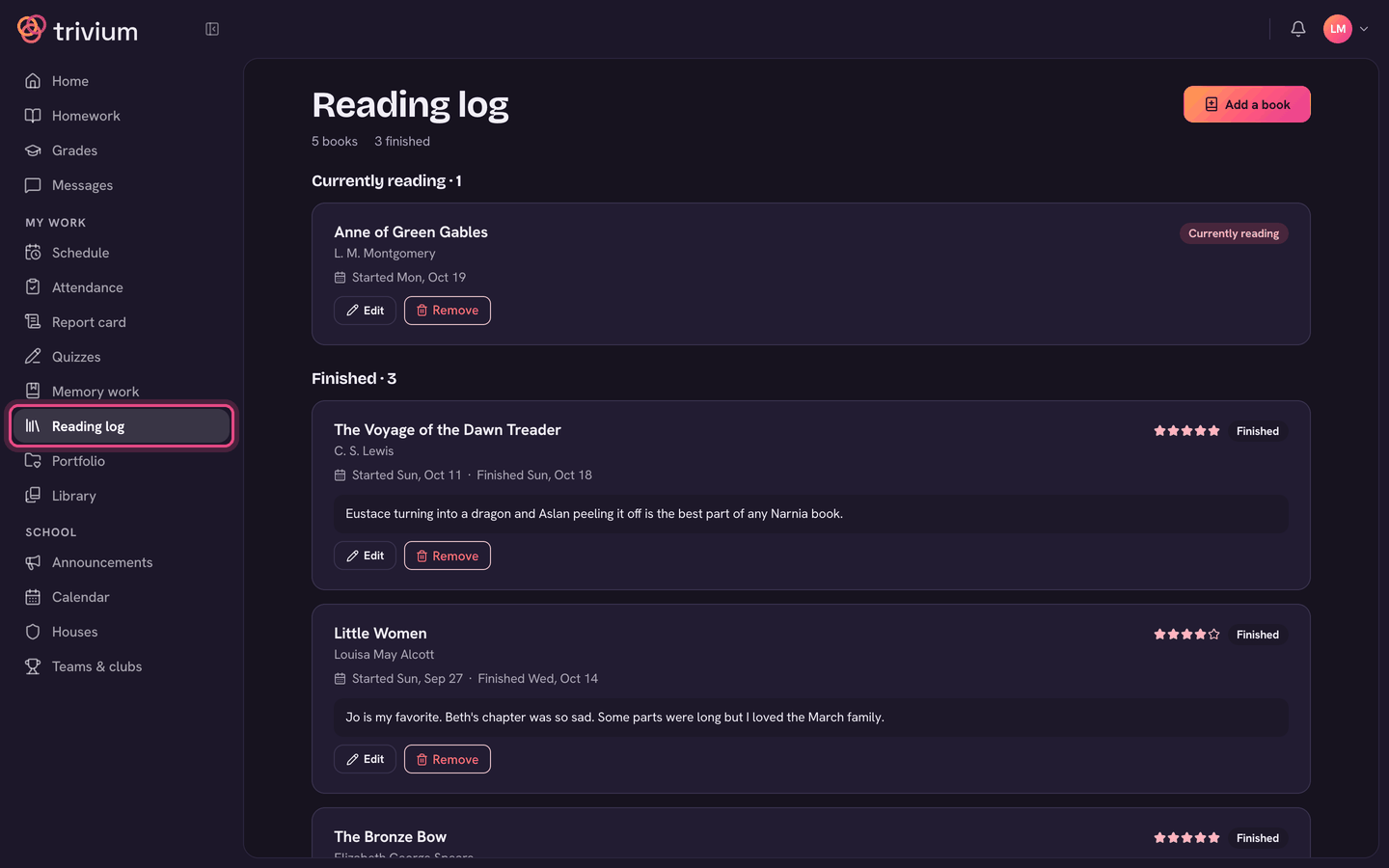
Reading log
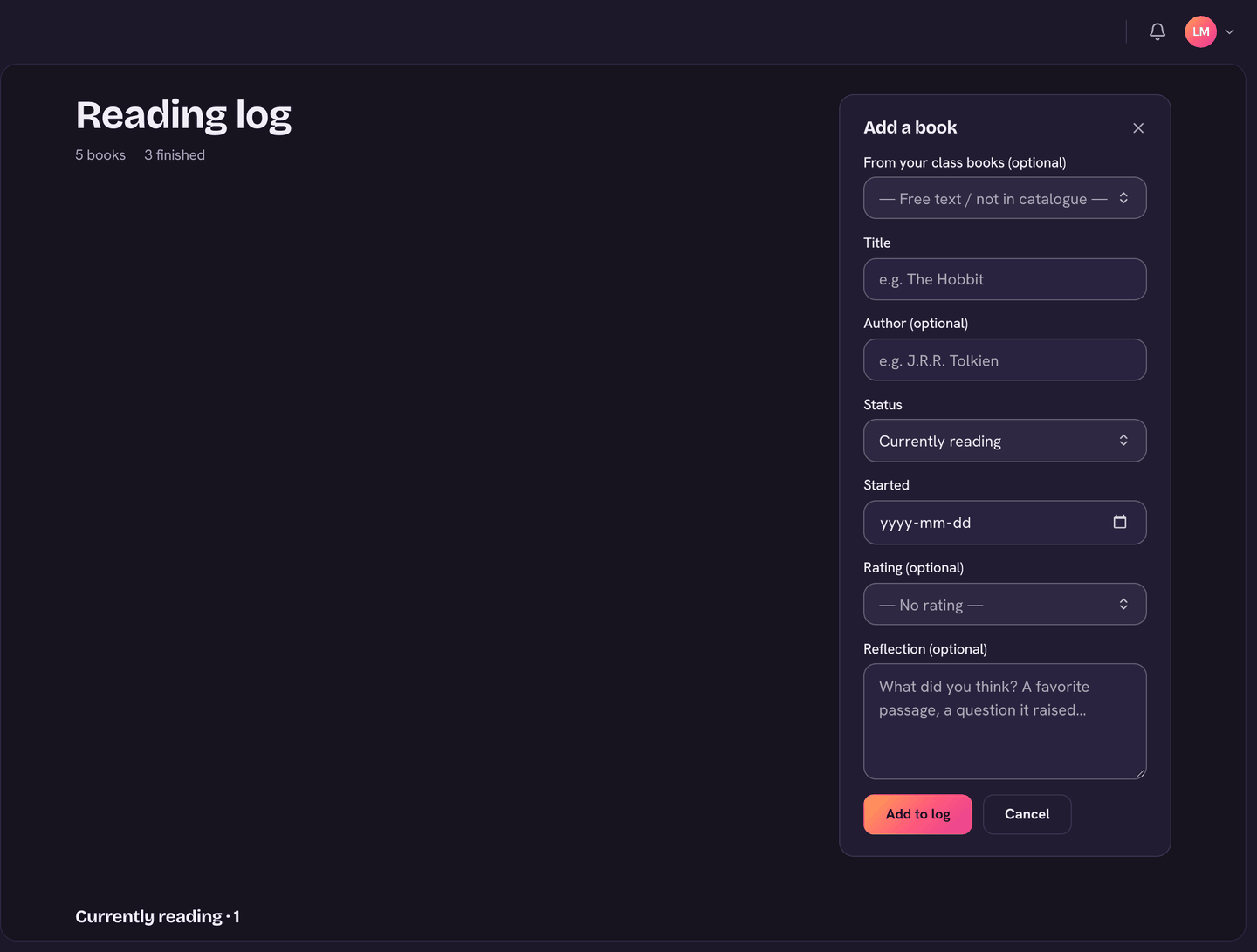
- Open Reading log and choose Add a book.
- Pick it From your class books, or type the Title and Author.
- Set the Status: Currently reading, Finished or Set aside, with the dates.
- Add a Rating and a Reflection if you like, then choose Add to log.
- Change a book later with Edit (for example, when you finish it), or Remove it.
Parents can see their child's reading log in the Trivium app, on their child's page.
Portfolio
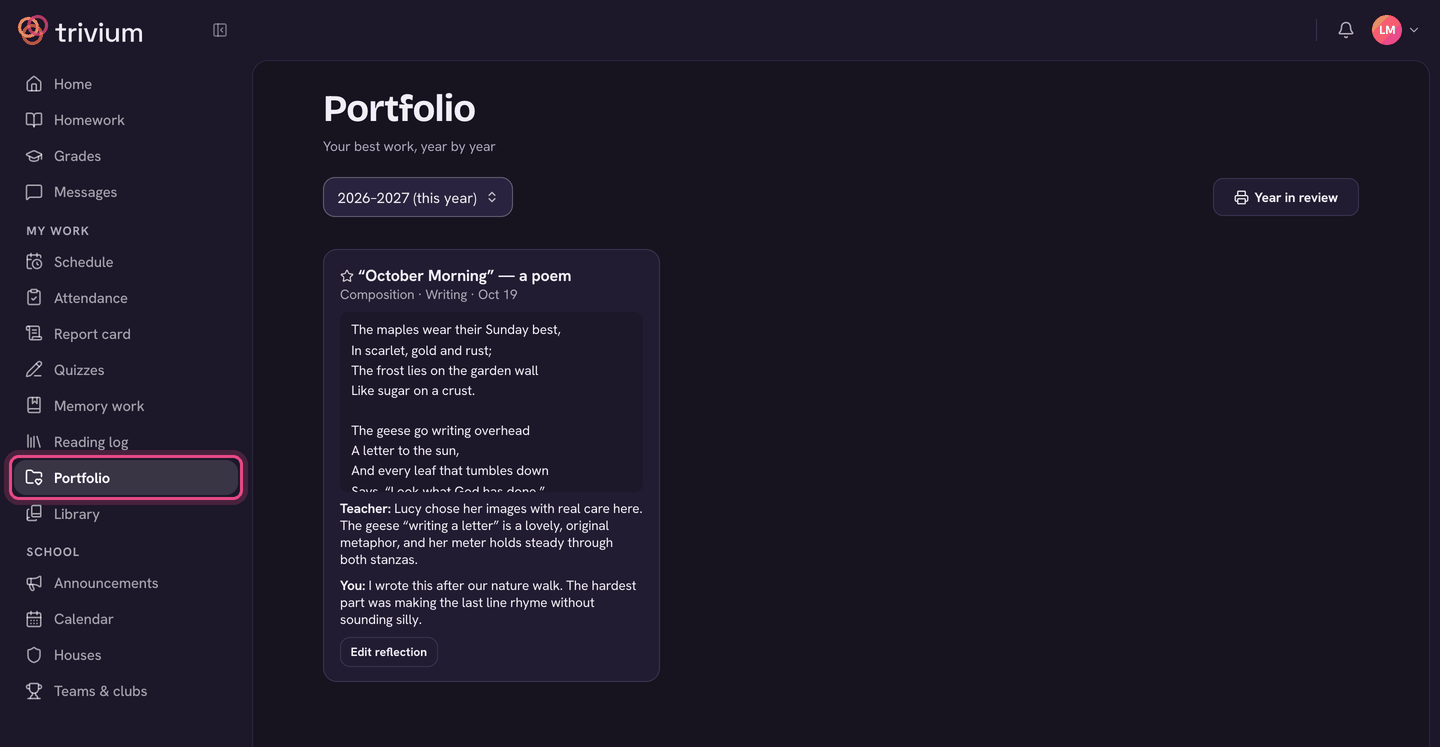
- Teachers add a student's best work: a photo, file or recording, a video link, a piece of writing, or a memory-work recitation, with a reflection on why it was chosen.
- Students can suggest work too, when the school allows it: choose Suggest work, or Suggest for my portfolio on a graded assignment. Your teacher sees it first and decides whether it goes in.
- You can add your own reflection to a piece: What are you proud of in this piece?
- Pick a year to see past work. Year in review prints the year as one document.
For teachers
- Add to portfolio is on a graded submission, so you can save great work as you grade.
- On a student's profile, the Portfolio tab has Add work, plus Share with family, Feature and Remove on each piece. A piece marked Staff only isn't shown to the family.
- On a class, ⋯ → Portfolios shows every student's pieces and the suggestions waiting for you to approve. Admins can turn on Students can suggest their own work (school-wide) there.
- Mastery levels come from the class's Mastery tab (and the Skill tab of the Class Debrief).
Mastery
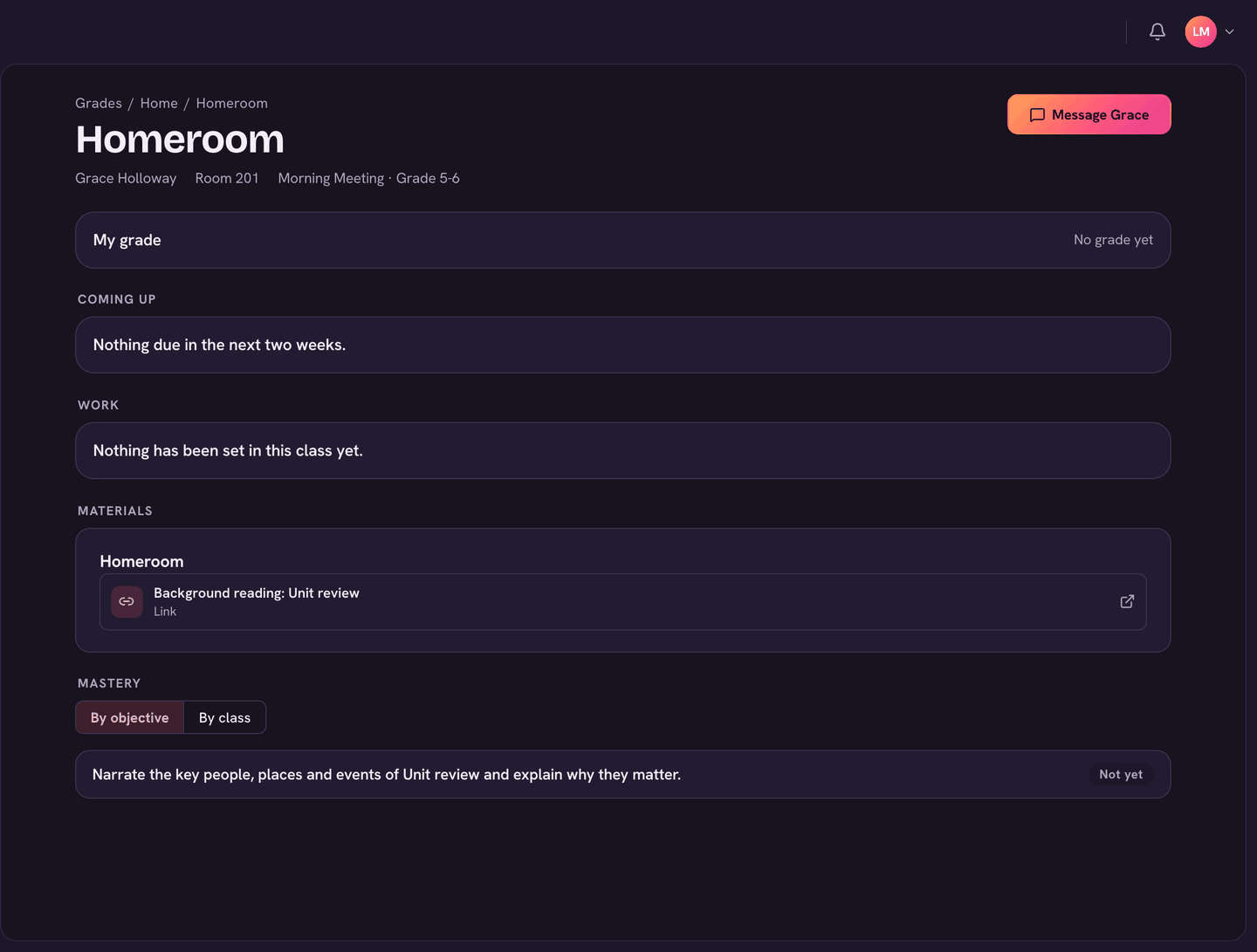
Each class's objectives are listed with the level a teacher has recorded: Needs work, Improving, Proficient or Mastered (or Not yet). Parents see the same on their child's Mastery tab.
On the app
- Reading: open the menu and choose Reading. It has your reading log (Add a book) and your library books.
- Portfolio: on the Grades tab, under My record.
- Mastery: open a class from Grades and look under Skills.
- Parents: their child's page lists Reading log, Mastery and Portfolio.