Your teacher decides how each piece of work comes in. Some you turn in online, some you hand in in class, some you just tick off when you're done, and tests and quizzes are done in class or under Quizzes. The piece of work tells you which.
Where to find it
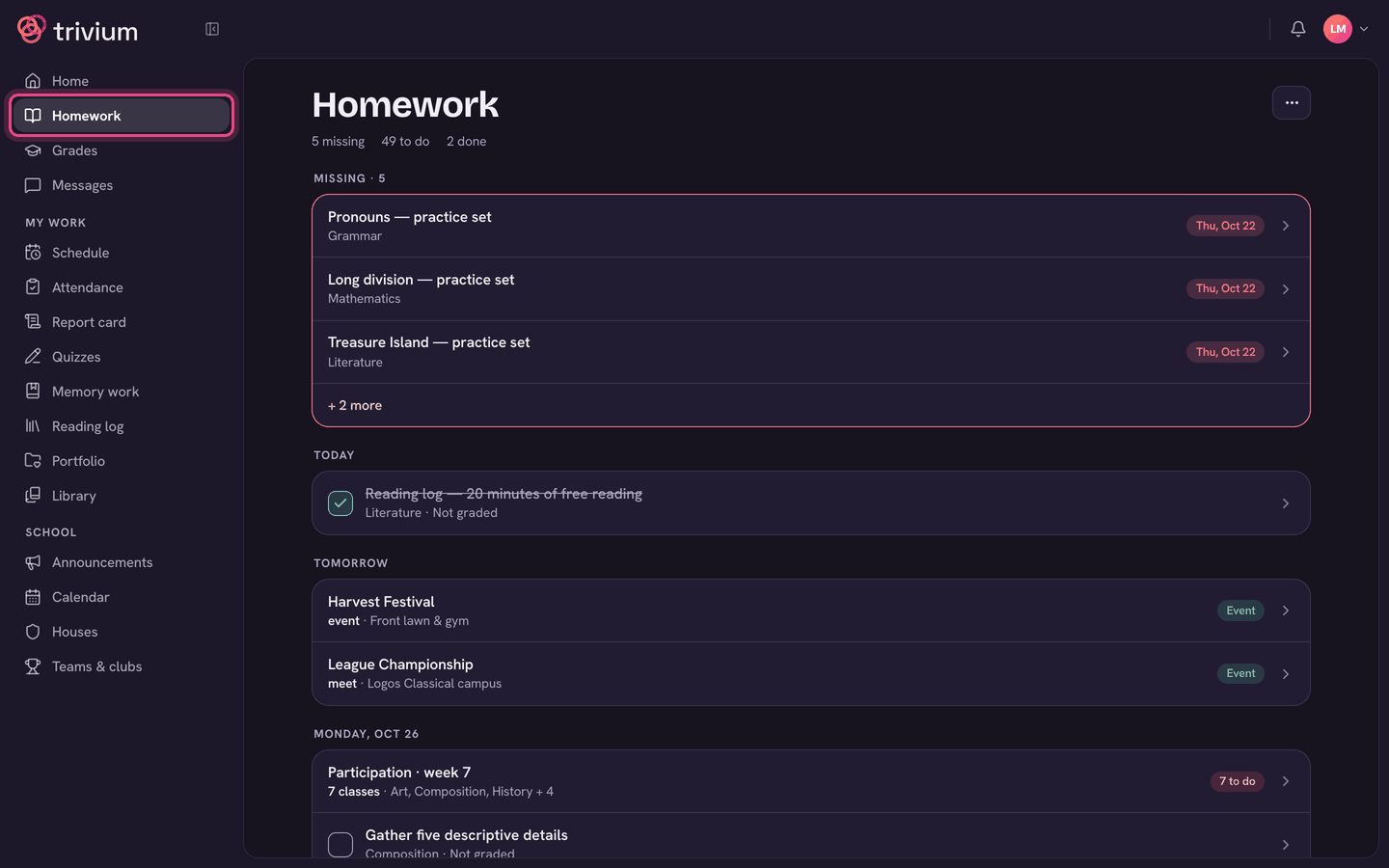
Open Homework from the menu, then open the piece of work. Missing work is at the top in red.
Turning work in online
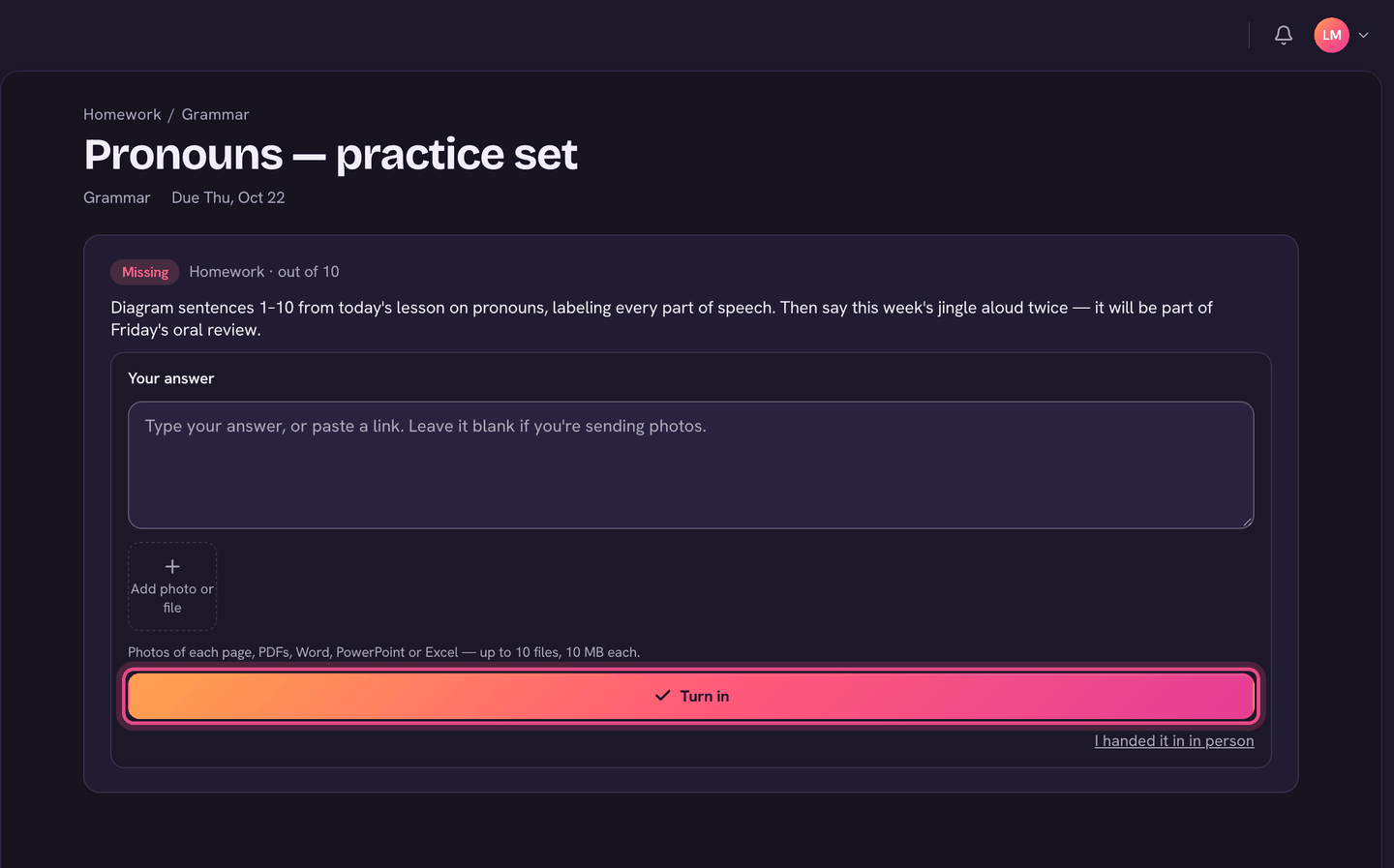
- Open the piece of work from Homework.
- Type in Your answer, or paste a link there.
- To add work on paper or a file, choose Add photo or file (on a phone you can also choose Take photo). Add one photo per page. You can add up to 10 files, 10 MB each: photos, PDFs, Word, PowerPoint or Excel.
- Tap × on a thumbnail to take a file off before you send it.
- Choose Turn in. You'll see Turned in with the date and time.
What you type is saved as a draft on that device while you work (you'll see Draft saved), so closing the page doesn't lose it.
Changing it after you've turned it in
- Edit opens your work again. Make your changes and choose Save changes.
- Take it back removes it so your teacher won't see it. You can turn it in again afterwards.
- Once your teacher has returned it, Take it back is gone. Use Turn in again instead.
Handed it in in person?
If you gave your teacher the paper copy, open the work and choose I handed it in in person under the Turn in button. It shows as Handed in in person, so it isn't counted as missing. Work your teacher set to be handed in in class says Hand this in to your teacher in class, and has nothing to upload.
Work with nothing to upload
- Some homework (reading, practice) just needs ticking off. On Homework, tick the box on its row.
- Or open it and choose Mark done.
- Ticked by mistake? Tap the tick again, or choose Not done yet.
Late work
You can still turn work in after its due day. It's tagged Late. If your teacher takes marks off for late work, you'll see it next to your score, for example Late: −10%.
Seeing your teacher's feedback
- Recently turned in, at the bottom of Homework, shows where each piece stands: Turned in, Handed in in person, Marked done or Returned.
- Open a returned piece of work to see your score and your teacher's note at the top. Older notes are under Earlier notes.
- If your teacher asks you to redo something, it moves to Redo asked at the top of Homework, with the date it's due back. Open it, read the note, and choose Turn in again.
- Grades shows every score in each class, with a count of teacher notes.
On the app
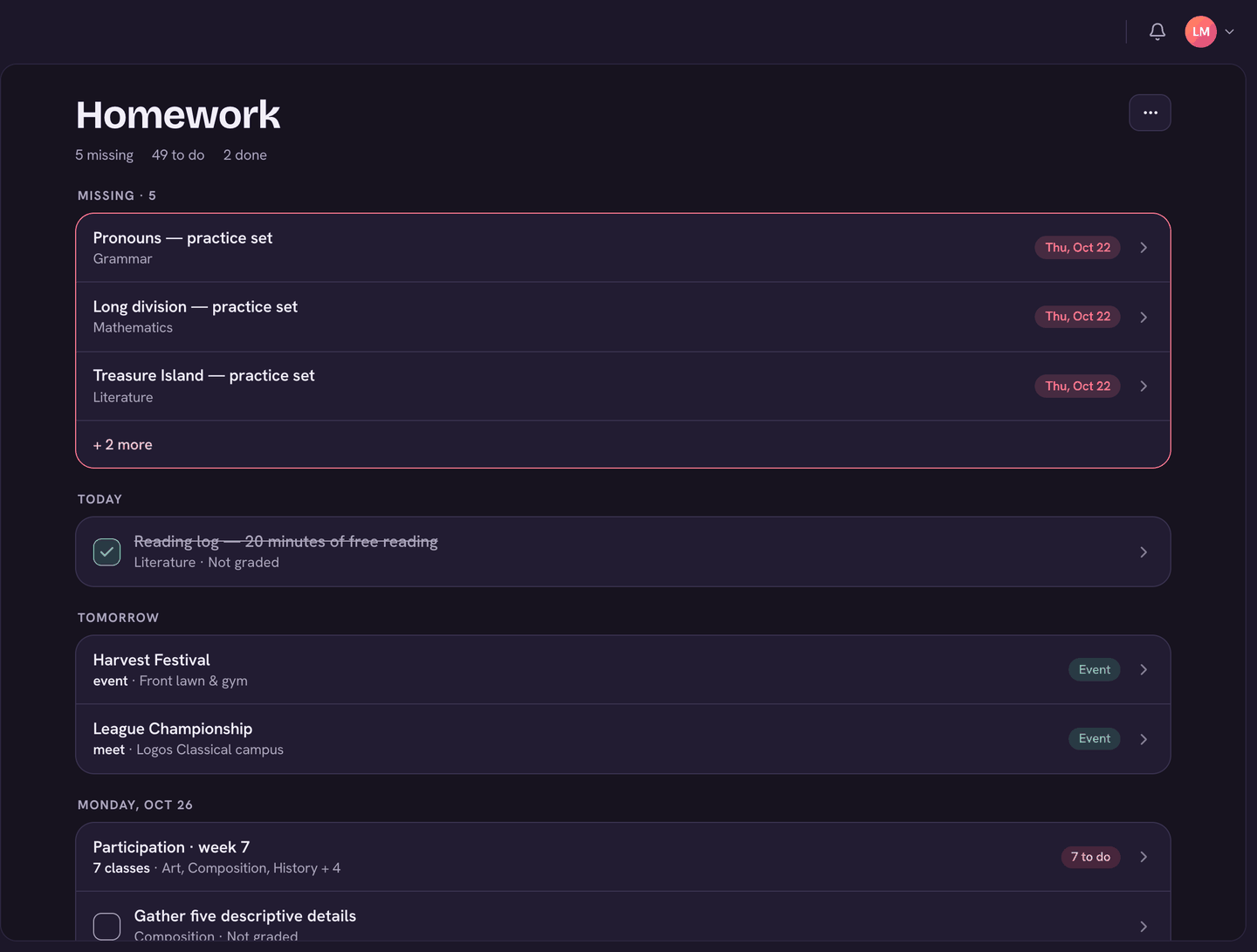
- Tap Homework in the bottom bar and open the piece of work.
- Tap Turn in. Type in Your answer, or add pages with Take photo, Library or File.
- Tap Turn in at the top of the sheet. Handed it in on paper? Tap I handed it in on paper instead.
- For work with nothing to upload, tap the tick on its row in Homework, or open it and tap Mark done.
- To take work back before it's returned, open it and use the ⋯ menu, then Take it back.
Tests and quizzes don't have a Turn in button. Tests are done in class; online quizzes are under Quizzes.
Got "is over 10 MB"? Take the photo again at a lower size, or send a PDF instead.