The schedule builder is a smarter version of Edit schedule. It knows what each class and teacher needs, warns you about clashes as you drag, and can lay out the week for you. Your changes go into a draft and only reach teachers and families when you publish them. The schedule builder is switched on per school by the Trivium team; if you don't see Build in Edit schedule, it isn't on for your school yet. The basics of classes and the timetable are in Classes, cohorts & the schedule.
Where to find it
Open Schedule from the menu and choose Edit schedule. It needs a computer.
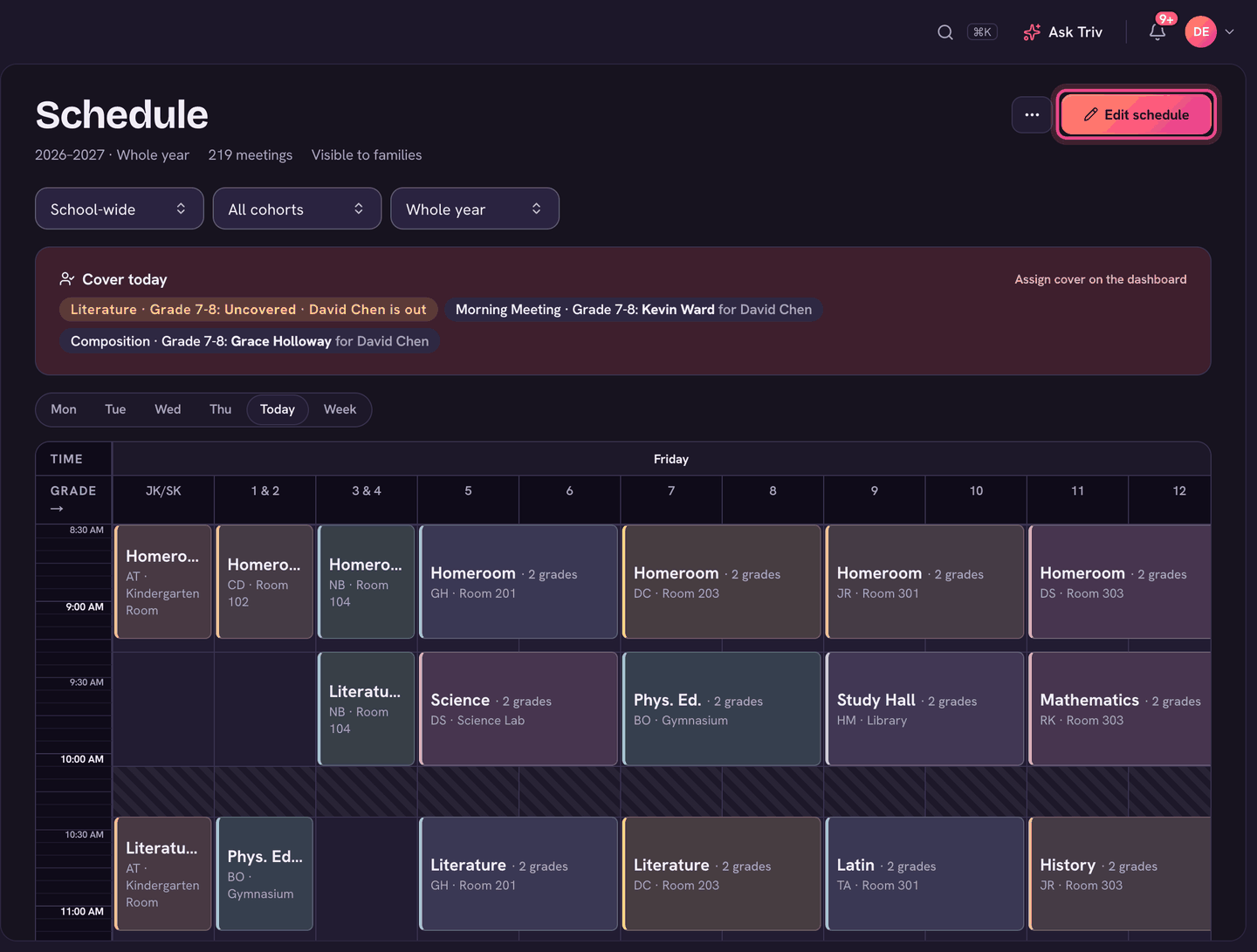
Placing lessons yourself
- Classes still waiting for a place are in To place, on the left. Find a class narrows the list.
- Drag a class onto the grid, or click it and then click a cell. Esc cancels.
- While you drag, the grid shows where the class fits. If a spot clashes, the builder asks before it places it there (Place it anyway).
- Drag a lesson to move it. Undo and Redo are beside the grid.
Pins
A pinned lesson stays exactly where it is when the builder re-plans. Click the pin on a lesson to pin it, and click it again to let it move. A lesson you move by hand in a draft is pinned for you.
Letting the builder do it
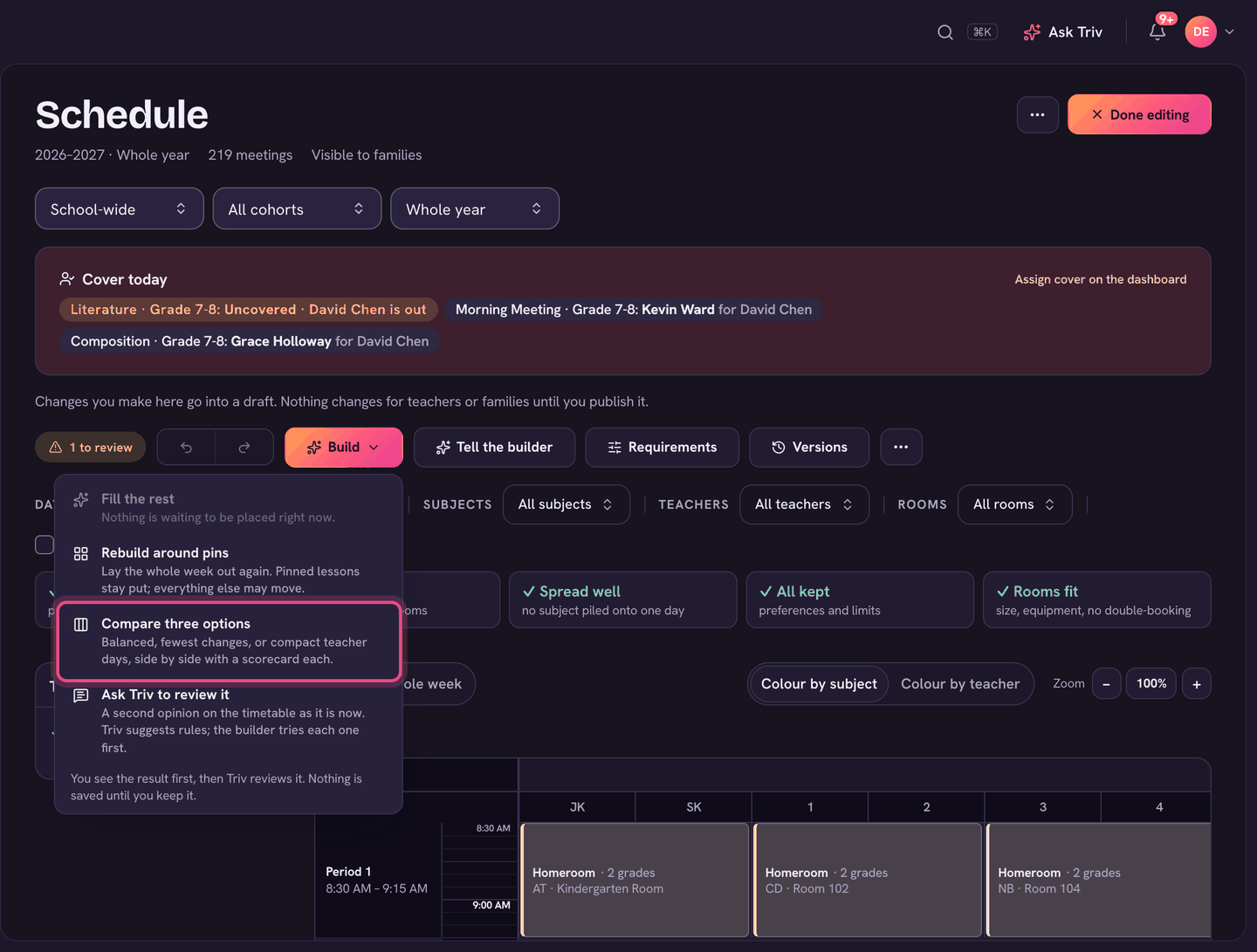
Choose Build at the top of the grid:
- Fill the rest places everything still unscheduled. Lessons already on the grid stay where they are. To place also has Place them for me, which does the same.
- Rebuild around pins lays the whole week out again. Pinned lessons stay put; everything else may move.
- Compare three options builds the week three ways side by side: Balanced, Fewest changes and Compact teacher days. Each has a scorecard (Couldn't place, Must fix left, Preferences bent, Lessons moved, Teacher gaps). Choose Open this option on the one you like.
The builder's plan opens on the grid with a summary of what it placed and moved. If you're working in a draft, choose Keep in draft or Undo the plan. Otherwise choose Save as draft, Review and publish, or Discard. You can move anything by hand first.
Requirements
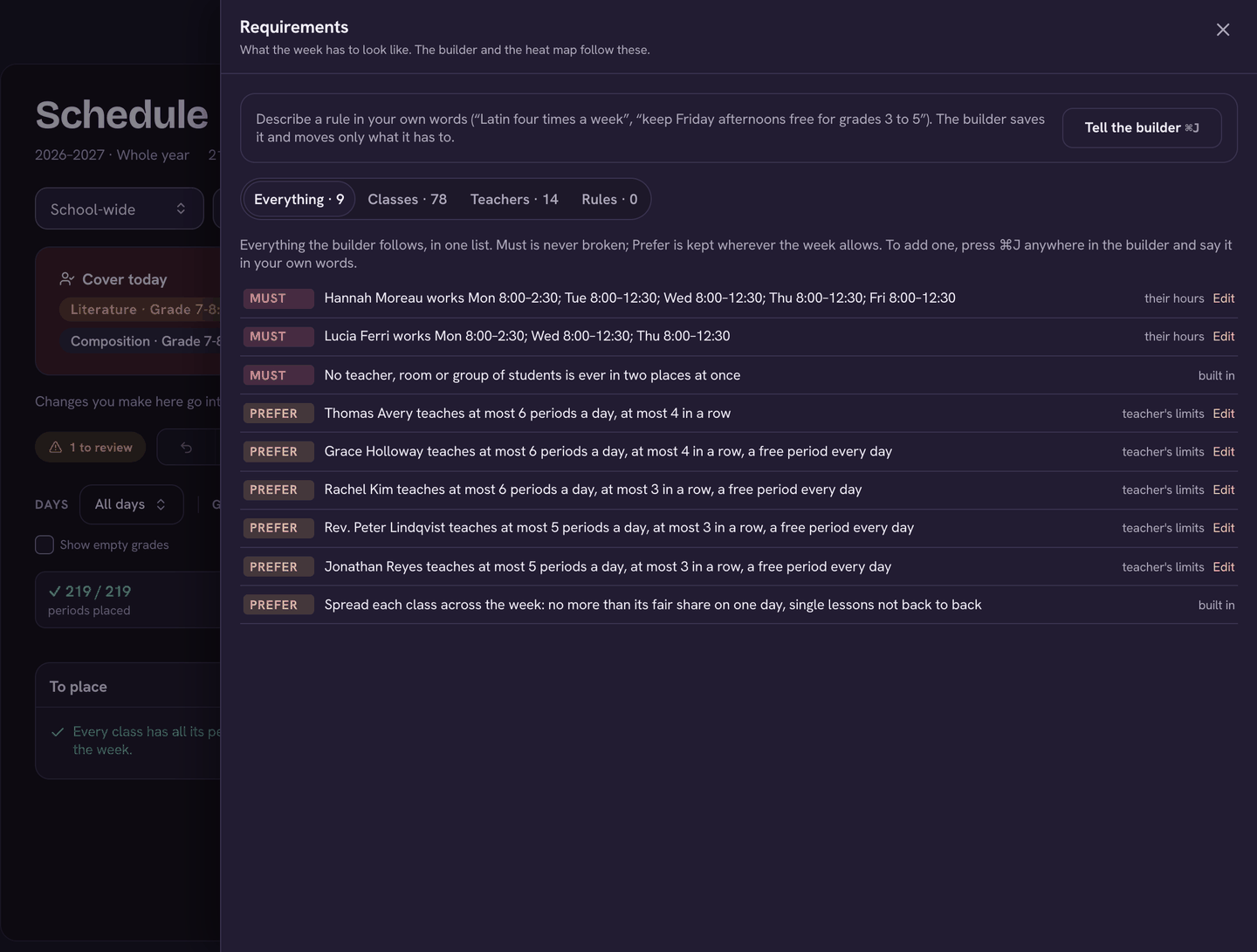
Requirements (at the top of the grid) is what the week has to look like. The builder and the grid's warnings follow it.
- Classes: Periods a week, Lesson (half period, single or double), At most a day, Skip a day, Time of day (for example Mornings, if possible, or Mornings only) and Room needs.
- Teachers: Hours and subjects, Most periods a day, Most in a row, and A free period every day.
- Rules: anything specific to your school. Each rule is a Must or a Prefer, and shows how many lessons break it now.
- Tell the builder lets you describe a change or a rule in your own words.
Checking the week
The tiles above the grid sum it up: how many periods are placed, clashes (students, teachers, rooms), whether any subject is bunched onto one day, how many preferences are bent, and whether every lesson has a room that fits. Click a tile with a problem to open Issues, grouped into Must fix, Should fix and About the class. Show on grid takes you to the lesson. If a clash is deliberate, approve it there.
Drafts and publishing
- Any change you make goes into a draft (Changes you make here go into a draft). The banner says how many changes it holds. Only you see it until it's published.
- Versions lists your Drafts, anything Scheduled, and what was Published. ⋯ has New draft, New flexible block, and Start fresh (empty the grid in a draft).
- When the draft is right, choose Review and publish. You'll see what changes and how many teachers and students it touches.
- Give it a Name, then choose When: Now, or From a date (it goes live that morning).
- Under Tell people, choose whether to email the teachers affected and the families of the students affected. The first time, you can also tick Let families see this year's timetable.
- Choose Publish now (or Schedule it for a later date). Not yet keeps it as a draft.
Changed your mind? In Versions, a scheduled change has Back to draft, and a published one has Undo, which puts the timetable back to how it was just before it was published.
On the app
Building and publishing the schedule is done on a computer. Teachers, families and students see the published timetable in the app.
Teachers can ask for a lesson to move through Ask Triv. Their requests appear under Requests at the top of the grid, where Try it puts the move in a draft and Decline closes it.
Would rather we built it? Have us do it, with Build the timetable, sends the job to the Trivium team (see Requests: asking the Trivium team for help).