Report Card Studio is where you design your school's report card: which sections are on it, in what order, what's rated, how it's signed off, and how it looks. Every change shows straight away on a real student's card beside it. Teachers still fill the cards in as usual (see Report cards & progress reports). The design only decides how those cards look.
Where to find it
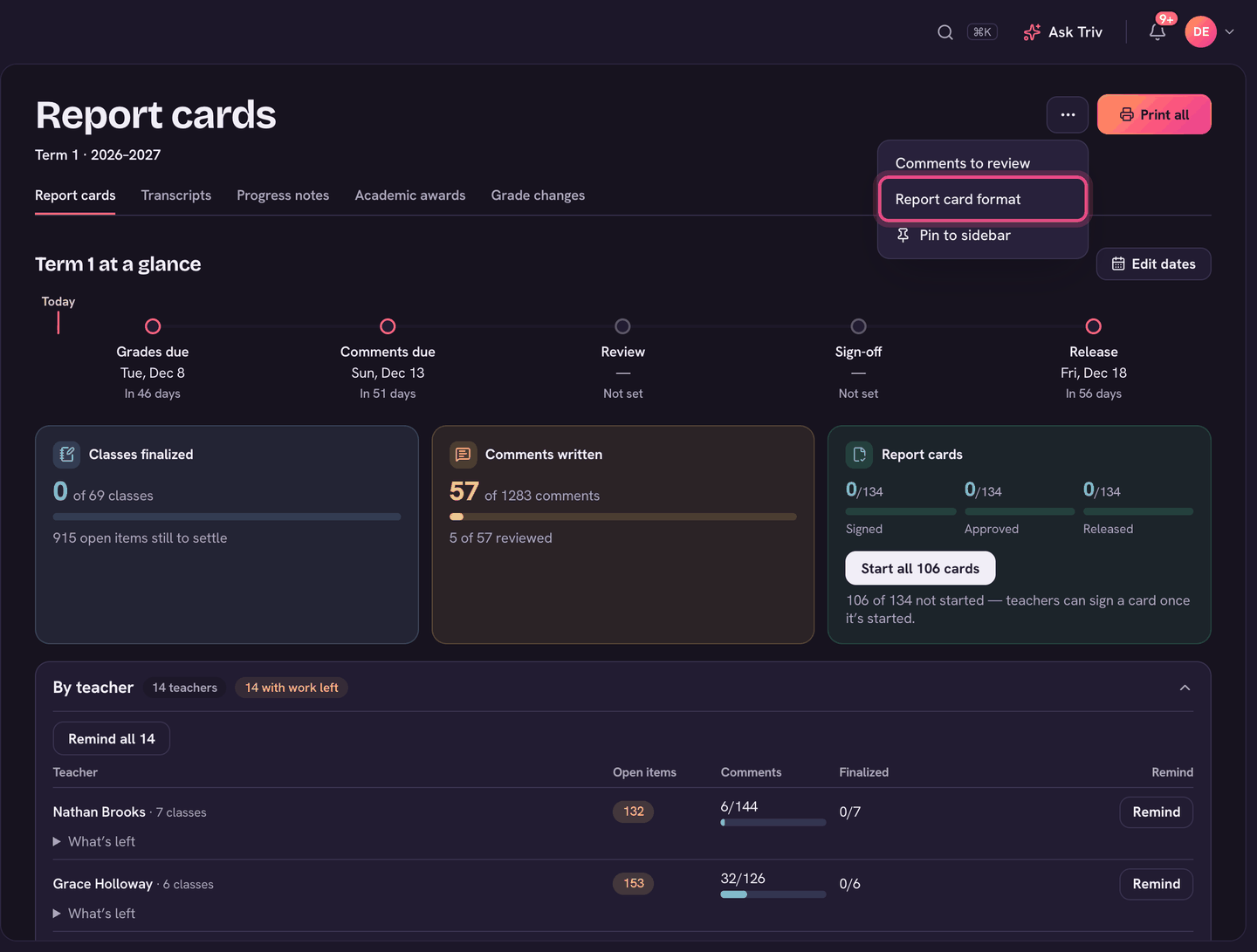
Open Report cards (under Records in the menu), then ⋯, then Report card format. You can also go to Settings, then Report cards. Both open the studio, called Card design.
The six steps
Card design walks you through six steps, numbered across the top: Start, What's on it, What's rated, Sign-off, Look, and Check & use. Click a step to jump to it, or use the Next button at the bottom. Everything saves as you go, and Undo (top right) takes back your last change.
- Start: pick the closest starting point. Your current card (recommended) keeps everything your card prints today. Classical term report, Letter home and One-page summary are ready-made layouts. You can change everything afterwards.
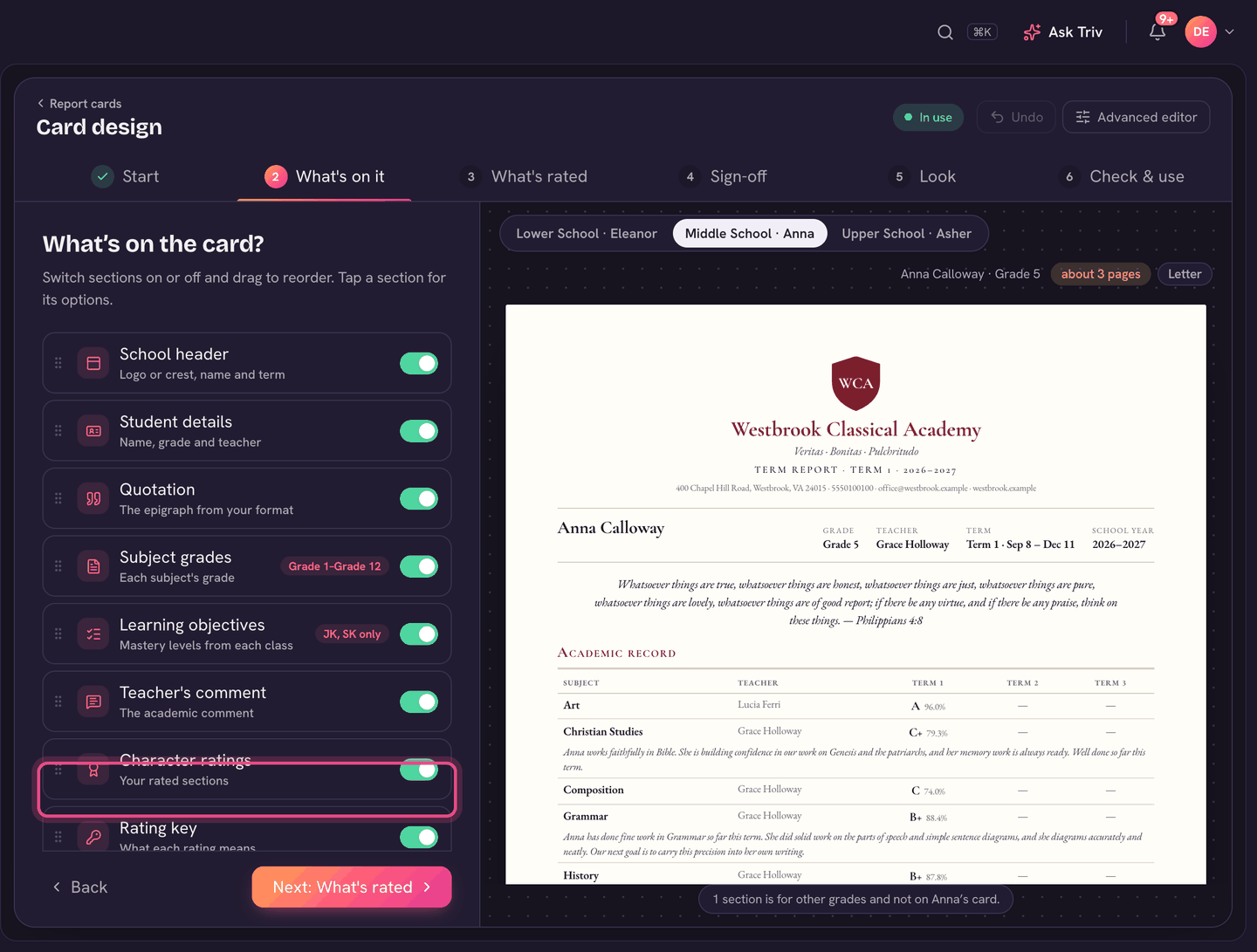
- What's on it: switch sections on or off and drag them to reorder. Sections you've switched off are listed under Not on the card. Click a section to see its options. Use Add text, a divider or a page break for anything extra.
- What's rated: your rating scales, and the sections and indicators teachers rate, for which grades.
- Sign-off: what every card needs before it can go home.
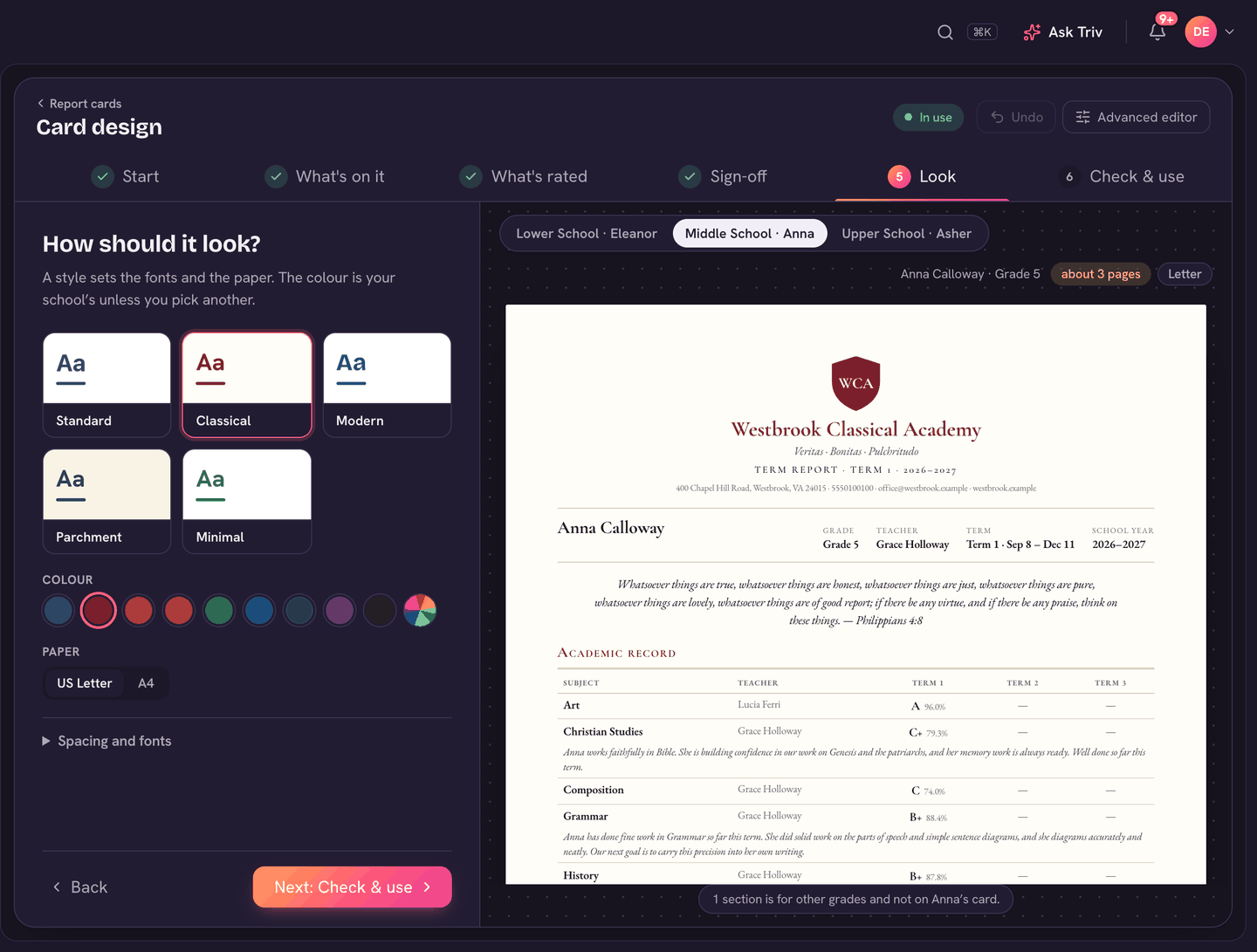
- Look: pick a style (Standard, Classical, Modern, Parchment or Minimal), a Colour (your school colour is the default), and Paper (US Letter or A4). Spacing and fonts has a little more.
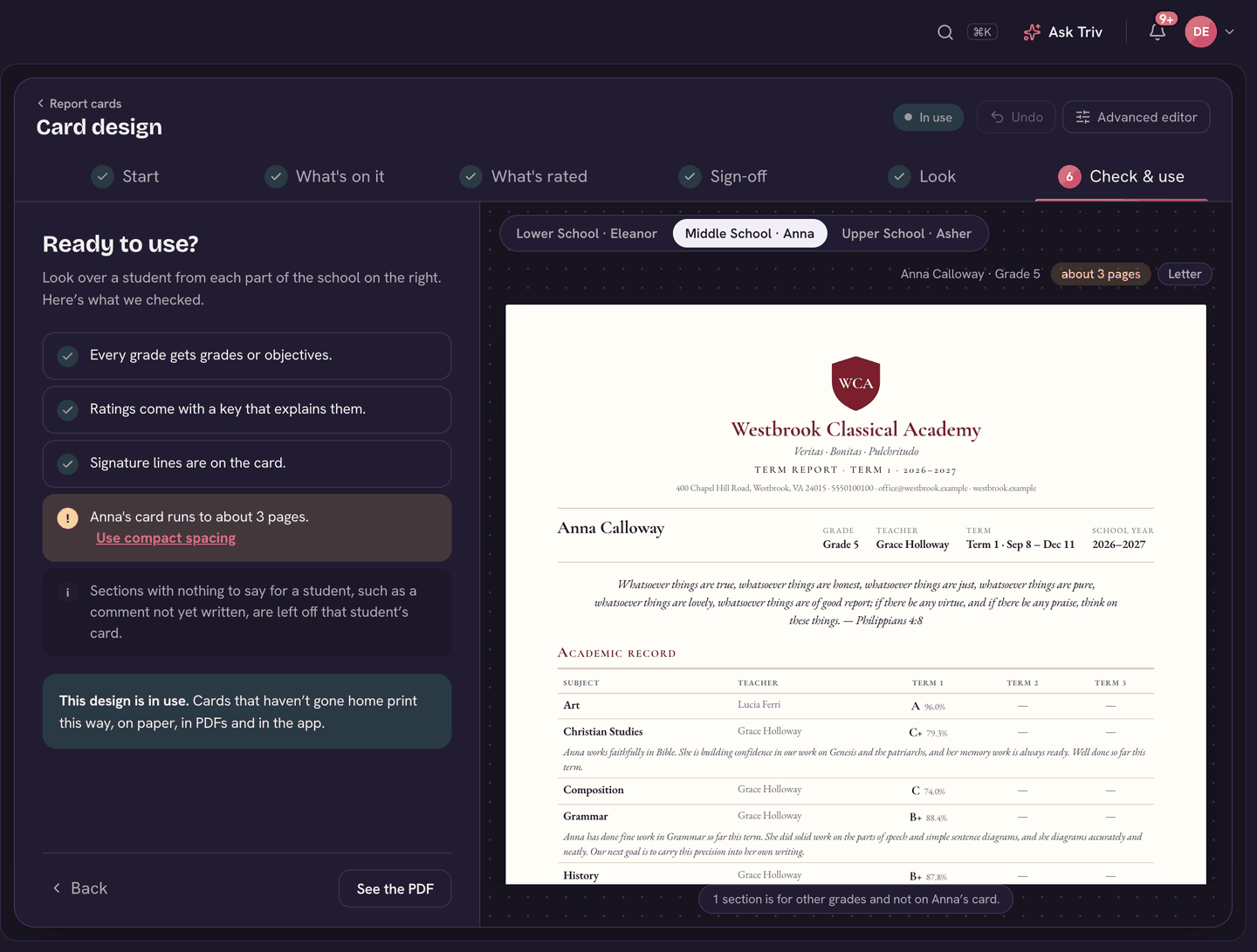
- Check & use: read the checks, look over a student from each part of the school, then choose Use for report cards, and then Use this design.
The sections
- School header, Student details and Quotation.
- Subject grades, Progress over time and Learning objectives (mastery levels from each class).
- Character ratings and Rating key.
- Teacher's comment, Headmaster's note, Character comment and Character next steps.
- Attendance, Memory work, House points and Activities (teams and clubs).
- Signatures (teacher, headmaster, parent).
Different sections for different grades
Your school has one card design, but each section can be for some grades only. Click the section on What's on it, and under Who sees this choose Everyone, one of your grade bands, or Pick grades. For example, give your older grades Subject grades and your younger grades Learning objectives. Under the preview, a line tells you how many sections are for other grades and so aren't on that student's card.
Previewing
- The preview on the right is a real student's card. The buttons above it switch to a student from another part of the school.
- The chips show roughly how many pages the card runs to, and the paper size.
- On Check & use, See the PDF opens the PDF a family would download or get by email, for that student.
- A section with nothing to say for a student, such as a comment not written yet, is left off that student's card.
Putting the design in use
Nothing changes for teachers or families until you choose Use for report cards on Check & use. The label at the top tells you where you are: Not in use yet, Changes not in use yet, or In use. Once in use, every card that hasn't gone home yet prints and shows in the new design, on paper, in PDFs and in the app. Cards already released keep the look they went home in.
The Advanced editor
Advanced editor (top right) shows every block with more options: half widths, fonts and page breaks. Preview as picks any student, and Next grade jumps to a student in the next grade. Guided view takes you back to the steps. Both edit the same design.
On the app
Designing the card is done on a computer. Families and students see the card in your design in the app once it's in use.
Want your card to match your paper one exactly? On the Start step, Or have us design it opens a request to the Trivium team (see Requests: asking the Trivium team for help).
The card runs past two pages? On Check & use, choose Use compact spacing, or switch off a section or two.