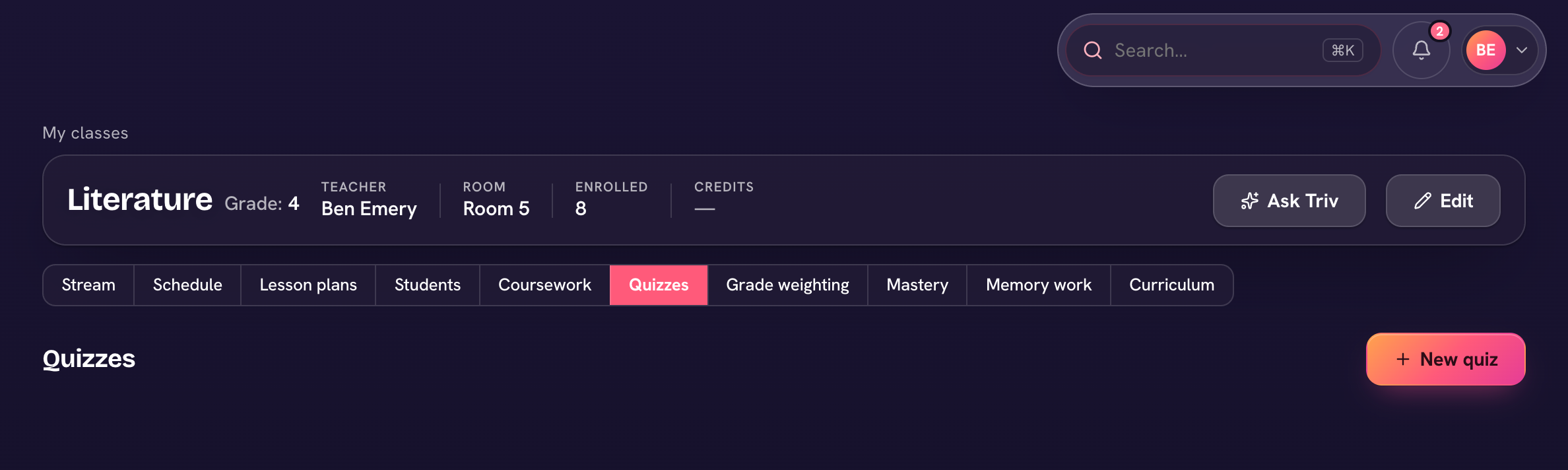
Quizzes live on the class — students take them online and most of the grading happens for you. Open a class, go to its Gradebook tab, and choose Quizzes.
- Under Gradebook → Quizzes, choose New quiz — give it a title, optional instructions, a due date, and a term.
- Add questions: Multiple choice, True / False, Short answer, or Matching, each with its own point value.
- Publish — students see it in their portal (Quizzes, under My work) and take it online.
- On submit, multiple-choice, true/false, and matching questions grade themselves. Short answers wait for you under "Answers to grade".
The quiz posts to the gradebook as a Quiz coursework item, so it counts toward the term grade like anything else. If you adjust a question's awarded points afterward (under "Adjust graded answers"), the per-question points are the source of truth and the gradebook score updates to match.
Unpublish a quiz to pull it back from students without losing the questions — republish when you're ready.