Progress notes are a short check-in partway through a term. For each student in each class, the teacher picks On track, Watch or Concern and can add one line for the family. The school opens a writing window, teachers write, and an admin releases them to families all at once.
Where to find it
Teachers: Progress notes, under This term in the sidebar. Admins: Report cards → Progress notes.
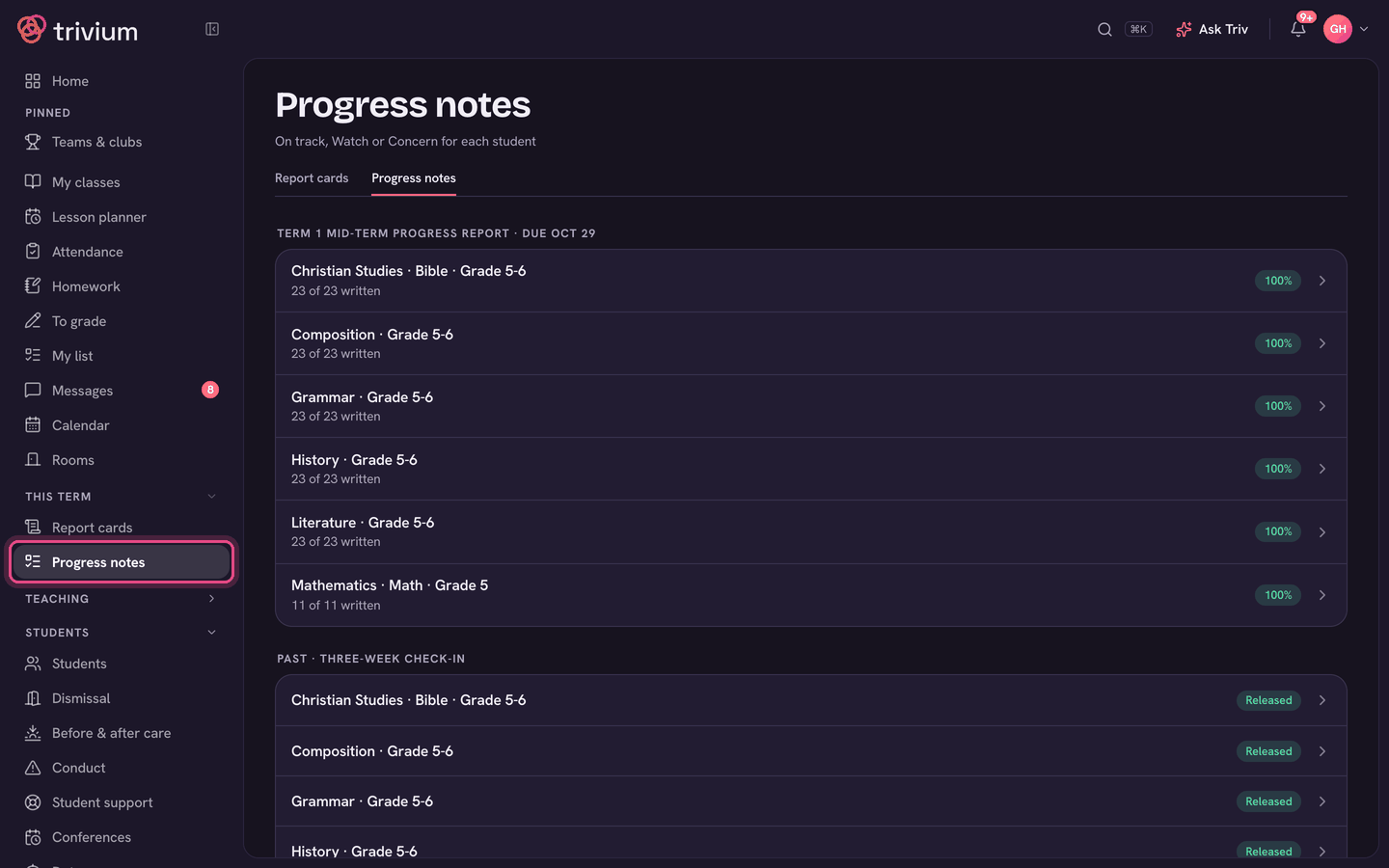
Open a window (admins)
- On Progress notes, choose Open a window.
- Give it a name (for example Term 1 progress notes), the date it Opens and the date it's Due.
- Pick the term the grades come from (or Year to date), and tick the grades it's for. Leave them all unticked for the whole school.
- Choose Open window. Teachers see their classes as soon as it opens.
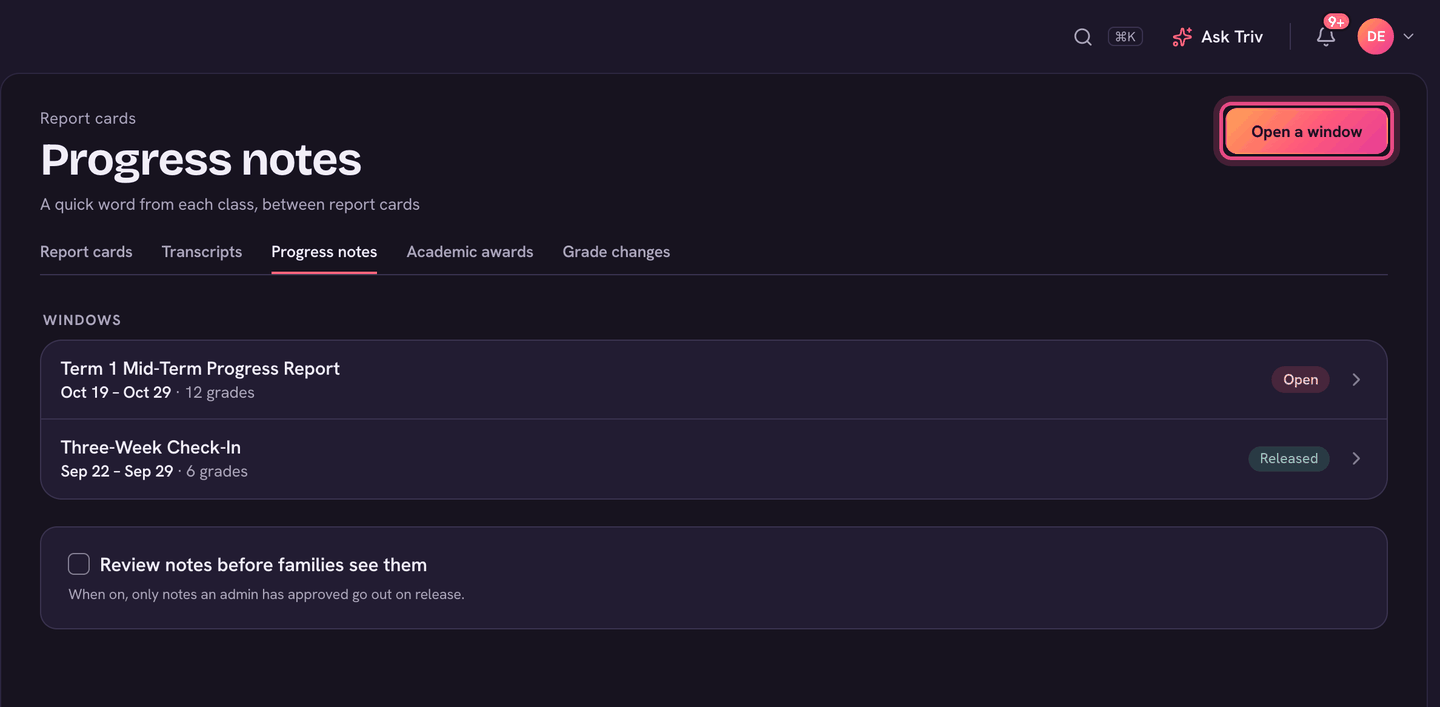
Write your notes (teachers)
- Open Progress notes. Each class in the window shows how many notes are written, and when they're due.
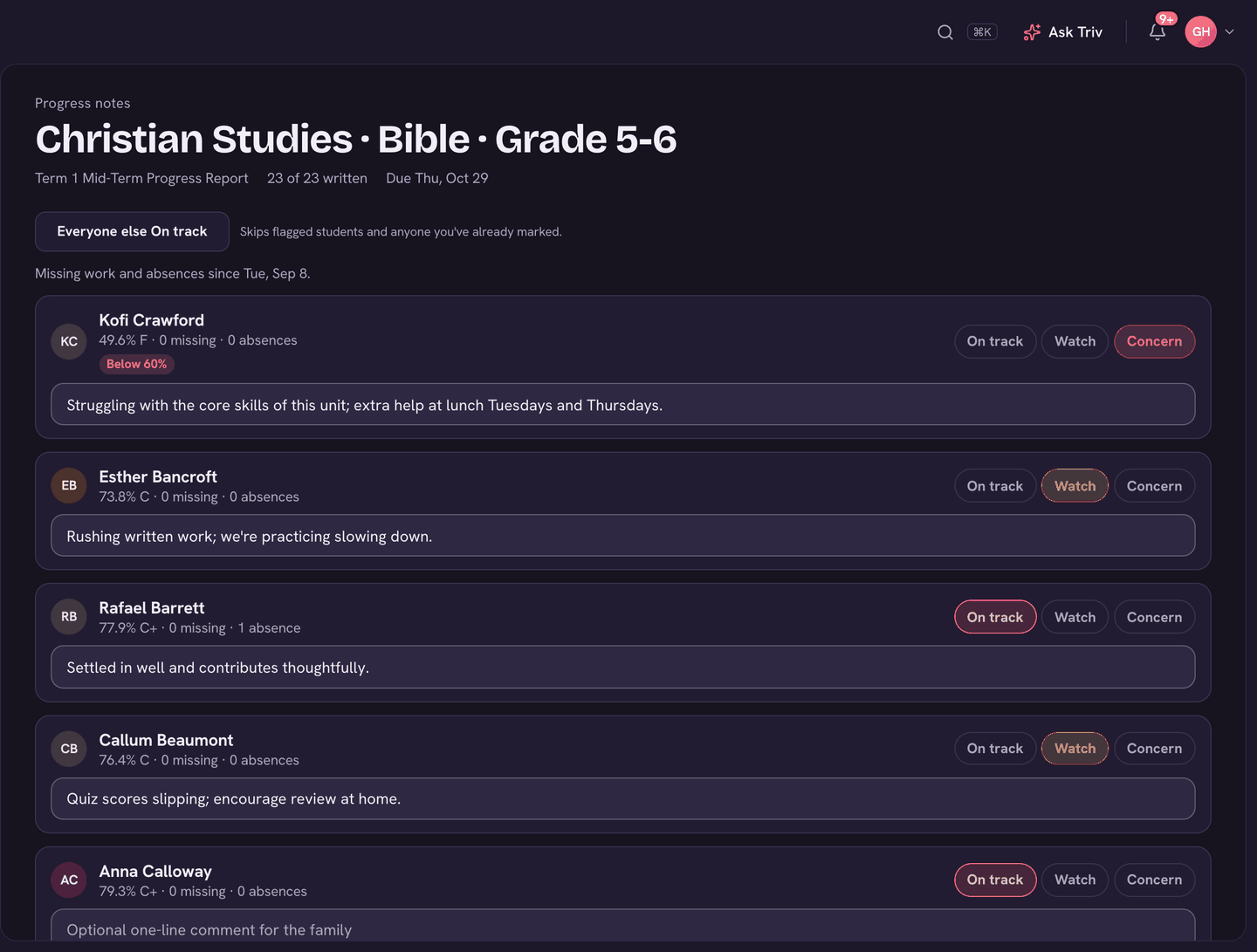
- Open a class. Each student shows their grade, missing work and absences. Students who may need a closer look are flagged (for example Below 70% or 3 missing).
- Pick On track, Watch or Concern for each student. Each one saves as you go.
- Add a one-line comment for the family if you like (up to 200 characters).
- Everyone else On track fills in the rest. It skips flagged students and anyone you've already marked.
You can still write after the due date, right up until the notes are released.
Track and release (admins)
- Open a window to see each teacher's progress. Nudge sends a teacher a reminder.
- Turn on Review notes before families see them if you want to approve notes first. Then only approved notes go out. Use Approve all when you're happy.
- Choose Release to families when you're ready. Each family gets one notification, however many children and classes they have. Teachers can't change notes after release.
Who sees them
- Before release, only staff see progress notes.
- After release, parents see them on their child's page, and students on their own home page: each class with its status, the comment and the teacher's name. The class grade shows too, unless grades are hidden from that family.
- Families never see the flags or other students' notes.
On the app
Teachers: open the menu and choose Progress notes (under Teaching). Open a class, pick a status for each student, and add a line if you like. Everyone else On track works here too. Families see released notes on their child's page in the app.