Planning gathers the school-wide tools around the Lesson planner. Headmasters and admins see how far ahead every class is planned, can nudge teachers who are behind, keep a library of example lessons, open any teacher's week, and close the school for a snow day so plans move on. Teachers see their own classes here.
Where to find it
Admins: Planning is under Teaching in the menu. Teachers: open Lesson planner, then ⋯, then Planning.
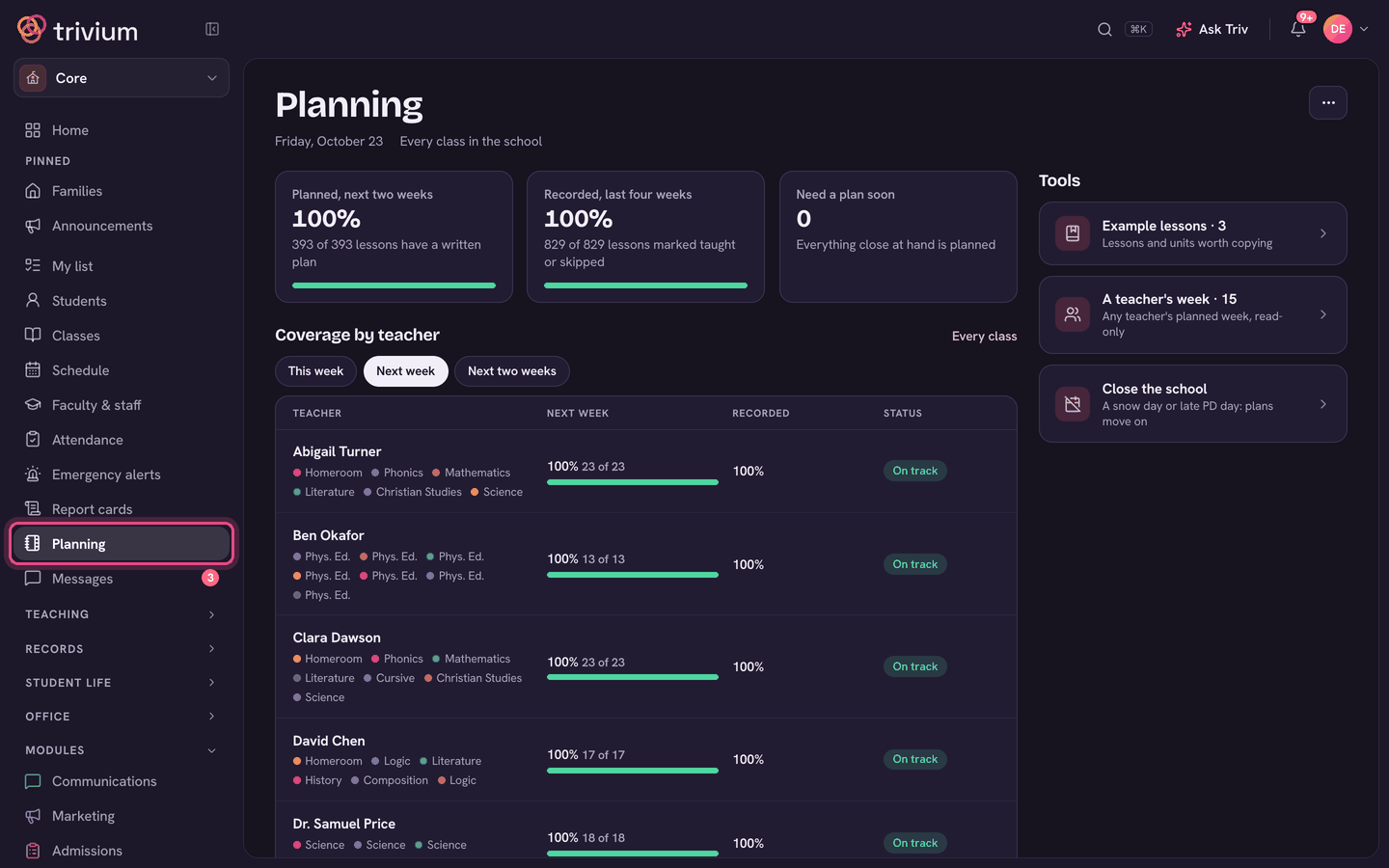
Coverage at a glance
- Planned, next two weeks: how many timetabled lessons have a written plan.
- Recorded, last four weeks: how many lessons were marked taught or skipped.
- Need a plan soon: how many classes have a gap this week or next.
Coverage by teacher
- Pick the window: This week, Next week or Next two weeks.
- Each teacher shows their classes, how much is planned, how much is Recorded, and a Status (On track, or how many need a plan).
- Click a teacher to see their planned week, read-only.
- Use Nudge on a teacher to send them a short, editable message, or Nudge all behind to message everyone with a gap at once.
- Every class opens the full list, class by class.
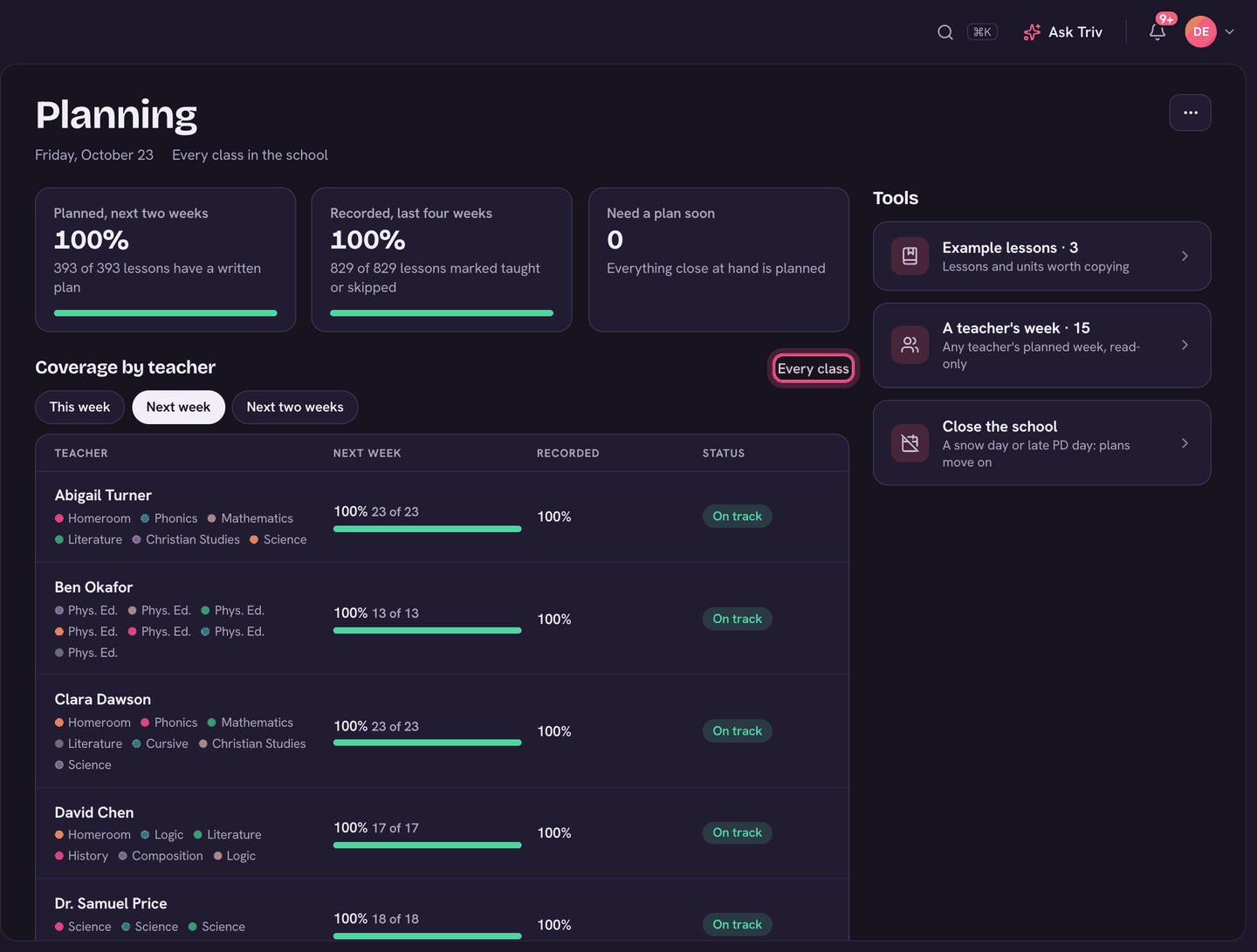
Tools
- Example lessons: lessons and units worth copying. Admins choose Add an example to add one with a note on why it's good. Teachers use Use this lesson or Reuse this unit to copy one into a class they plan.
- A teacher's week: any teacher's planned week, read-only, with Print this week and Print a day under ⋯. Teachers see only colleagues they share a class with.
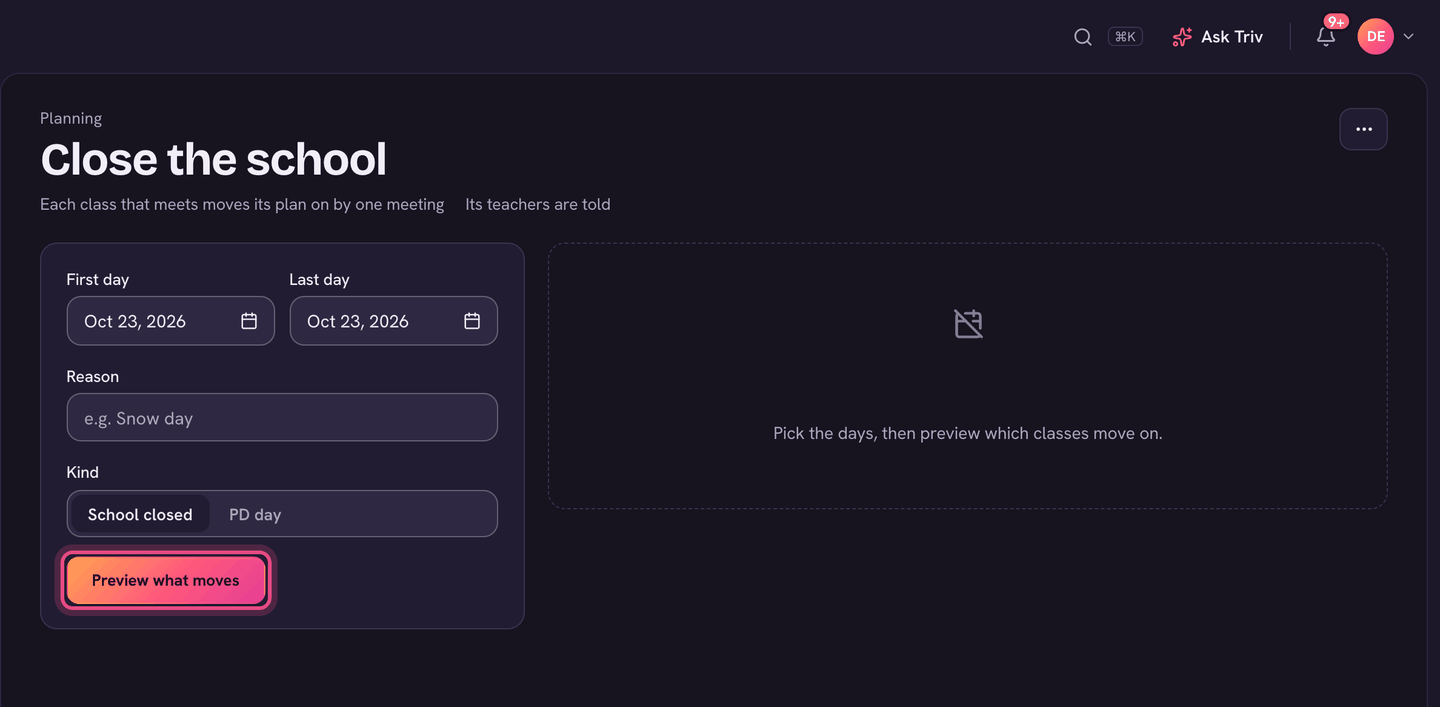
- Close the school: for a snow day or a PD day. Pick the First day and Last day, a Reason (families see it on the calendar) and the Kind (School closed or PD day), then Preview what moves. Check which classes' plans move on, then confirm.
- Print my plans: Today, This week or Next week, or a whole unit, for your desk or a cover folder.
What teachers see
Teachers see the tools that apply to them. Whether they also see their own coverage is up to you: switch on Show teachers their own coverage on the Planning page. You always see every class either way.
On the app
Planning is on the web only. Teachers can plan and see their lessons in the app's class pages.
Planning settings (under ⋯ on Planning) holds your school's lesson templates.