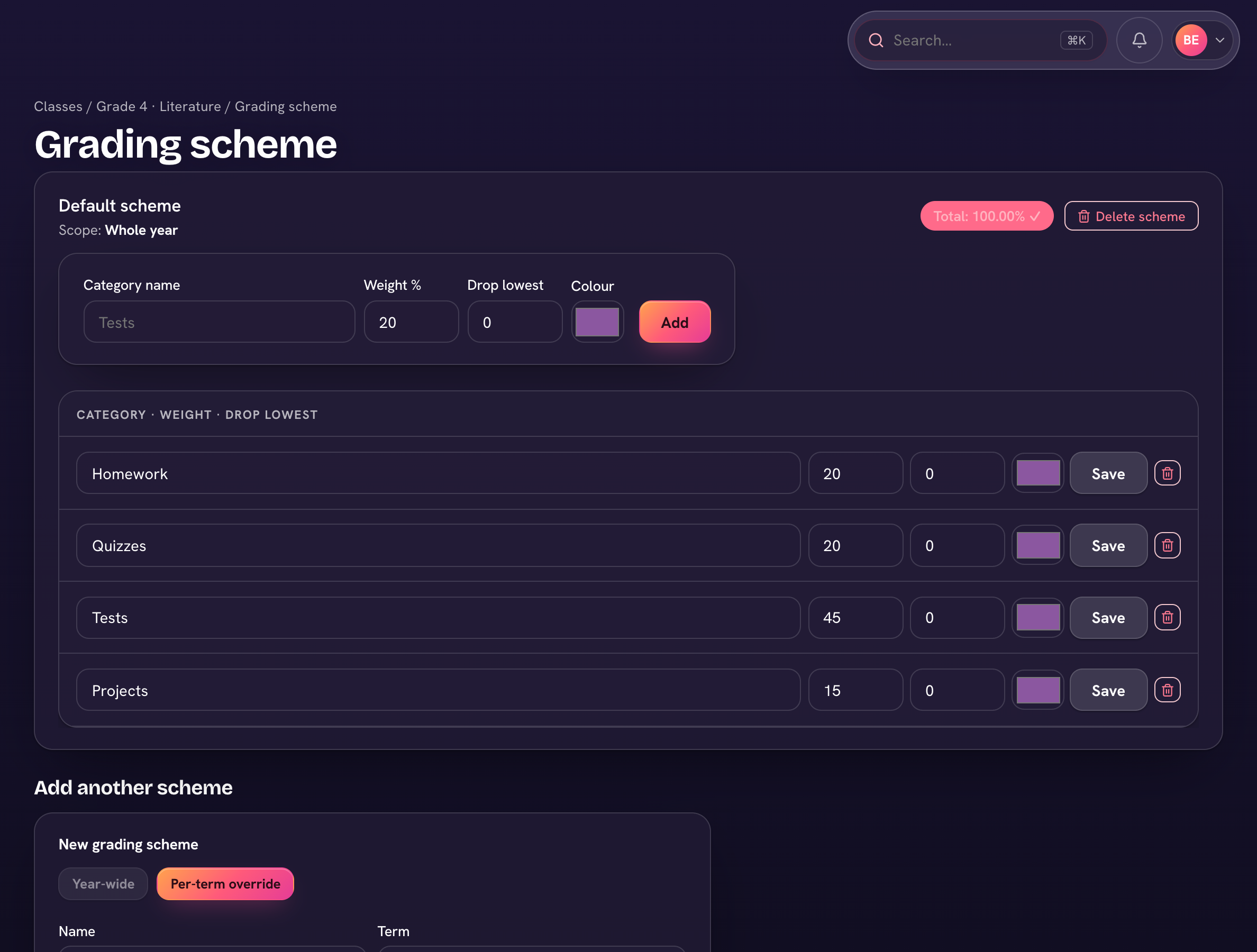
Each class decides how its grade is computed. By percentage, categories (Tests 40%, Quizzes 30%, Homework 30%) each carry a share of the grade; by points, everything pools into one cumulative total. Both live in the class's Grading settings.
- Open the class's Gradebook, then ⋯ → Grading settings.
- Choose By percentage or By points.
- A class with no categories yet can copy them from another class — your other sections, or last year's course in the same subject — with Copy from…. If your school has set a default for the subject (Settings → Grading scale → Default grading categories), a new class starts with it, and an empty one offers Use school default.
- Or add categories with a name and weight percent — the Total row flags it if they don't add up to 100%, though the grade engine normalizes proportionally either way.
- Rubric templates for the class live in the same slide-over.
The school's grading scale
Letter-grade bands are set once for the whole school. Under Settings, Grade types set how a class is scored, and Grading scale maps percentages to letters (A, B+, …). Report cards print the letter next to the percentage, and a teacher who types a letter into the gradebook gets the middle of that band.
The gradebook, report cards, and Ask Triv all compute from the same settings, so every surface agrees.