There are three ways to give house points, and they all work the same way: pick an amount and a reason, then tap the students. The class board is for during class. Give points is for any group, like a team after a game or a whole grade. The student card is for one student.
Where to find it
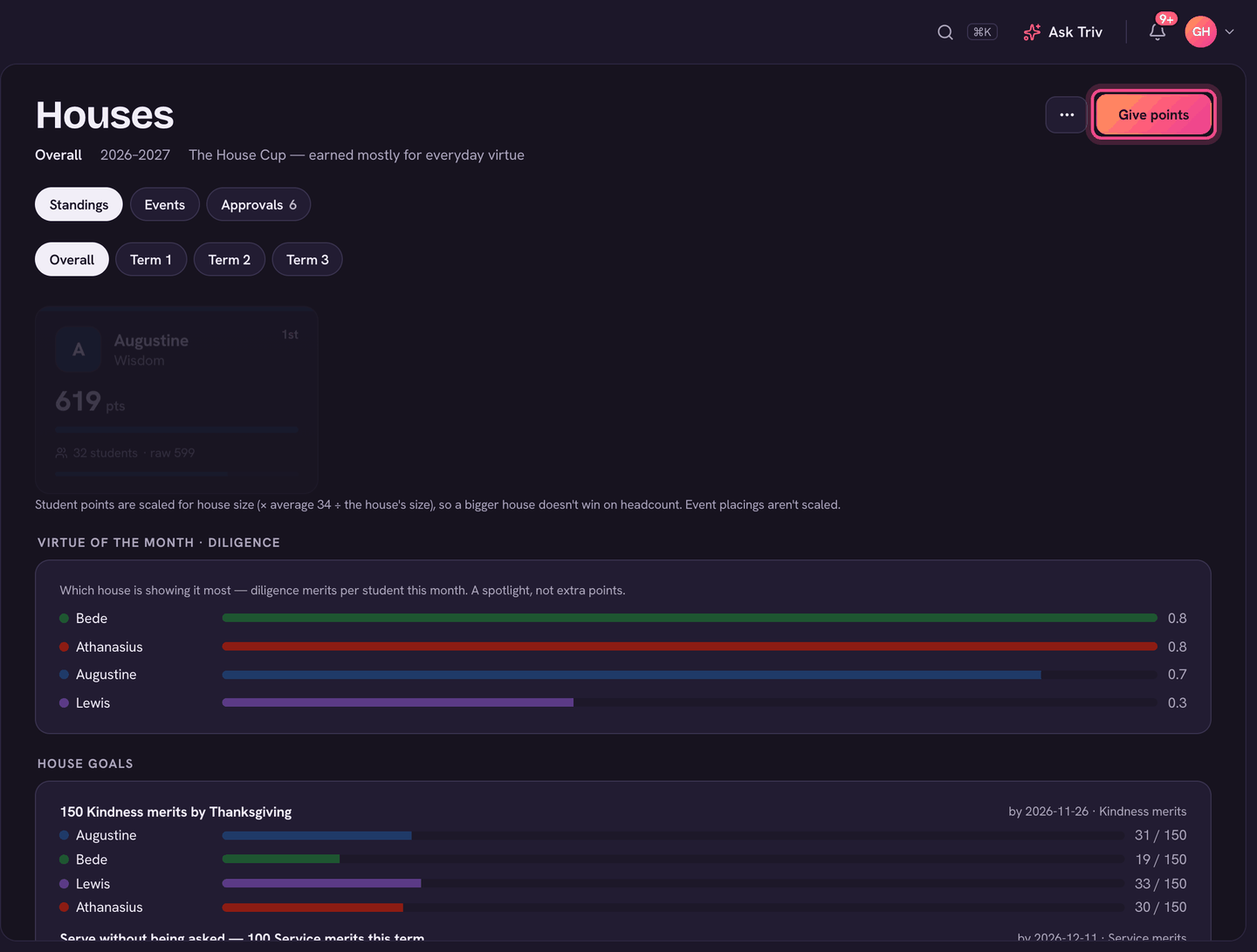
Open Houses (teachers: under Students in the sidebar; admins: Activities → Houses) and choose Give points at the top. In class, use the Give points button on a class's Students tab, on a roll, or on Home's Now card.
In class: the Give points board
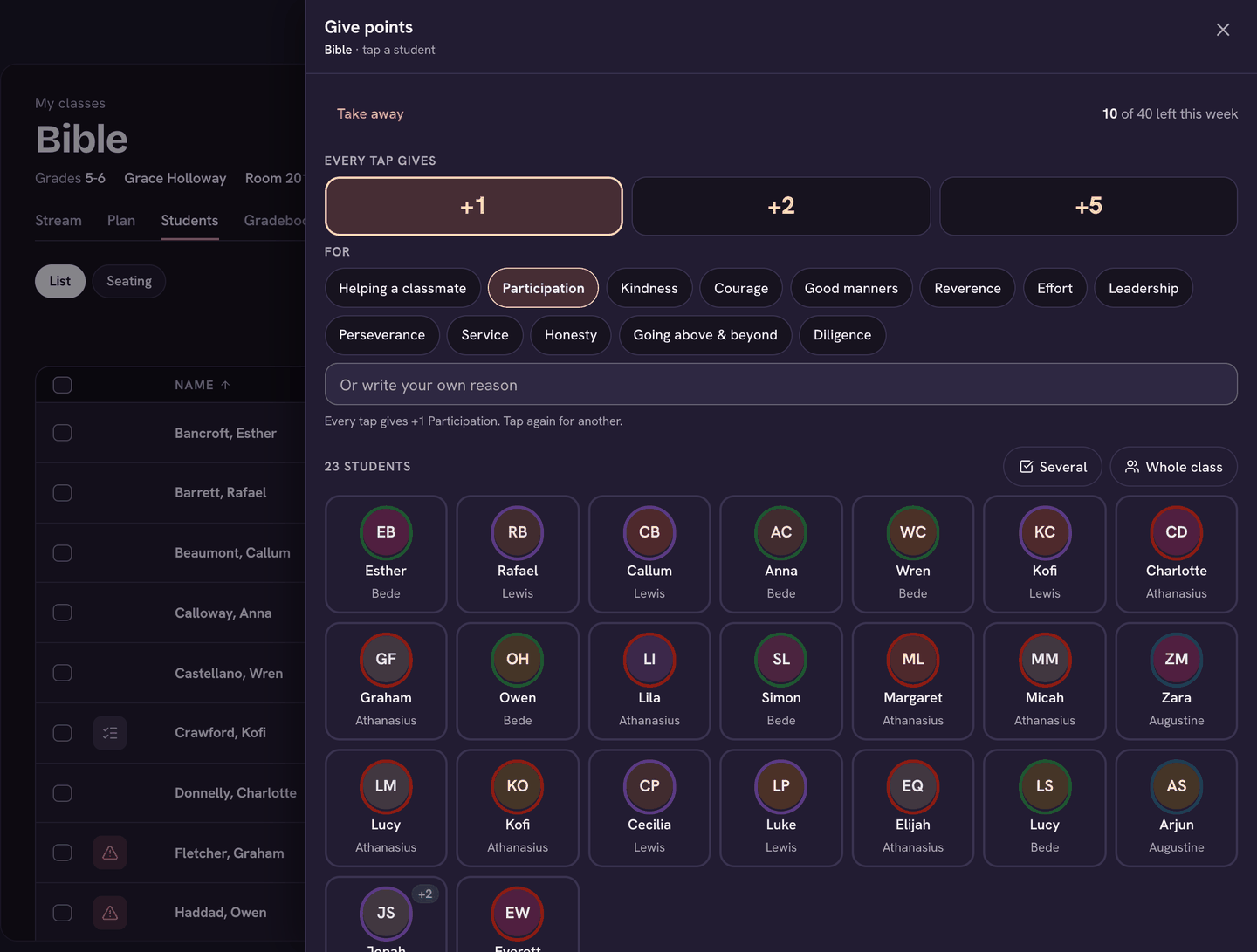
- Choose Give points on the class's Students tab, the roll, or the Now card on Home. A panel opens with every student in the class.
- Under Every tap gives, pick +1, +2 or +5.
- Under For, pick a reason, or type one in Or write your own reason. Your most-used reasons come first.
- Tap a student to give them the points straight away. Tap again to give more. Each tile shows how many you've given them today.
- To give the same points to a group, choose Several and tick the students, or choose Whole class. Then press the Give button at the bottom.
- Made a mistake? Undo takes back your last give. Choose Done when you're finished.
+5 is the top amount, so it asks you for a note first (What did they do?). Families see the note, so make it something to be proud of.
Any group: the Give points page
- Open Houses and choose Give points. The house standings sit at the top and update as you give.
- Choose who: All students is the default. Use Choose who for one of your classes, Teams (including who went to a recent meet or game), Grades (a grade or a house), or Paste a list of names from a spreadsheet or email. Find a student searches by name.
- Tap the students getting points, or use Select all.
- In the tray at the bottom, pick a reason. Other reason shows every reason the school has.
- Add a note for the family if you like (some reasons need one), then press Give +1 to 3 students (the button says exactly what will happen).
- Points added! shows what each house gained. Undo takes it back; Give more points starts again with nobody picked.
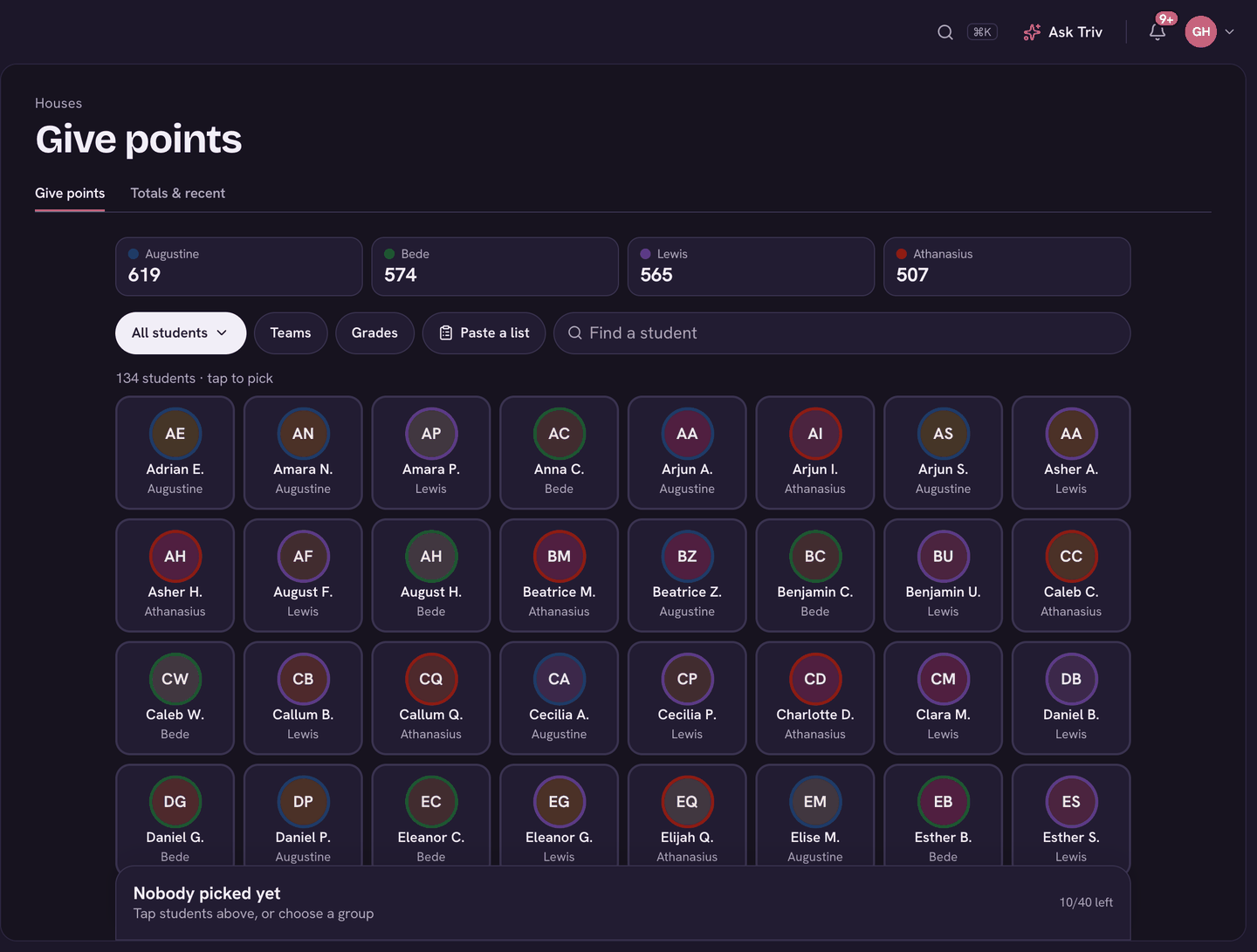
Totals & recent, the tab beside Give points, shows the latest points given and who gave them.
Admins also see Whole house on Give points: give any number of points to one or more houses at once, for example the winners of a house event.
One student: the house card
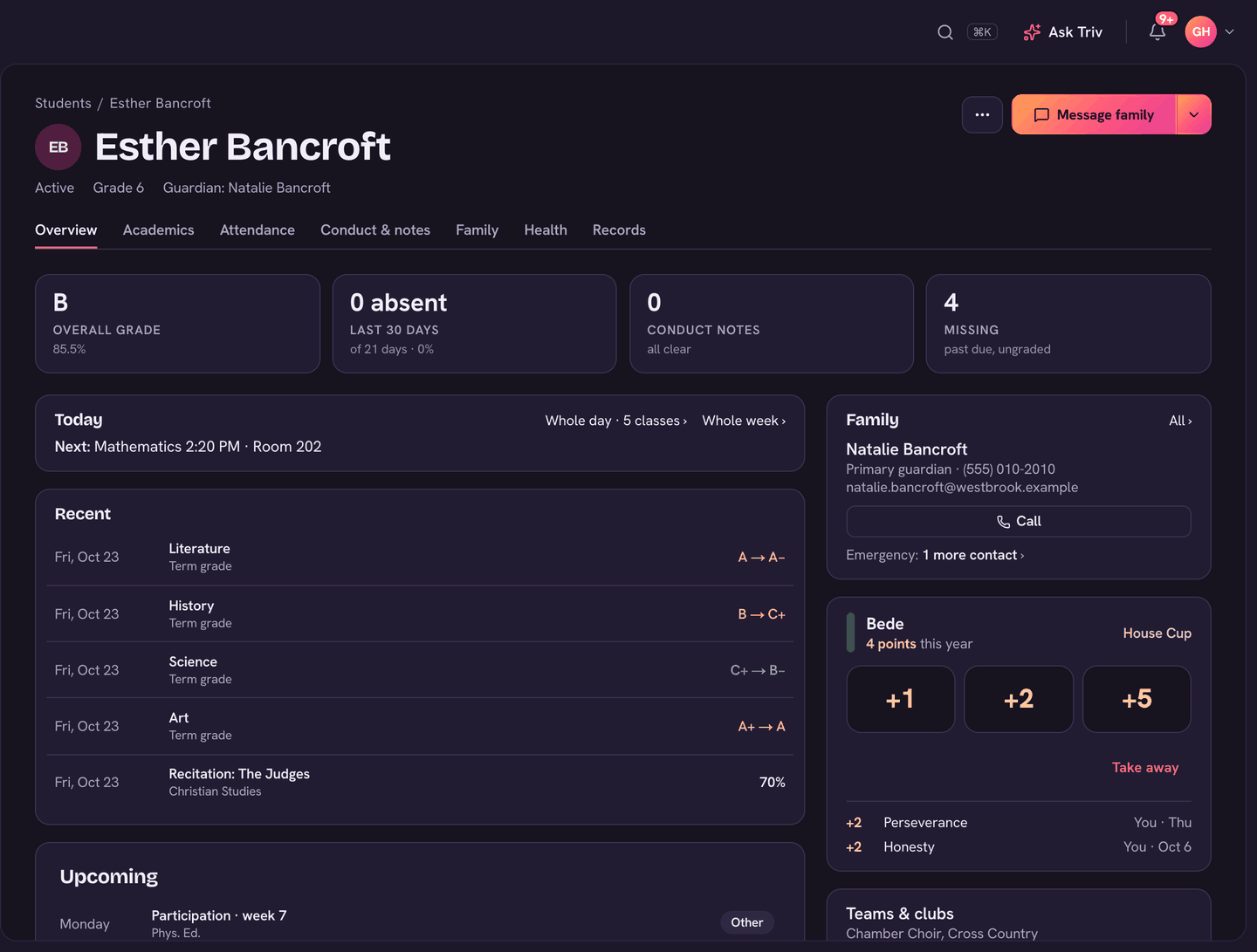
- Open a student's profile. Their house card shows their house and their latest points.
- Tap +1, +2 or +5.
- Pick a reason (or write your own), add a note (needed for the top amount), and choose Give.
Limits and taking points away
- There's no daily cap on points to one student.
- Your school may set a weekly allowance for each teacher (substitutes get a small daily one, and give 1s and 2s only). Past it, Trivium either warns you or stops you, depending on the school's rules.
- If deductions are on, use Take away… on Give points or Take away on a student's card. Depending on your school, a teacher's deduction counts straight away or goes to the student's house head to approve first. The family sees the note.
What families see
Nothing, until an admin turns it on. In Houses → ⋯ → Manage houses → Families & messages, the switch Families and students can see houses opens the Houses page and the standings to families and students. Once it's on, a family sees each point their child earns, with its reason and note. They never see other children's points.
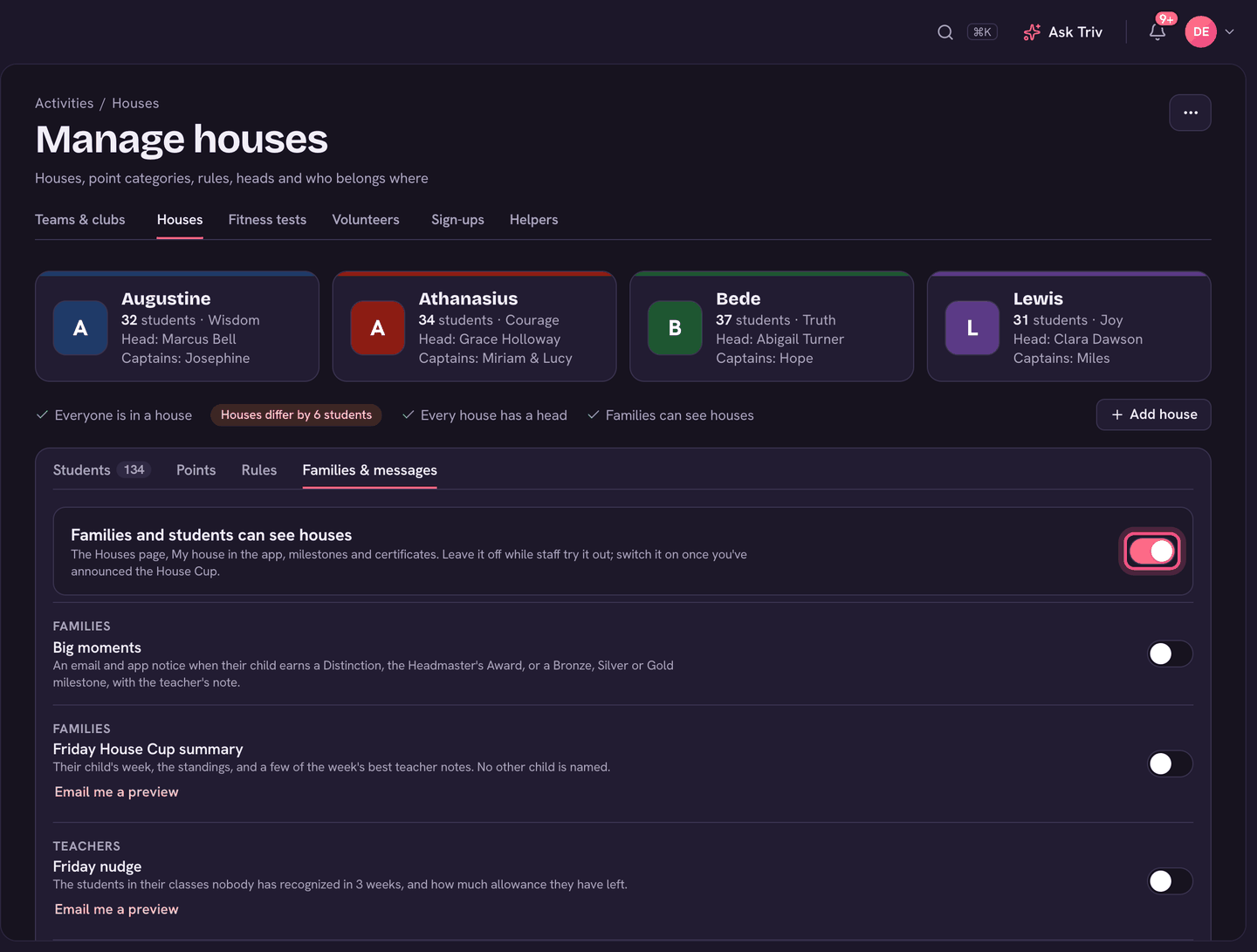
Leave the switch off while staff try it out, and turn it on once you've announced the House Cup. Optional family emails (Big moments, Friday House Cup summary) wait until the switch is on.
On the app
- Open the menu and choose Give points (under Students). It works like the web page: pick who, pick a reason, add a note, then Give.
- In class, tap Give points on the class's Students tab, the roll, the Now card on Home, or the ⋯ in Teach.
- On a student's page, the house card has the same +1, +2 and +5.
- The House Cup standings and Totals & recent are under ⋯ on Give points.
Setting up houses, reasons and allowances is covered in Setting up houses & awarding points.