A live drill runs the whole thing from one button. The office starts it, every hall sign and classroom board shows the alarm and the way out, teachers take their class's roll once they're outside, and the office watches the rolls come in. When you press Stop, the times and who was accounted for go straight into the drill log.
Where to find it
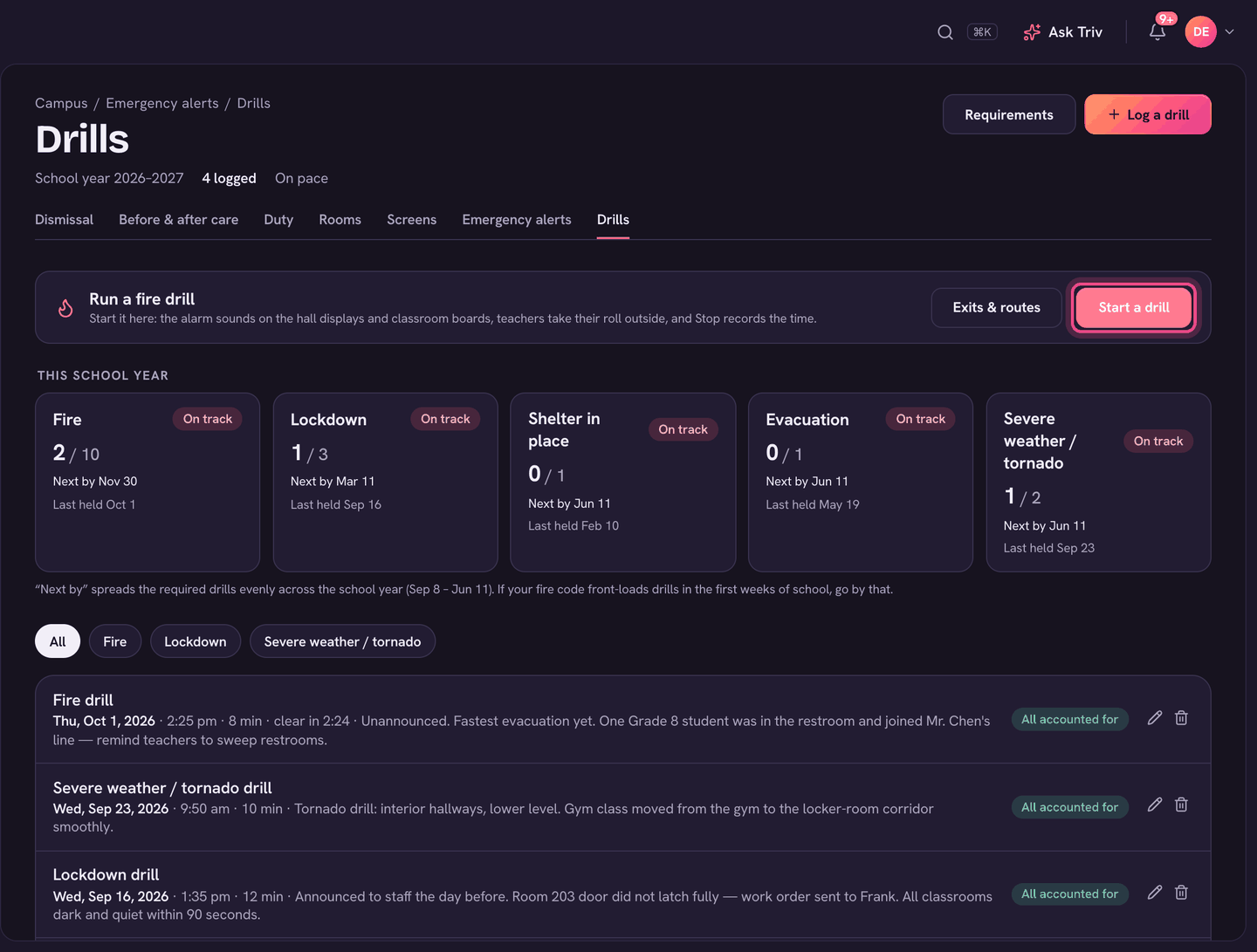
Admins: choose Campus in the sidebar, then the Drills tab. The Run a fire drill card has Start a drill and Exits & routes. Teachers: open Fire drill in the Trivium app's menu (under Do). When a drill starts, staff also get a phone notification that opens it.
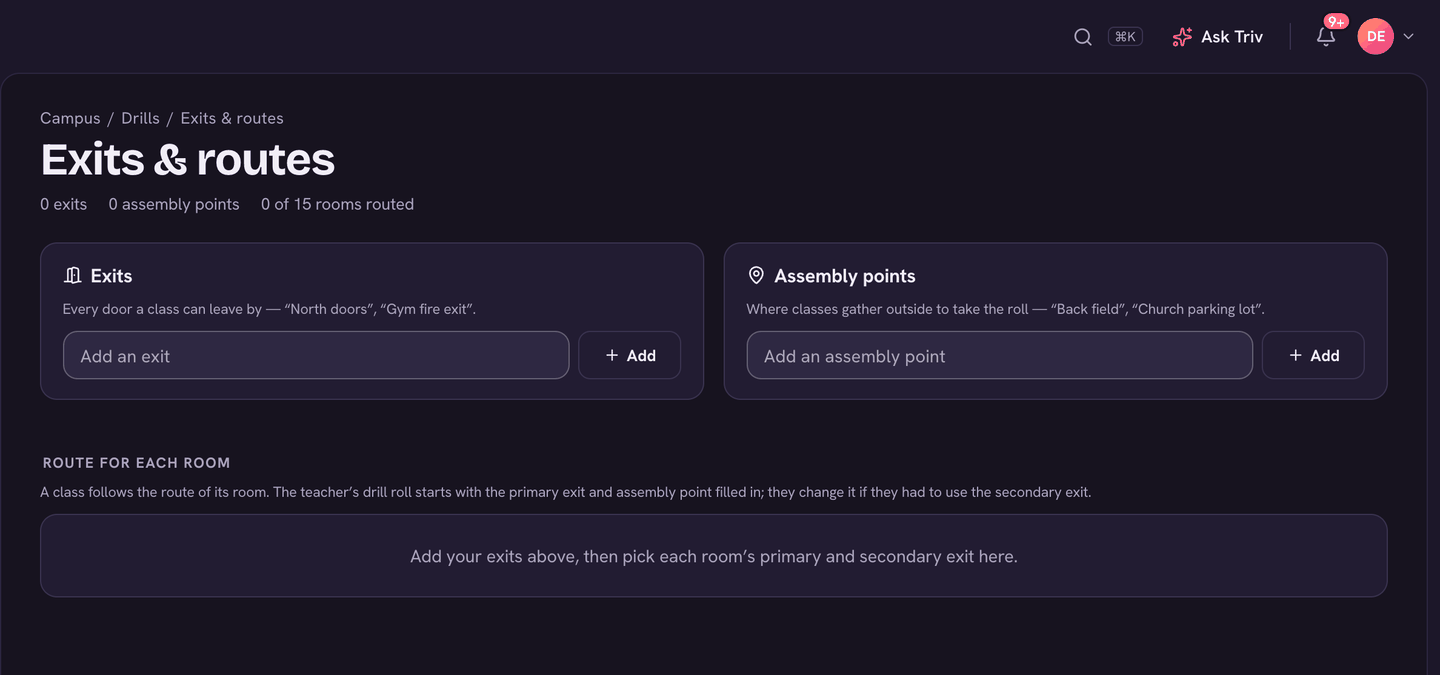
Before your first drill: exits and routes (admins)
- On the Drills page, choose Exits & routes.
- Under Exits, add every door a class can leave by ("North doors", "Gym fire exit").
- Under Assembly points, add where classes gather outside ("Back field").
- Under Route for each room, pick each room's Primary exit, Secondary exit and Assembly point. Each change saves as you go.
A class follows the route of the room it was in, so each teacher's roll starts with the right exit and meeting place, and the classroom board shows that room its way out.
No rooms listed? Add your rooms under Rooms first.
Start the drill (admins)
- On the Drills page, choose Start a drill.
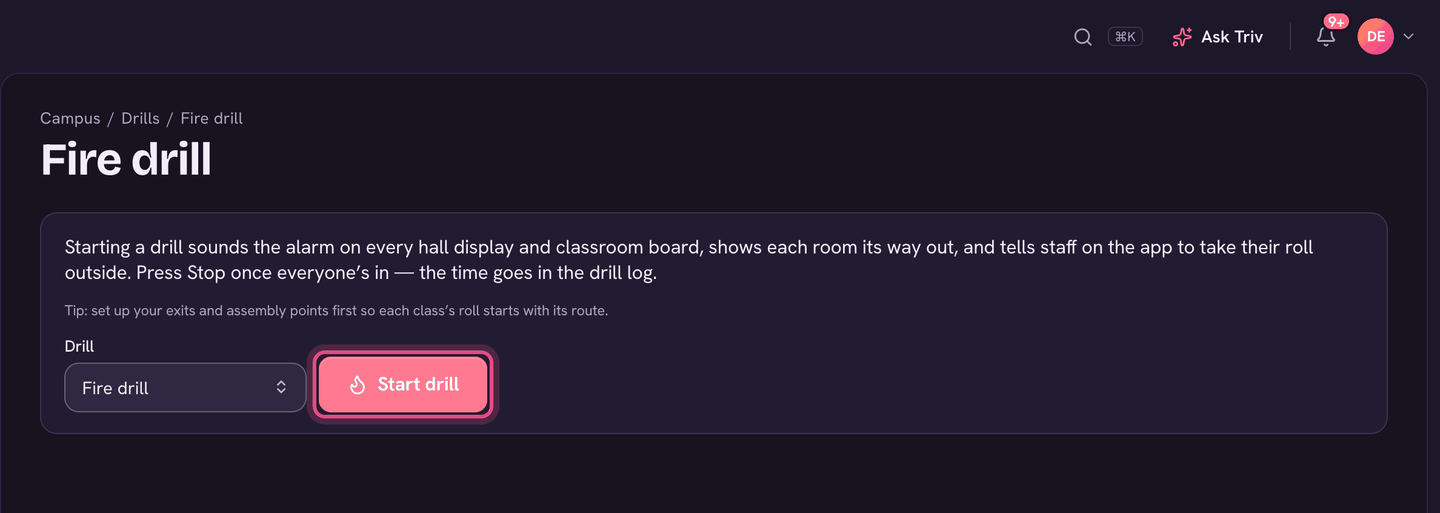
- Pick the Drill: Fire drill, Evacuation drill, Bus evacuation drill, or Drill for anything else.
- Choose Start drill and confirm. The alarm sounds on every hall display and classroom board, and staff are told to take their roll.
- Hall signs and classroom boards switch to a red screen that shows the drill and how long since the alarm.
- A classroom board shows its room's route: Leave by (the primary exit), If it's blocked (the secondary exit), and Meet at (the assembly point). Without a route it says to leave the building now.
- If a screen's browser blocks the sound, it says to press OK or tap the screen to sound the alarm.
Take your class's roll (teachers)
- Once you're outside, open Fire drill in the app (or tap the notification). The class you had on the timetable when the alarm went is already picked. If you had none, pick the class you have with you.
- Check Evacuated from (the room). Picking the room fills in its exit and meeting place.
- Check Exit used (Primary or Secondary, or Used a different exit) and Evacuated to.
- Mark each student Here, Missing or Not in. This morning's attendance shows beside every name, so you know who to expect. Mark the rest here (Rest here in the app) marks everyone you haven't checked.
- Choose Send roll. It reads Send roll — everyone here, or Send roll — 2 missing, so you can see what you're sending.
Students who were absent this morning, signed out, or in the health office are listed apart, under Not with you at the alarm. You only need to mark them if they are actually with you.
Changed something after sending? Choose Send again. After the drill stops you can still send or fix your roll for the rest of that day.
Watch the rolls and stop (admins)
- The drill page shows Rolls in and Missing at the top, and refreshes by itself every few seconds.
- Marked missing lists anyone a teacher marked Missing, with their class.
- Rolls not sent yet lists classes that were on the timetable at the alarm with no roll. Choose Remind to nudge the teacher, or Take this roll to do it yourself.
- Class rolls shows each class: who took it, where from, the exit, where they gathered and when it was sent.
- In the health office when the alarm went lists students the health office brings out, and a fold lists anyone present today who isn't on any class roll.
- Choose Silence alarm to stop the sound. The screens keep showing the drill.
- Once everyone's in, choose Stop drill and confirm. The screens go back to normal and the time is recorded.
The record afterwards
Stop adds the drill to the log on the Drills page. It fills in the Duration, the Building clear time (when the last roll came in, if every class sent one), whether everyone was accounted for, and a note listing any class that sent no roll and anyone marked missing. Choose the drill in the log to see its rolls again, and Print report for a one-page record of every class roll.
Admins can still take or correct any class's roll after the drill has stopped. See The emergency drill log for requirements and drills you held on paper.
On the app
- Open the menu and choose Fire drill (under Do).
- Admins see Start fire drill, or Another kind of drill… for an evacuation or bus evacuation. While it runs: Silence alarm and Stop drill.
- Everyone sees Your roll: Class, From, Exit used and To, then Here, Missing or Not in for each student. Tap Send roll to the office.